
You can add comments in mobile, as status comments or as notes. You can decide which one fits your needs the best.
Commenting in Mobile
Adding comments in mobile allows you to write down comments, ideas and notes on the go on the job site. You can later review these notes on your computer.
How to add the comment:
1. Select the work package you want to add the comment to.
2. Click on the speech bubble symbol next to the buttons to add Blockers and Issues.
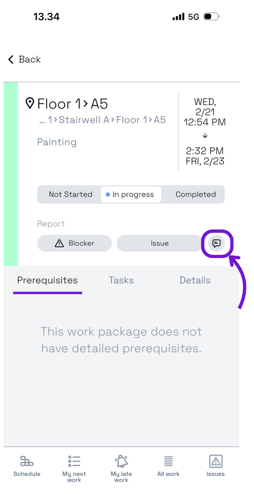
3. Write the comment.
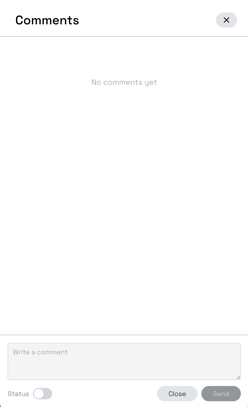
Please note that when the Status toggle is not selected, the comment will only be visible in the mobile app and in the side panel on the browser.
How to review the comment on computer:
1. Find the work package the comment was added to.
2. Open the work package in side panel by clicking on the work package while pressing down alt (option for Mac).
3. Go to the Comments and you will see the comments that have been added to that work package.
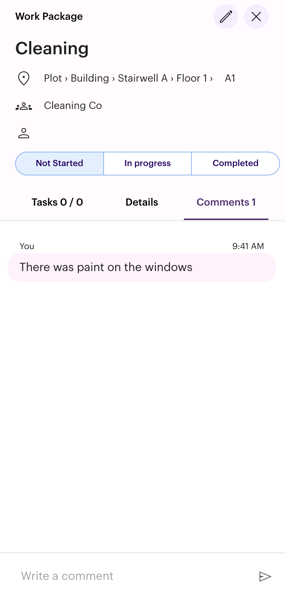
Status comments
With status comments you can add short comments to the work packages. The comments will have a time stamp that tells you when the comment was added and by whom. This way of commenting can be useful, for example, during weekly or daily meetings.
How to add a Status comment on mobile app:
1. Select the work package you want to add the status comment to.
2. Click on the speech bubble symbol next to the buttons to add Blockers and Issues.
3. Switch on the Status toggle at the bottom.
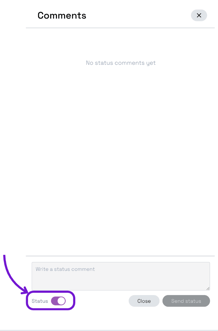
4. Write the comment
When the Status toggle is switched on, you can see all the status comments that have been added to the work package. You can also see the status comments in your Gantt schedule in browser.
How to add a Status comment on browser:
1. Open the schedule in Gantt.
2. Add the Status comment column to your view by pressing the three dots on the right side of Work package title row.
3. Select Status comment 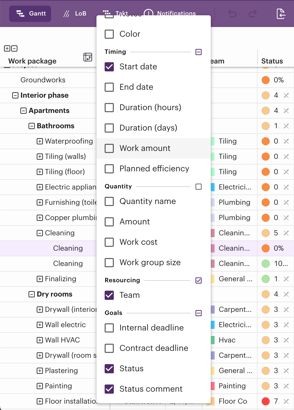
4. Click on the Status comment and write your comment.

5. You can write more than one comment. You can review previous comments by clicking on the cell. 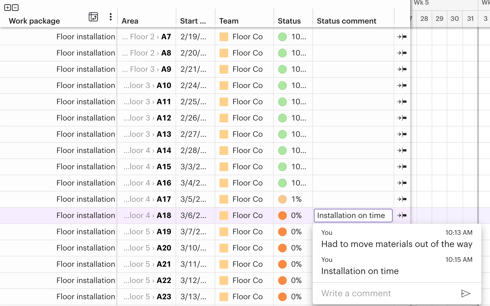
Notes
If you want to add notes that you can edit later, you can use Notes. These are suited for writing comments on sum work package level.
How to add notes:
1. Open the schedule in Gantt.
2. Add the Notes column to your view by pressing the three dots on the right side of Work package title row.
3. Select Notes.
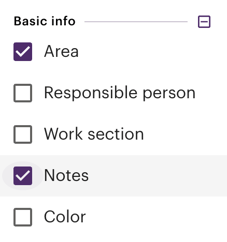
4. Click the notes on the row you want to add the notes to and write what you want. 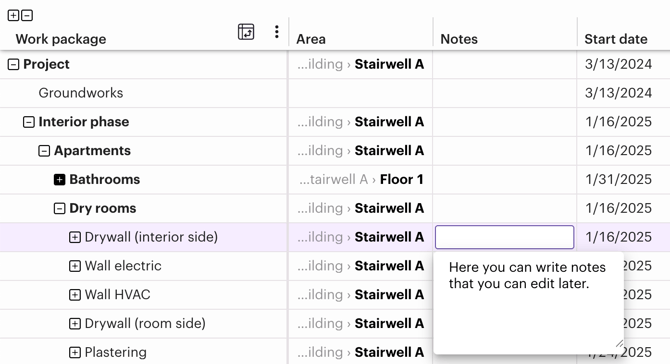
5. Press enter to save your notes.
6. You can open and edit the notes by clicking on them.