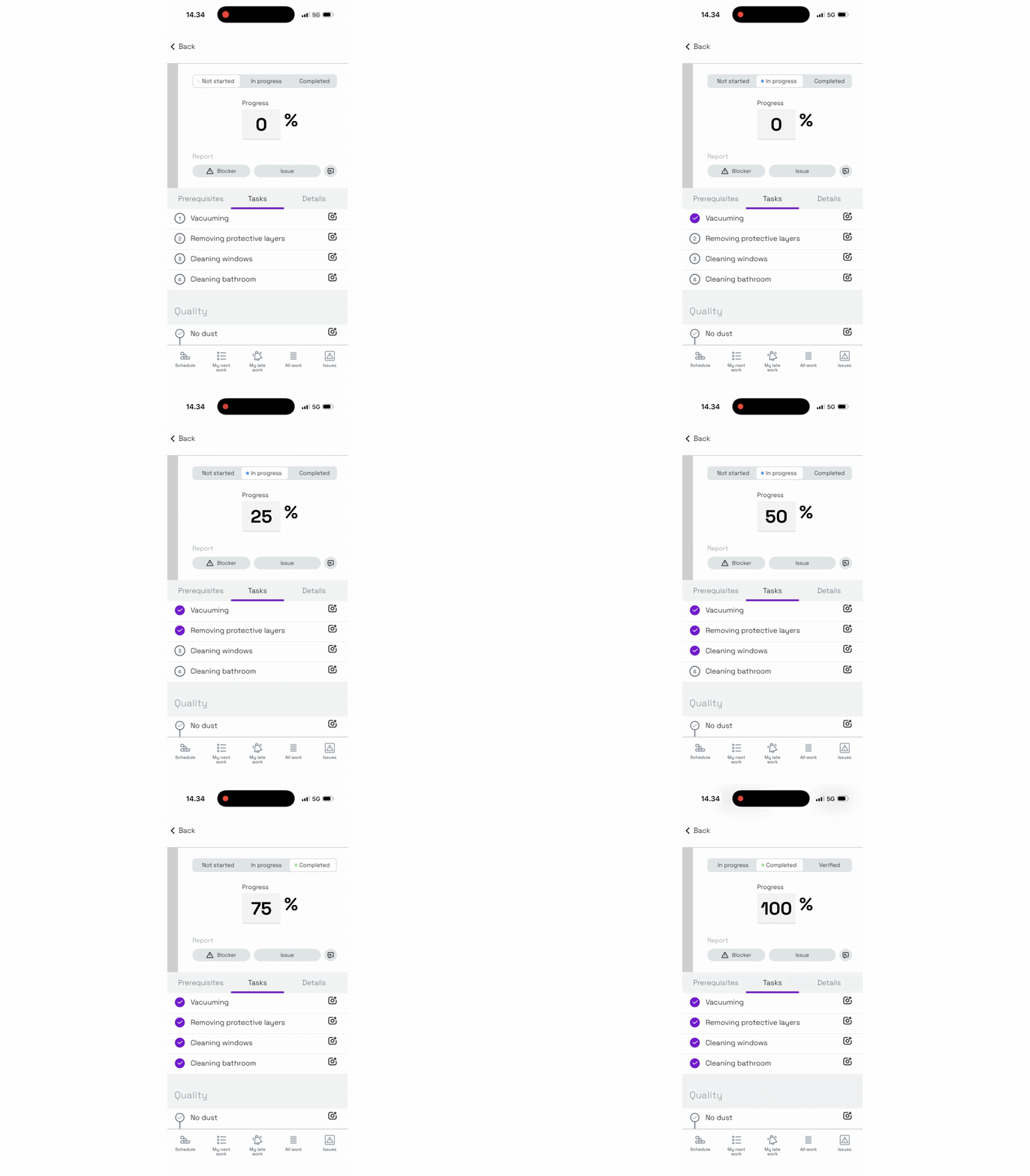
When you want to report the progress of your work on Sitedrive Mobile, you can do so by clicking the status buttons: "Not started", "In progress", or "Completed". You can also enter the progress as a percentage or mark tasks inside the work package as ready. The status updates can then be seen in both the mobile and browser versions of Sitedrive.
To mark progress, open the work package you want to edit. You can use filters to make it easier to find the correct work package.
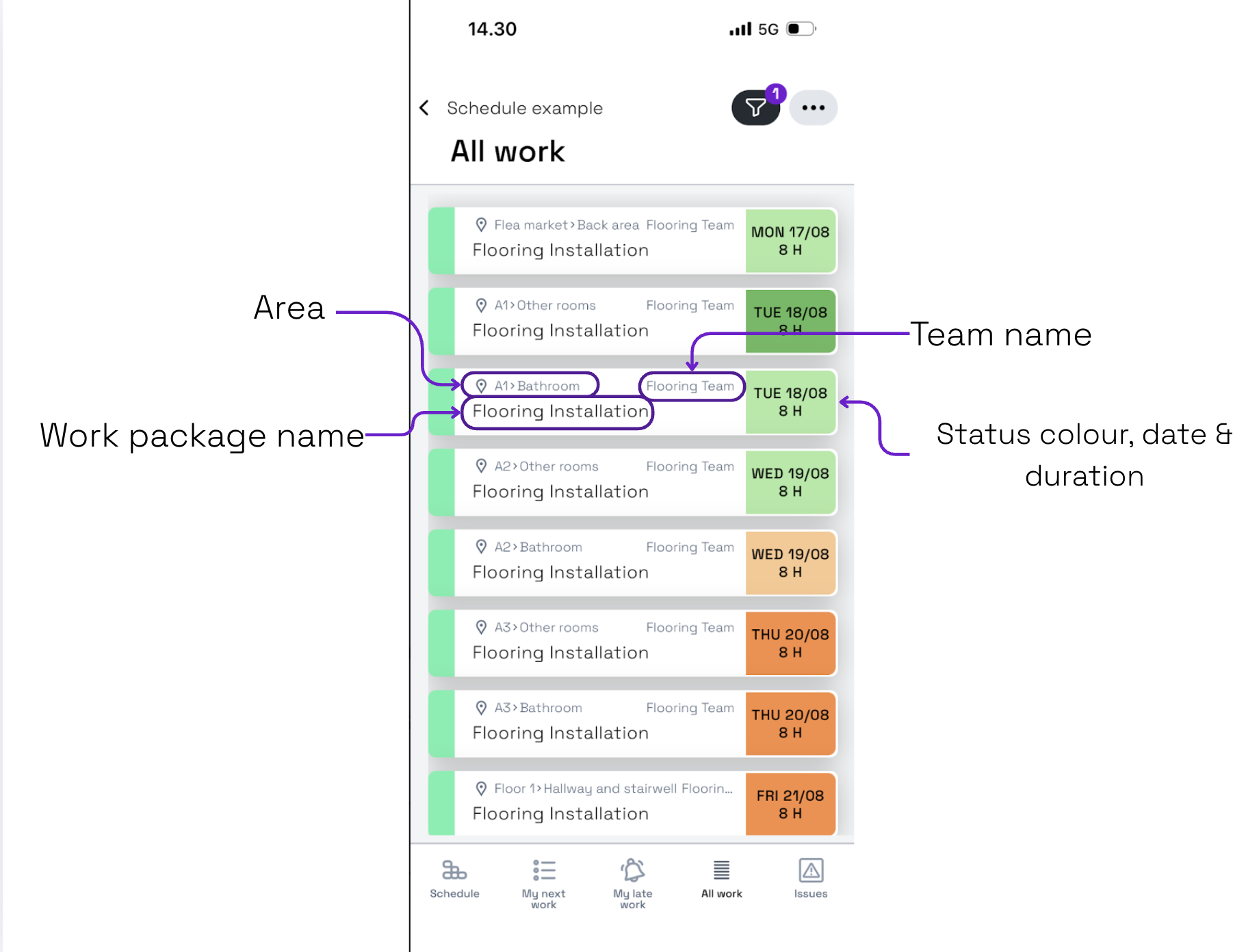
Updating the status
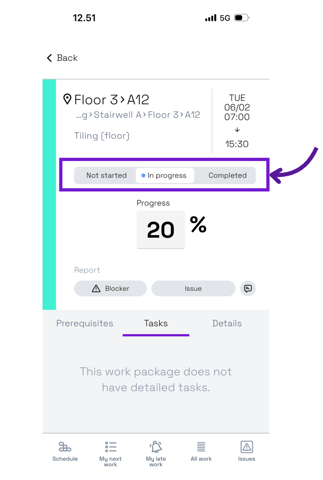
When you open the work package, you will see three buttons at the top: "Not started", "In progress", and "Completed". By clicking these buttons, you can easily change the status of the work package.
Below the status buttons, you can see the status percentage of the work package.
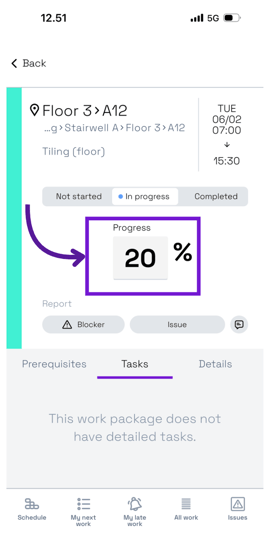
To change the status percentage, click the status percentage and enter the correct value. This will update the status.
If you don't see the percentage in the mobile app, it has not been activated for the schedule. The option to update status percentage in the mobile app can be activated in the schedule's basic settings in the browser version. Editing these settings requires Site- or Schedule-level access rights.
Checking off tasks and quality tasks
If tasks have been added to the work package, you can see them at the bottom of the screen when you open the work package.
If you don’t see the task list, the work package may not have any tasks added yet. New tasks can be added in the browser. Read more about tasks here.
Also, make sure that the “Tasks” option is selected instead of “Details” or “Prerequisites”.
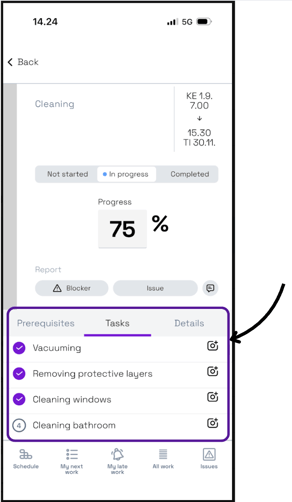
You can use the tasks as a checklist and select the checkbox when you complete a task. Each completed task updates the work package’s status percentage. When all tasks are completed, the work package status changes to “Completed”.