
.png?width=344&height=307&name=mobile2-1%20(1).png)
Downloading
You can download the Sitedrive mobile app from the App Store with a download link or the in the Play Store.
Download links
App store: https://apps.apple.com/fi/app/sitedrive-mobile/id6446890913
Play store: https://play.google.com/store/apps/details?id=com.sitedrive.mobile
Logging in
To access Sitedrive Mobile, users must log in using their emails that have been added to the project. Please note that for lower level access rights, the user only sees the work packages of their team and work packages that have been assigned to them.
If you do not see any schedules or work packages when you sign in to the app, make sure that
1. You have been granted access rights to a schedule
2. You have written your email address the same way it has been added to the site
3. If you have Accept or Report level access, make sure you have been added to a team and the team has been added to a work package.
If the schedule is locked in the mobile app, check that the site is in the production phase. Sites in the planning phase cannot be opened in mobile. See how to change the site phase here here.
Selecting project, schedule and schedule view
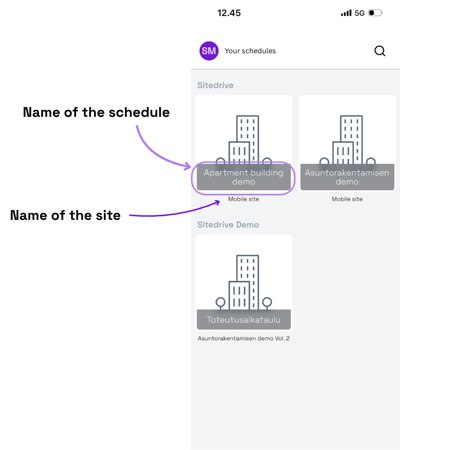
When you open the app, you will see all schedules you have been granted access to. The schedule name is shown at the top on a dark background, and the project name is shown below the schedule name.
Mobile views
The new Sitedrive Mobile introduces new ways to view the schedule and work packages in the mobile. There are two access levels in the mobile app, depending on user permissions: site management views and installer views.
The installer view is a simplified view focused on the user’s own work. It contains the following tabs:
-
Upcoming work
-
Delayed work
-
All work
In addition to these, the site management view includes the following tabs:
-
Schedule
-
Observations
Below is a table summarizing the permissions in the mobile app.
|
Access level |
Typical role |
View |
Shown work packages |
|
Report |
Installer |
Installer view |
Only own work packages (team's work packages) |
|
Accept |
Foreman of the installator |
Site management view |
Only own work packages (team's work packages) |
|
Refine (ltd) and refine |
Foreman |
Site management view |
The work packages they are owners of |
|
Schedule and Site |
Site manager, site engineer etc. |
Site management view |
All work packages |
Schedule
On the Schedule tab, you will find a schedule view similar to the takt view.
-
Easily see where work is (or should be) happening now or in the near future
-
See and update status quickly
-
Understand the bigger picture
-
Choose to view 3 days or 3 weeks at a time
-
Scroll the timeline horizontally
-
Open work packages
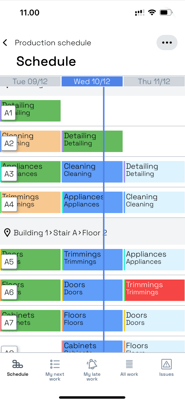
From the three dots in the top bar, you can choose the desired time scale (days vs. weeks). You can move the schedule forwards and backwards by scrolling it horizontally.
My next work
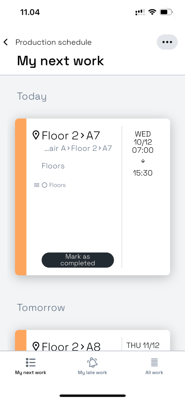
This view lists, in a very simple format, what should be done today and tomorrow. All extra information has been removed.
-
Open a work package
-
Report status
My late work
Delayed work packages are collected into their own view, where it is easy to see what is running late.
-
Easily see which work is delayed
-
Open a work package
-
Update status
All work
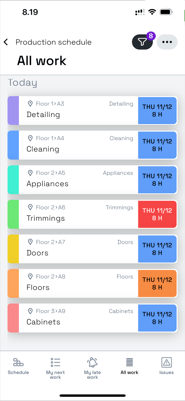
On the All work tab, you can see all work packages you have access to.
-
Find any work package you have permission to view
-
Especially useful, for example, on site walks
-
Filter work packages
-
Open work packages
Issues
On the issues tab, you will find a list of all reported blockers and issues for the project.
-
Easily see which issues are still open
-
Update issues and document how they will be resolved
-
Organize issues to make them easier to find
-
Open and edit issues
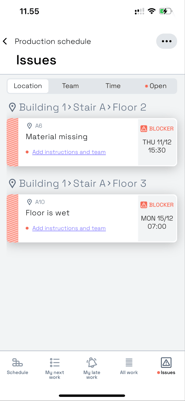
You can view issues by location, by team, in chronological order, or show only open observations.
Editing Issues and blockers
-
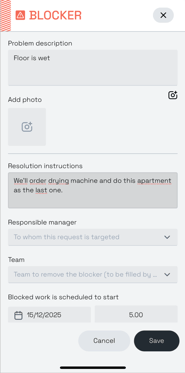
Site management can edit all fields in an issue.
-
A new field, resolution instructions, is used to communicate how the problem should be fixed.
-
For installers, reporting issues is clearly more straightforward.
Custom settings
Entering progress as percentages
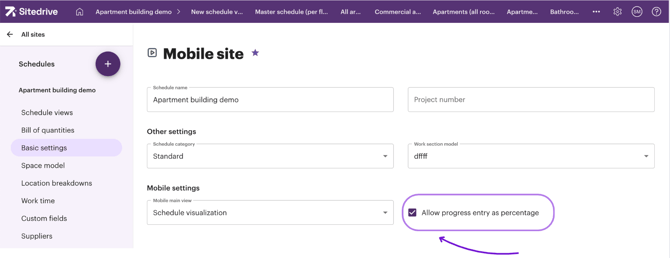
You can report status as percentages in the mobile app when this feature has been enabled in the schedule settings in the browser version.
Selecting the main view
You can select the main view to be either Schedule visualization or All work listing. This way you can choose which view is shown first in the app.
