
With the 3.0 version you can have independent saved tabs — like browser tabs. Each with its own visualization, filters, and settings.
- Tabs— Pin, close, reopen, and share via clean URLs
- Preset views help you get started faster— "My Work," "Team View," "Full Schedule" for quick start
- Space filter— Isolates work by section, floor, or apartment
- Filters— Can be locked (shared) or unlocked (personal and temporary)
"One schedule. Any view. Shared in a click."
Creating a new schedule view tab
With Site or Schedule access right, you can create a new tab by clicking on the + symbol in the top bar next to the open view tabs. You can use ready made preset views or you can create a custom view where you are able to set the setting to your need.
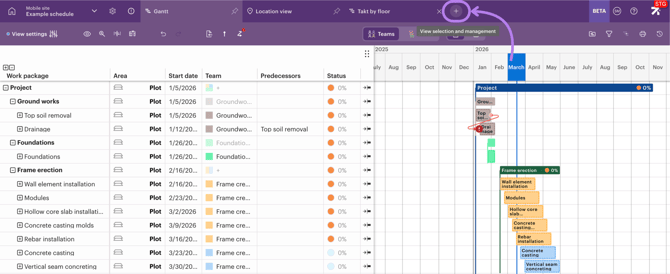
You can pin the schedule view so that it is visible to all users, or you can choose which users can see each view.
Preset views
Ready-to-use views cover different schedule types at multiple levels: Gantt, Takt, and Line of Balance. Sitedrive automatically offers you different level options for takt and line of balance views.
In the 3.0 version, you can also create a Gantt-type view where work packages are ordered by their locations. This is similar to the Pivot by Area function available in the current version of Sitedrive.
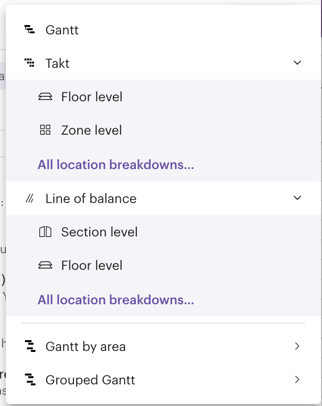
Custom views
When creating a custom view, you can adjust the settings to fit your needs. You find these settings in the left side of the tool bar.
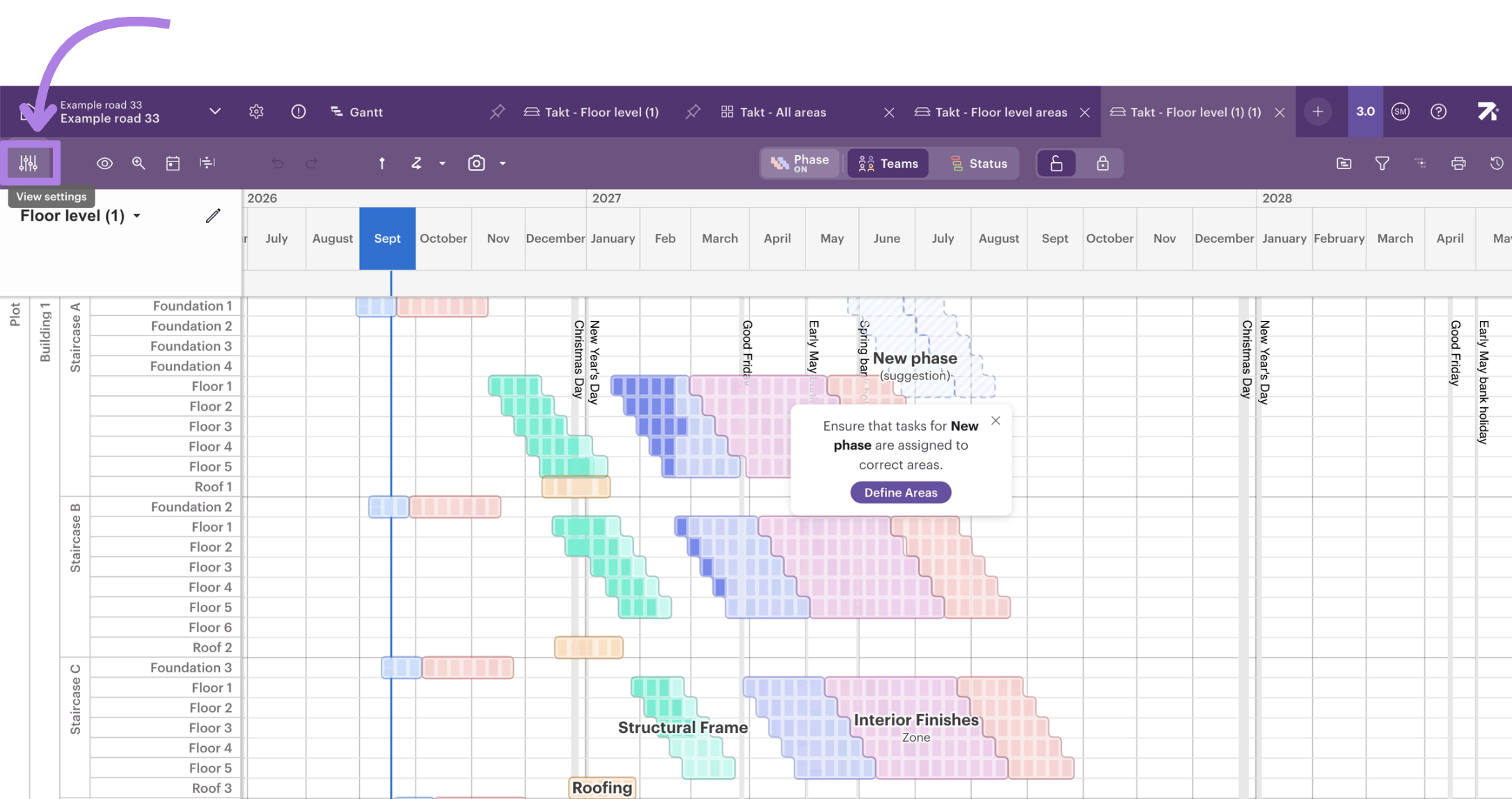
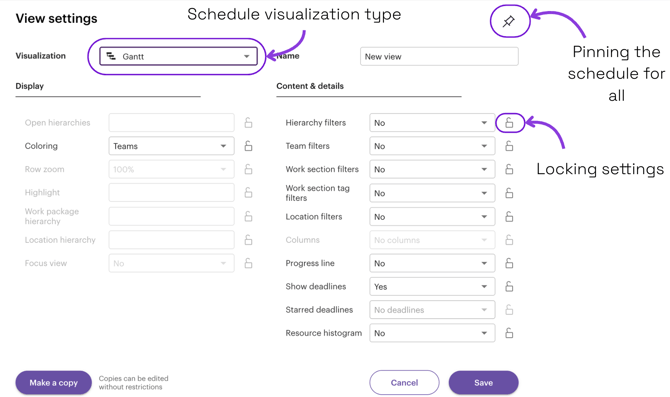
For example, you can:
- Choose a name for the view
- Choose the schedule visualization (Gantt, Takt, LoB, etc.)
- Lock settings for this tab so they apply to all users
- Pin the schedule view so it cannot be closed and opens for everyone
- Filter by work packages, teams, locations, and more
In the custom views list, you can see and open all schedule views that have been added to the schedule.
If a setting is locked, it applies to everyone and is visible to all users. If it is not locked, the setting is personal, and each user can adjust it as they like.
Sharing the tab
You can share the tabs with URLs. Copy + paste the address and send it to other Sitedrive users. Using the URL to open the schedule will open the same schedule view tab that it was copied from.
For the lower level users, they can only see the views that are either shared for them or views that are pinned for all. You can share the view with the users with URL link or in the view menu.
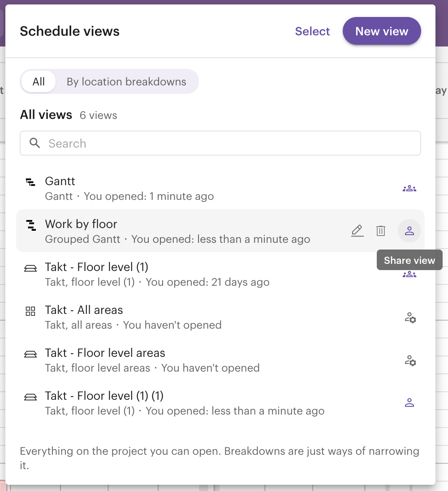
You can always open and close the tabs when you need without losing any data. Only pinned schedule view tabs stay open for all of the users.
Please note that users still need the correct access rights to see the schedule. You can view and manage the list of users in the schedule settings, accessible via the gear icon next to the schedule view tabs.