
1. Signing in
-
Go to app.sitedrive.com and choose to sign in with email. Sign in using the same email address that was used to add you to Sitedrive.
-
You'll receive a one-time login code by email, which you need to enter into Sitedrive.
-
If you don't see any sites after signing in, check that you used the correct email address, and if needed, contact your site's admin.
2. Home page and projects
-
After signing in, you'll see a list of the projects you've been added to.
-
Check whether you're using Sitedrive version 2.5 or 3.0. You can see the version number in the top-left side of the top bar. We recommend using version 3.0.
-
On the home page, click the project you want to open it.
-
The schedule will open in the gantt view, which is a bar chart showing tasks and their timing.
-
Each site can have several schedules. You can check which schedule is currently open by clicking on the schedule name in the top-left corner.
3. Basic navigation in the timeline view
-
Scroll up/down to see different work packages and tasks.
-
Scroll sideways to see different points in time.
-
You can zoom the view to look at either a short or a long time period (ctrl + mouse scroll).
Useful keyboard shortcuts
| Key | Action |
|---|---|
| Ctrl + mouse scroll (Cmd + mouse scroll on Mac) | Zooms the schedule view |
| Ctrl + mouse scroll over the rows | Changes row height |
| Spacebar + drag | Pans the view |
| Esc | Removes the selection |
| Spacebar | Opens/closes the selected row |
| Double-click | Opens work package editing |
| Ctrl + click (Cmd + click on Mac) | Selects multiple rows/work packages |
| Shift + click | Selects all rows between selections |
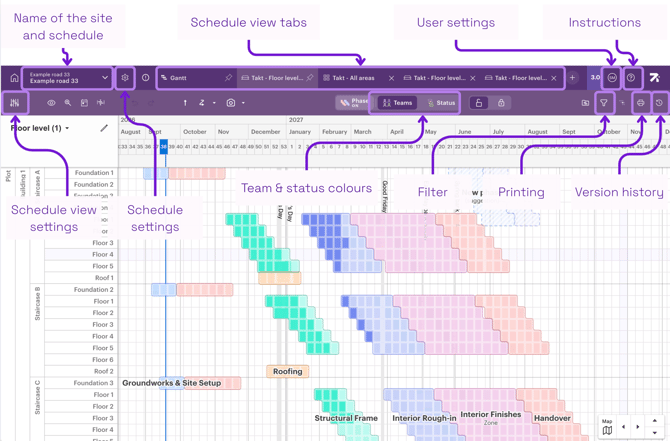
The image below shows where to find some of Sitedrive's basic features.
4. Moving between different schedule views
-
In Sitedrive, a schedule can have several different schedule views. You can see the views as tabs above the schedule.
- You can see the same schedule in different formats (gantt, takt, line of balance) and with different settings.
- You can switch between views whenever you like.
- All schedule views are connected, updates made in one view are visible in the others as well.
5. Viewing work package details
-
In Sitedrive, a schedule is made up of different work packages.
-
You can double-click any work package (bar) to see more details, such as the timing, the responsible person, and the status.
6. Marking progress
-
As work is done, you can mark a task's progress directly in the timeline view or in another view.
-
From the top bar, in the middle, you can choose to color by team colors or status colors.
-
Updating statuses helps the whole team see what stage the work is at.
7. Settings
-
You can find your personal user settings in the top bar by clicking on your initials.
-
In the user settings, you can change your own language and date format, for example if you want to switch languages. You can also link your Microsoft account to your Sitedrive user here.
-
Project settings can be found behind the gear icon next to the schedule name, while a schedule is open.
-
Account settings can be found in the top bar next to your initials. If you don't see all the settings, this is likely due to your user permissions.