
If you used the older version of Sitedrive, most things work the way you remember: the same sites, schedules, work packages, teams and roles. Your schedule data is the same in both. What has changed is mainly how you move around a schedule and where some tools are. This article lists the main differences, explains how a site is moved to the current Sitedrive, and shows where the old help articles are now.
What’s different
| In the older version | In the current Sitedrive | Read more |
|---|---|---|
| Each site had a landing page with the schedule settings. | You go straight into the schedule. Schedule settings is the gear icon next to the schedule name in the header. | Schedule settings |
| Schedule views were fixed pages. | Views are tabs, like browser tabs. You can pin, close, reopen and share them. | Views as tabs |
| The Pivot tool grouped work by area, team, owner or assignee. | Create a Gantt by area or Grouped Gantt view. It opens as its own tab that you can share. | Gantt |
| Location breakdowns were set up in the site settings. | You edit location breakdowns inside the schedule, for each view and phase. | Location breakdowns |
| Choosing locations for work | Choose the areas for a whole phase at once with Define Areas. | Define areas |
| Dependencies were not available. | Link work packages with dependencies. | Dependencies |
| Choosing Gantt columns | Columns is in the view toolbar at the top. | Gantt |
| The work package editing window | Opens as a side panel on the right, so you can still see the schedule. | Work packages |
| You refreshed the page to see other people’s changes. | Changes made by others appear automatically, without a refresh. | Finding your way around |
A space model builder makes it quicker to set up the locations of a new project. See Building the space model.
Move a site to the current Sitedrive
Sites that are still on the older version can be moved to the current Sitedrive one at a time. The move option appears in the site’s Schedule settings menu only on sites that haven’t been moved yet.
- Open a schedule on the site.
- Select Schedule settings (the gear icon in the header).
- In the settings menu, select the option to move the site.
- Read the confirmation.
- Confirm the move.
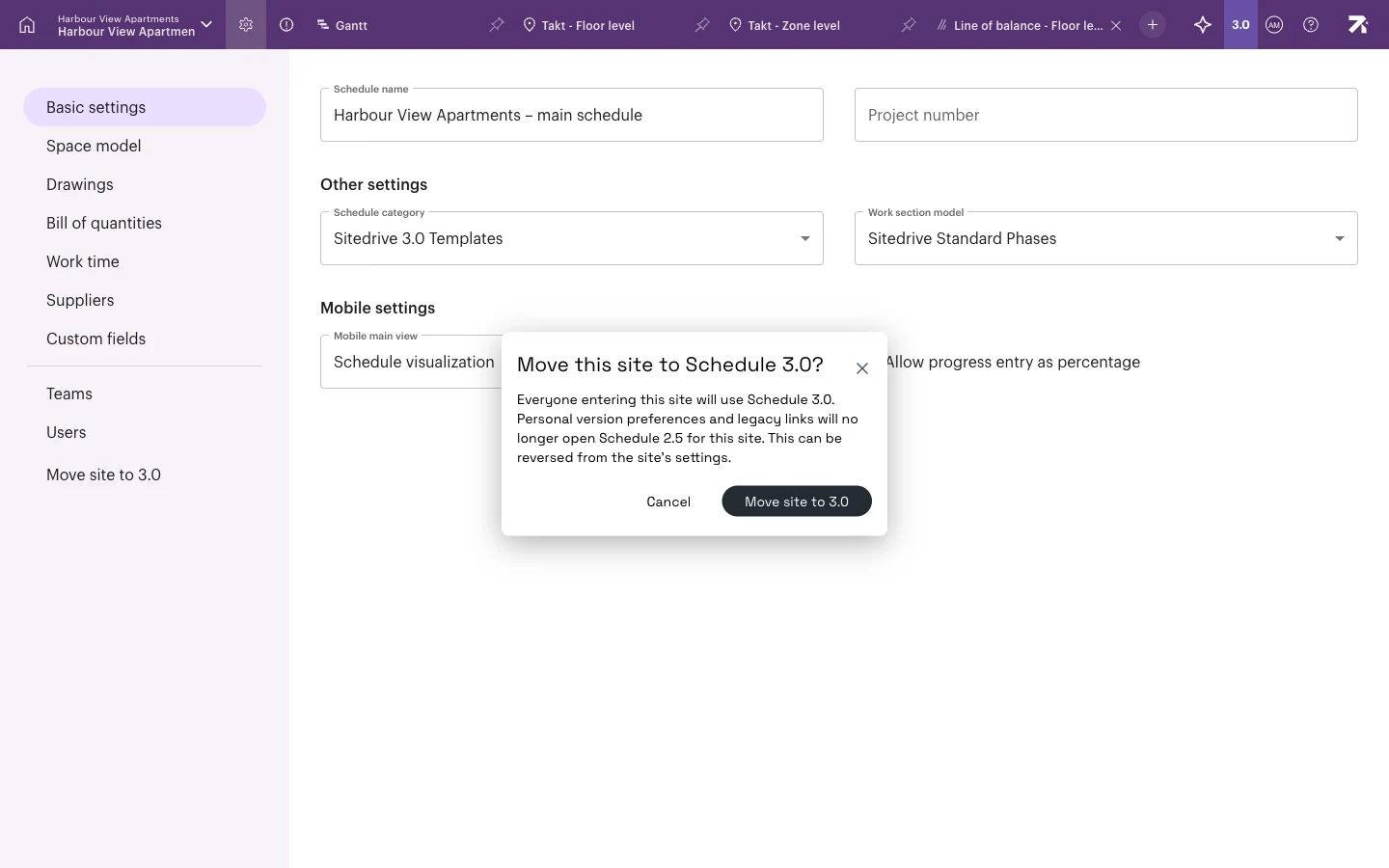
The dialog explains what happens:
- Everyone entering this site will use the current Sitedrive.
- Personal version preferences and legacy links will no longer open the older version for this site.
- The move can be reversed from the site’s settings.
Moving the site doesn’t change the schedule data: work packages, statuses, teams and users stay as they are. Tell the people working on the site before you move it, so that they aren’t surprised by the new layout.
Where the old help articles went
Old help links redirect automatically to the new articles. Use this table if you remember an old article by its title.
| Old article | Now covered in |
|---|---|
| A Short guide to Sitedrive | Quick-start paths by role |
| A Site and a schedule | Key concepts in five minutes |
| Access right levels | Roles and what each one can do |
| Adding holidays to your schedule | Working time and holidays |
| Adding teams to the project | Teams and people |
| Blockers and issues | Blockers, issues and quality tasks |
| Copying work packages | Takt planning |
| Creating a new schedule (preview mode) | Creating a schedule |
| Creating tasks in work packages | Work packages |
| Creating work packages in Takt view | Takt planning |
| Deadline tools | Deadlines and milestones |
| Dependencies (preview mode) | Dependencies |
| Editing in Takt | Takt planning |
| Editing work package status in the mobile | Reporting status on mobile |
| Filtering the schedule | Filter, highlight and focus |
| How do I add a custom column in Gantt? | Gantt |
| How do I add comments to the work packages? | Photos, comments, blockers and issues on mobile |
| How do I change the order of work packages in Gantt? | Gantt |
| How do I fix invalid or overlapping work times? | Working time and holidays |
| How do I show work packages on sum level? | Takt |
| How to add an user to a schedule | Teams and people |
| How to change site from planning phase to production phase? | Creating a site |
| How to create a Sitedrive API key? | API and AI assistant access |
| How to display Sitedrive on a display screen? | Site screens |
| I couldn’t find answers to my question. What to do? | FAQ and troubleshooting |
| Keyboard shortcuts | Keyboard shortcuts |
| Language and date formatting settings | Finding your way around |
| Line of Balance | Line of balance |
| Location breakdown and schedule views | Location breakdowns |
| Location breakdowns (preview mode) | Location breakdowns |
| Locking the schedule | Undo, version history and baselines |
| Making a new schedule | Creating a schedule |
| Making and editing work sequences in Takt | Takt planning |
| Trying out the current Sitedrive | This article |
| Performance improvements (preview mode) | This article |
| Personal Access Tokens & MCP | API and AI assistant access |
| Pivot feature | Gantt |
| Printing a schedule | Printing and exporting |
| Progress lines | Comparing progress to plan |
| Quantity based scheduling | Quantity-based scheduling |
| Quantity based scheduling in Gantt | Quantity-based scheduling |
| Quantity-based scheduling from the bill of quantities | Quantity-based scheduling |
| Resource histogram | Colouring and display options |
| Schedule templates and work package library | Reusing plans: templates and libraries |
| Schedule views (preview mode) | Views as tabs |
| Setting up a new site and a schedule | Creating a site |
| Signing in to Sitedrive with your Microsoft account | Signing in, browsers and language |
| Sitedrive mobile | Installing Sitedrive Mobile and signing in |
| Space model | Building the space model |
| Status colors | Colouring and display options |
| The new Sitedrive mobile is here! | Installing Sitedrive Mobile and signing in |
| Timeline notes | Deadlines and milestones |
| User management on account level | Account users |
| Version history | Undo, version history and baselines |
| What browser should I use? | FAQ and troubleshooting |
| What is Sitedrive API? | API and AI assistant access |
| Why can’t I find the Sitedrive mobile app in the app store? | Installing Sitedrive Mobile and signing in |
| Why don’t I have any sites? | FAQ and troubleshooting |
| Work amount | Quantity-based scheduling |
Release notes haven’t moved. You find them in Release notes.
Good to know
- The move is made per site, so it affects everyone working on that site.
- Links that used to open a site in the older version open the current Sitedrive after the move.
- If something you relied on seems to be missing, check FAQ and troubleshooting or contact Sitedrive support.