
A busy schedule has hundreds of work packages. Sitedrive Mobile gives you three ways to narrow down what you see: a filter on the All work tab, a location breakdown selector on the Schedule tab, and a daily or weekly time scope.
Before you start
- Everyone has the All work tab and its filter.
- The Schedule tab, and with it the location breakdown selector, is shown only to users with Accept rights or higher. See Who sees what on mobile.
Filter the All work list
The filter is available on the All work tab only. The filter button shows a number when filters are active.
- Open All work.
- Tap the filter button at the top of the screen. The Filter sheet opens.
- Tap a section to expand it:
- Teams, including No team.
- Work package owner, including No owner.
- Status, with the statuses described in Reporting status on mobile.
- Location. Type in Find location to search the location tree.
- Tick the values you want to see. Each section also has All.
- Tap Apply.
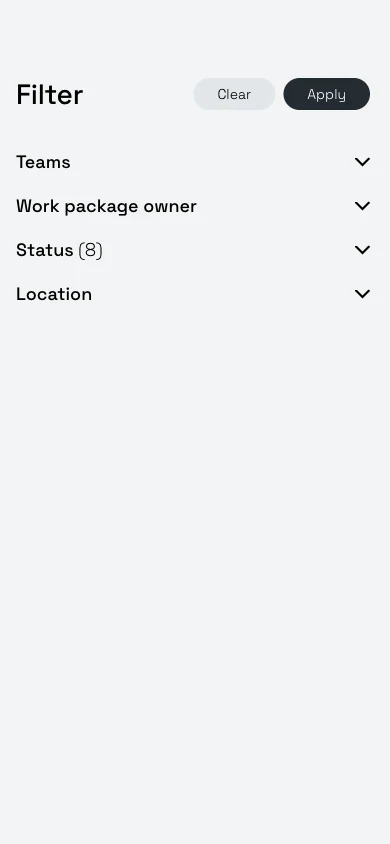 Status (8) means eight of the nine statuses are selected. Verified is left out by default.
To remove all filters, open the Filter sheet and tap Clear.
If nothing matches, the list says “No matching work packages”. Change the filters to see work again.
Your filters are remembered on your phone for that schedule view, so they are still there the next time you open All work.
Open the filter, tick a team and select Apply. The badge shows how many filters are on.
Choose the location breakdown on the Schedule tab
A location breakdown decides how the building is divided into rows, for example by floor or by zone. Different phases can use different breakdowns. See Location breakdowns.
- Open the Schedule tab.
- Tap the breakdown name next to the tab title, for example Floor level.
- Select a breakdown from the list.
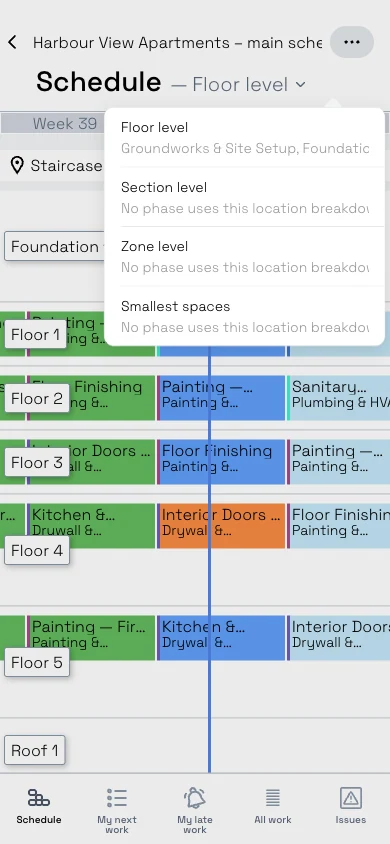 Under each breakdown you see the phases that use it. “No phase uses this location breakdown” means there is no work planned on it.
The list shows the breakdown names used in the schedule, such as Floor level, Section level, Zone level and Smallest spaces. Work planned on a different breakdown is dimmed on the timeline. The schedule’s default breakdown is selected at first, and the app remembers your choice.
Switch between daily and weekly
- Tap More options (⋯) at the top of the screen.
- Select Show daily or Show weekly.
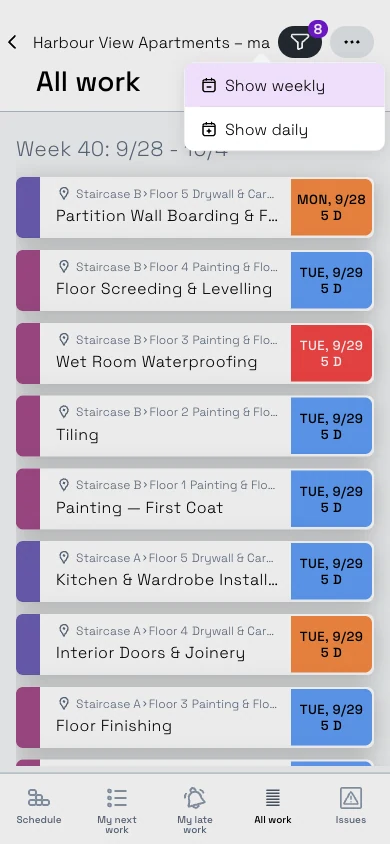
The choice applies to My next work, All work and the Schedule timeline. On the Schedule tab, More options also has Go to today, which scrolls the timeline back to the current day.
Weeks start on the day that is usual for the schedule’s country.
Good to know
- The filter does not affect My next work, My late work or Issues. Those tabs always show your own work. See Who sees what on mobile.
- Verified work packages are hidden in All work by default. To see them, tick Verified under Status.
- There is no month calendar on mobile. The Schedule tab loads work from 14 days back to 14 days ahead. Use the web app for longer periods.
- The only date picker on mobile is in the blocker and issue form. See Photos, comments, blockers and issues on mobile.