
Sitedrive uses a small set of building blocks. Once you know them, the rest of the guide is easier to follow. This article explains each one briefly, using the demo project Harbour View Apartments as the example.
Account, site and schedule
Everything in Sitedrive sits in a three-level hierarchy:
- Account – your organisation. It holds your users, schedule templates, work section libraries and account-wide settings. Account admins manage it.
- Site – one construction project, for example Harbour View Apartments. A site’s users and teams are shared by all its schedules. A site is either in the Planning phase or the Production phase.
- Schedule – a plan inside a site. A site can have several schedules (for example a main schedule and a what-if version). Each schedule has its own space model, work packages, working time, custom fields and views.
See Creating a site and Creating a schedule.
Space model, location breakdowns and areas
Sitedrive adds where to your schedule. Three related ideas make that work:
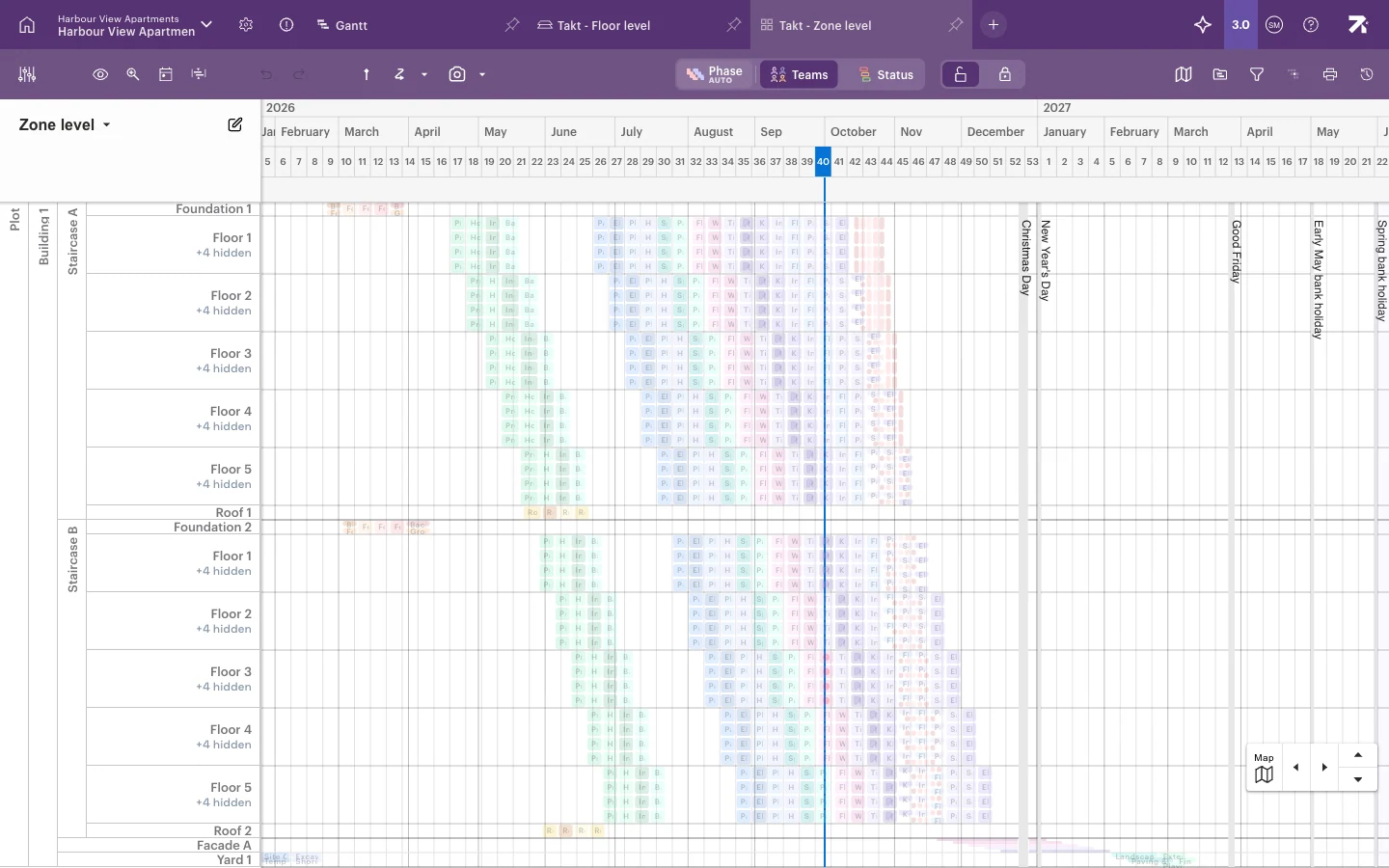
- Space model – the tree of physical spaces in the building. Each space has a space type, such as Plot, Building, Section, Floor, Zone or Space. In Harbour View Apartments the tree is Plot › Building 1 › Staircase A and B › Floors 1–5, plus foundations, roofs, a facade and a yard. See Building the space model.
- Location breakdown – a way of dividing the space model into rows for planning. Sitedrive keeps system breakdowns up to date for you, for example Floor level and Zone level. You can also make your own. See Location breakdowns.
- Area – one row in a location breakdown, where work happens. An area can be a single space (Floor 3 of Staircase A) or a group of spaces.
A space is part of the building. An area is how you choose to plan it.
Work packages
A work package is a piece of work done by one team, for example Tiling. It has a name, a team, an owner, dates and a status. Work packages come in three kinds:
- Sum work package – groups other work packages. Its dates span everything under it. Interior Finishes is a sum.
- Master – the definition of work that repeats in several areas. Tiling is a master.
- Instance – one occurrence of a master in one area, for example Tiling on Floor 2 of Staircase A. Only instances carry real dates and status. When you move a master, you move its instances.
In the rest of this guide, “work package” covers all three unless the difference matters. See Work packages.
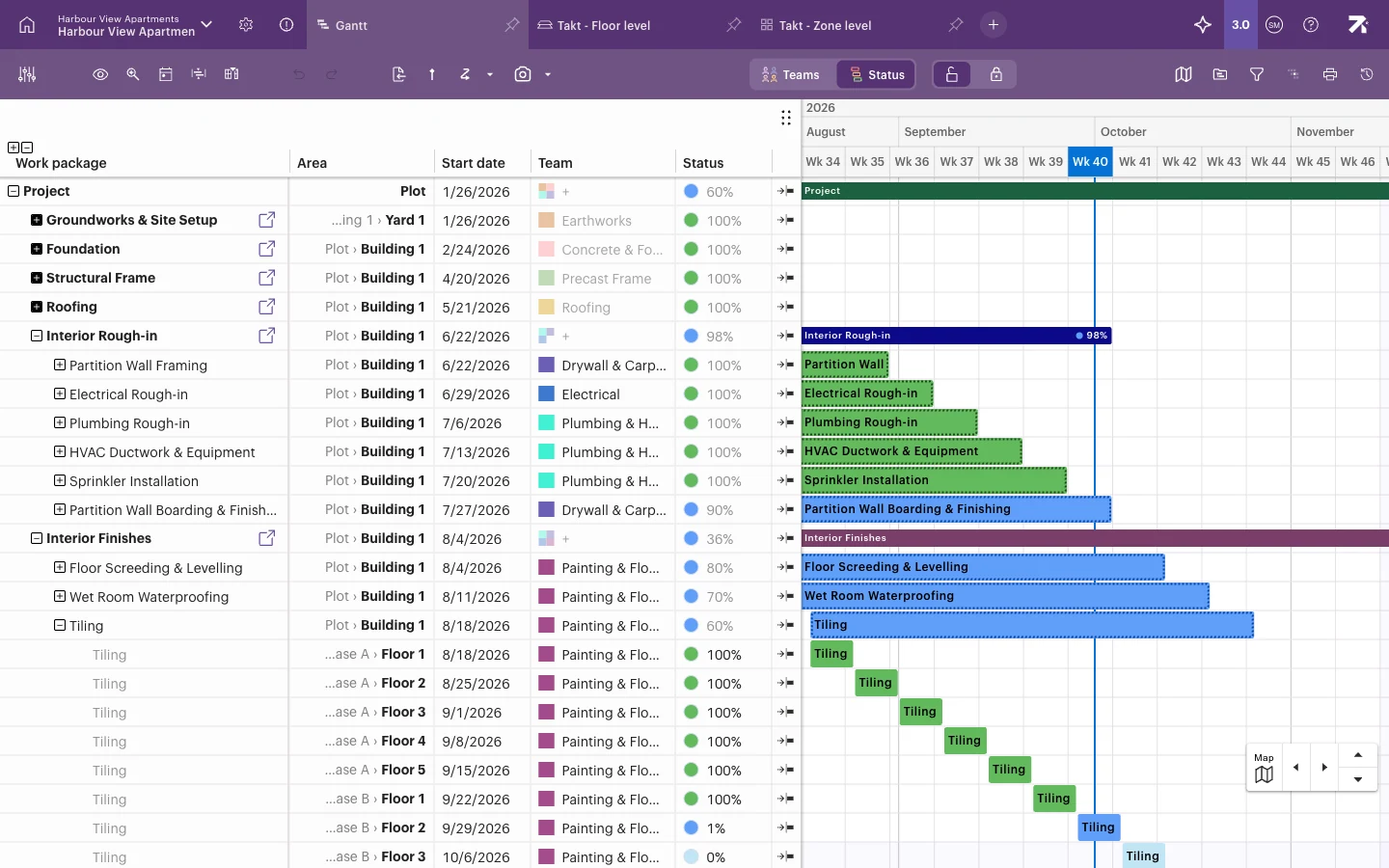 Tiling expanded: each row below it is an instance on one floor of Staircase A or B.
Phases
A phase is a sum work package, such as Interior Rough-in, tied to a location breakdown. You use Define Areas to choose which areas a phase’s work happens in. See Define areas.
Teams and owners
- Team – a crew with a name, a colour, crew leaders and members, for example Electrical. Teams belong to the site. Team members can report progress on their team’s work. See Teams and people.
- Owner – the person responsible for a work package. Users with Refine or Refine (ltd) rights can edit the work packages they own, and everything below them.
Status, blockers, issues and quality tasks
Every work package has a status: Not started, In progress or Completed. When a completed package has no open blockers, issues or quality tasks, it becomes Verified. Views colour work by status, so you can see at a glance what is late.
- Blocker – something that stops the work, such as missing material.
- Issue – extra or corrective work found on site. It doesn’t stop the work.
- Quality task – a check that someone with Accept rights or higher marks as done.
See Tracking progress and Blockers, issues and quality tasks.
Views
A view is a saved way of looking at the schedule: its type (Gantt, Takt, Line of balance and so on), location breakdown, colouring and filters. Views appear as tabs. Schedule and Site users create views and share them with others. See Views as tabs.