
Many sites show the schedule on a large screen in the site office or canteen, so everyone can see the plan and its progress without signing in themselves. Sitedrive has no separate kiosk mode. Instead, you set up a shared view that shows exactly what you want and keeps itself up to date, and open it on a computer connected to the screen.
Before you start
- Setting up and locking the view needs Schedule or Site rights.
- You need a computer connected to the screen, with Chrome, Edge or Firefox.
- We recommend a dedicated display user with minimal rights, such as Report, so the screen can’t be used to change the plan. See Teams and people.
Set up a display view
- Create a new view tab, for example Gantt, Takt or Line of balance. See Views as tabs.
- Switch on Focus view in the toolbar.
- Set the week offsets, for example −1 to +4. The window stays anchored to the current week, so the screen moves forward with the calendar by itself.
- Choose the colouring: Status for progress, or Teams to show who works where.
- Add any filters you need, for example one staircase or the main trades.
- Open View settings.
- Select the lock icon next to each setting that should stay fixed: the focus view, the colouring and the row height. For filters, use Add filter lock.
- Right-click the tab and choose Share to all, so the display user sees it.
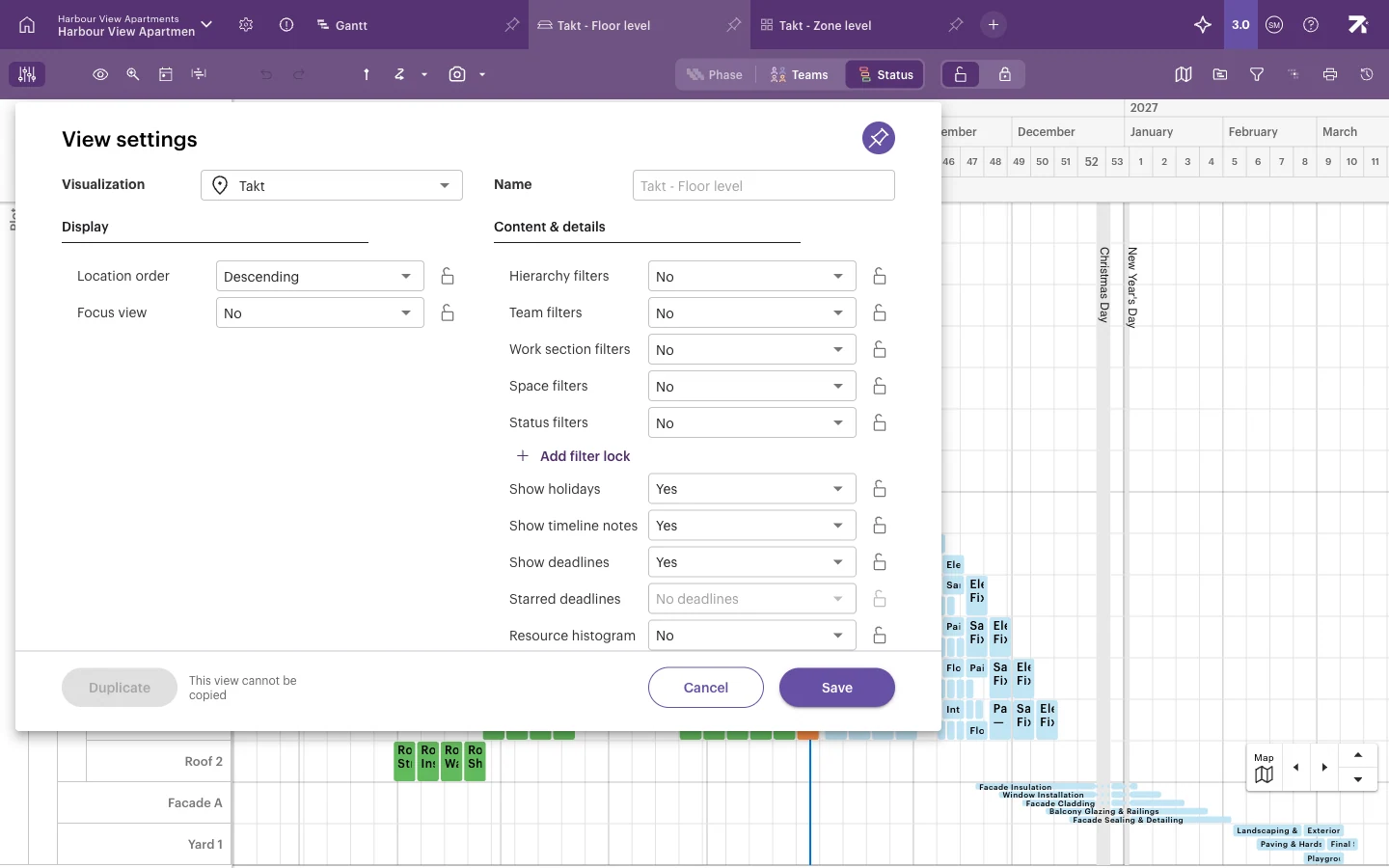
See Sharing views and locking settings for more about locks.
Set up the screen computer
- Sign in to Sitedrive as the display user.
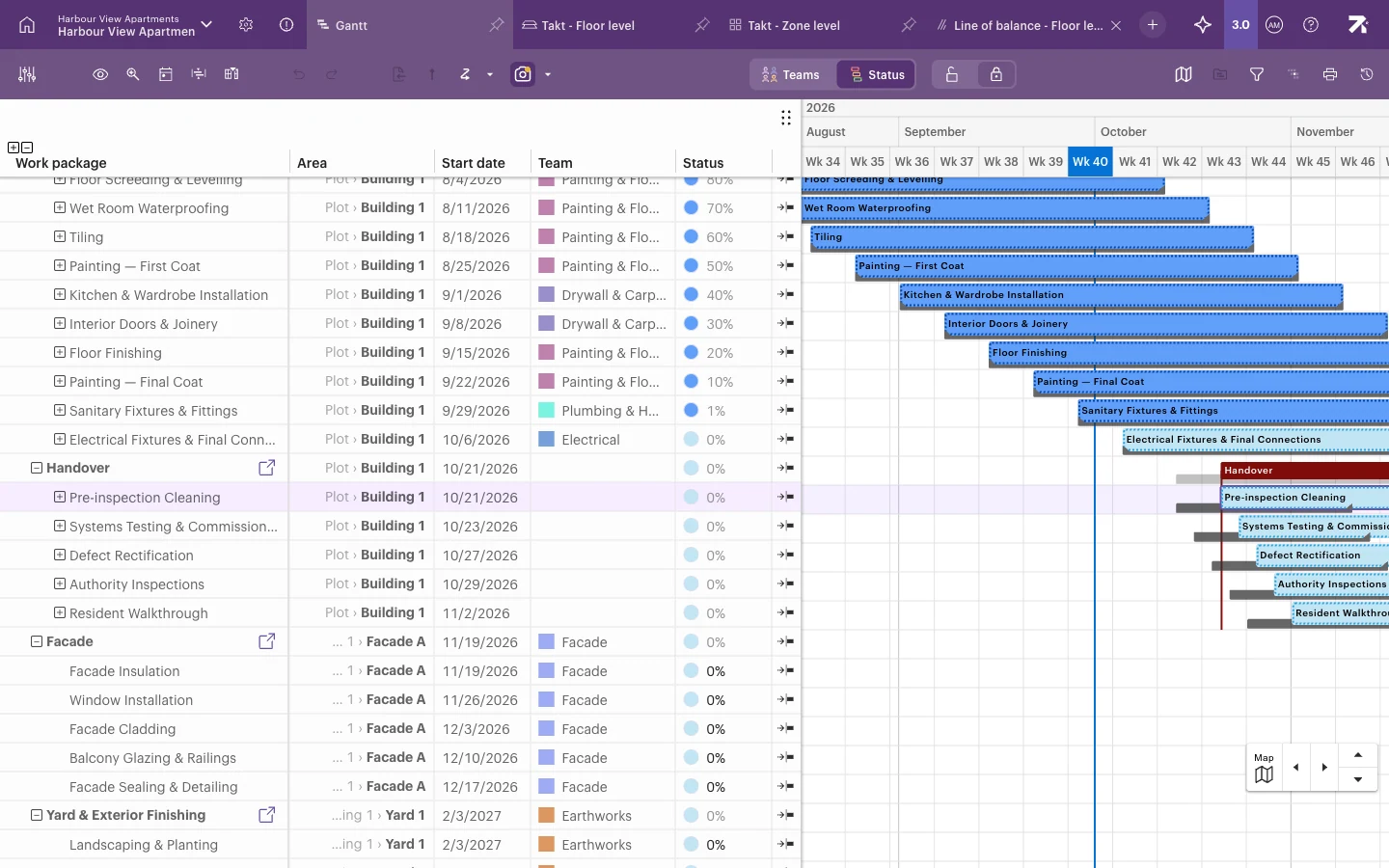
- Open the shared view.
- If the display user can edit work packages, the toolbar shows the Edit lock. Select it so it shows “Editing locked (to prevent accidental edits)”. This is especially useful on touch screens.
- Switch the browser to full screen (F11 in Chrome and Edge on Windows).
Keep the screen up to date
The schedule data on the screen updates live. When someone reports status on mobile or changes the plan, the screen shows it without reloading.
Two things still need a page refresh:
- Late colours. Status colours are recalculated when the data changes. A work package that becomes late with nobody touching the schedule may keep its old colour until the next change or refresh.
- Sitedrive updates. When Sitedrive is updated, the screen shows “New version available” and a Reload button. Sitedrive never reloads itself.
For an unattended screen, install an auto-refresh extension in the browser and set a long interval, for example every few hours or once a night. There’s no need to refresh every few minutes, because the data is already live, and each reload loads the whole schedule again.
Good to know
- The display user’s session must stay signed in. If the screen shows the sign-in page, sign in again.
- A locked focus window turns focus view on for everyone who opens that view, not only the screen.
- The Edit lock affects only the user who sets it. It still allows status reporting.
- Very large schedules on low-powered screen computers may be slow. If so, use filters or a shorter focus window.