
This article walks you through the main screens of the Sitedrive web app: the sites page you see after signing in, and the schedule screen where you spend most of your time. Most toolbar buttons are icons. Hover over one to see its name.
The sites page
After you sign in, Sitedrive lists the sites you have access to.
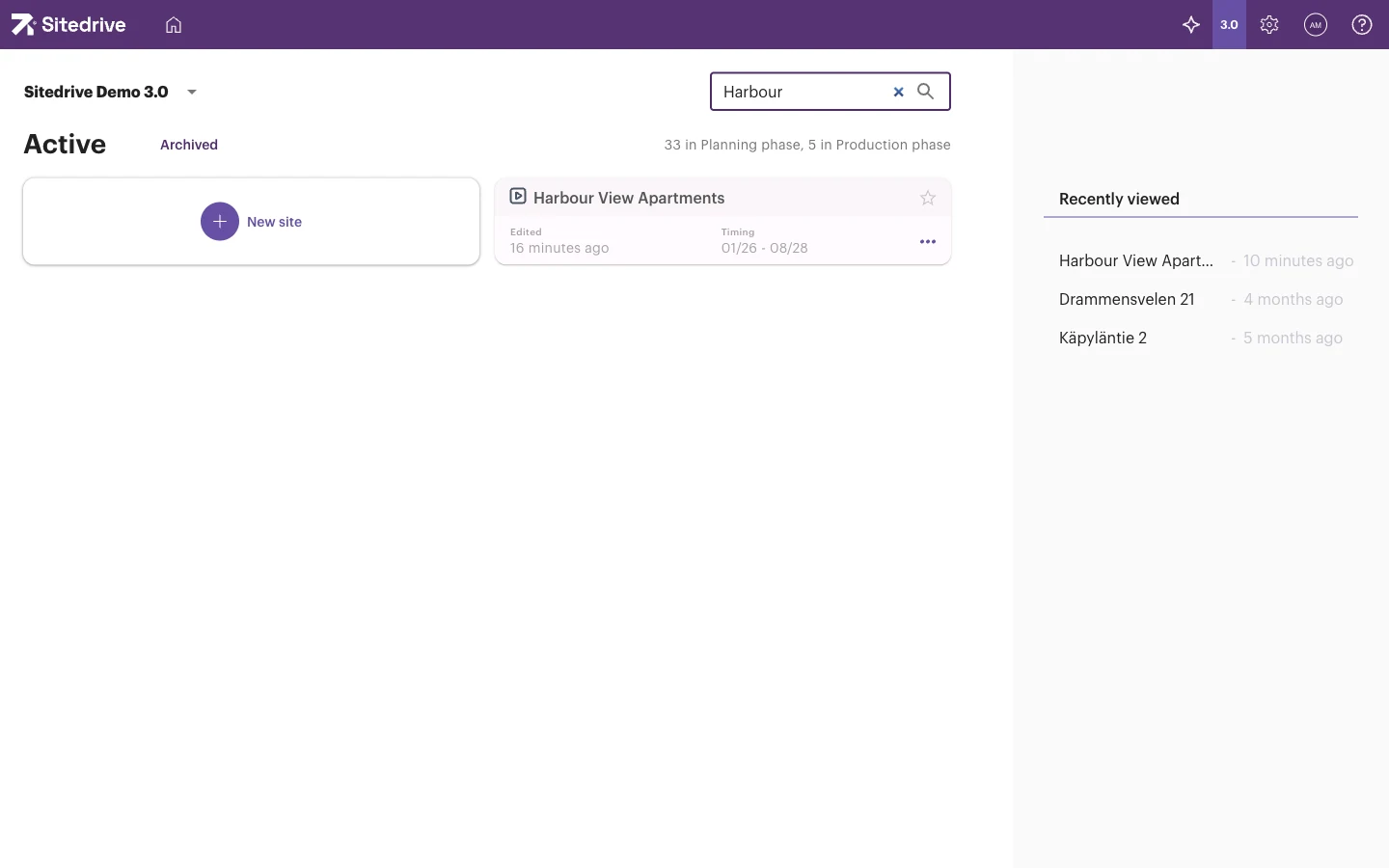
- Account selector (top left) – switch between accounts if you belong to more than one.
- Search with site name – find a site quickly.
- Active and Archived – switch between current and archived sites. The counter shows how many sites are in the Planning and Production phases.
- Favorites – star a site on its card to keep it at the top.
- Site cards – show when the site was last edited and its timing. Select a card to open the site. The ⋯ menu has site options.
- New site – create a site. Only Account admins see this card. See Creating a site.
- Recently viewed – jump back to sites you opened lately.
Select a site to open its schedule.
The schedule screen at a glance
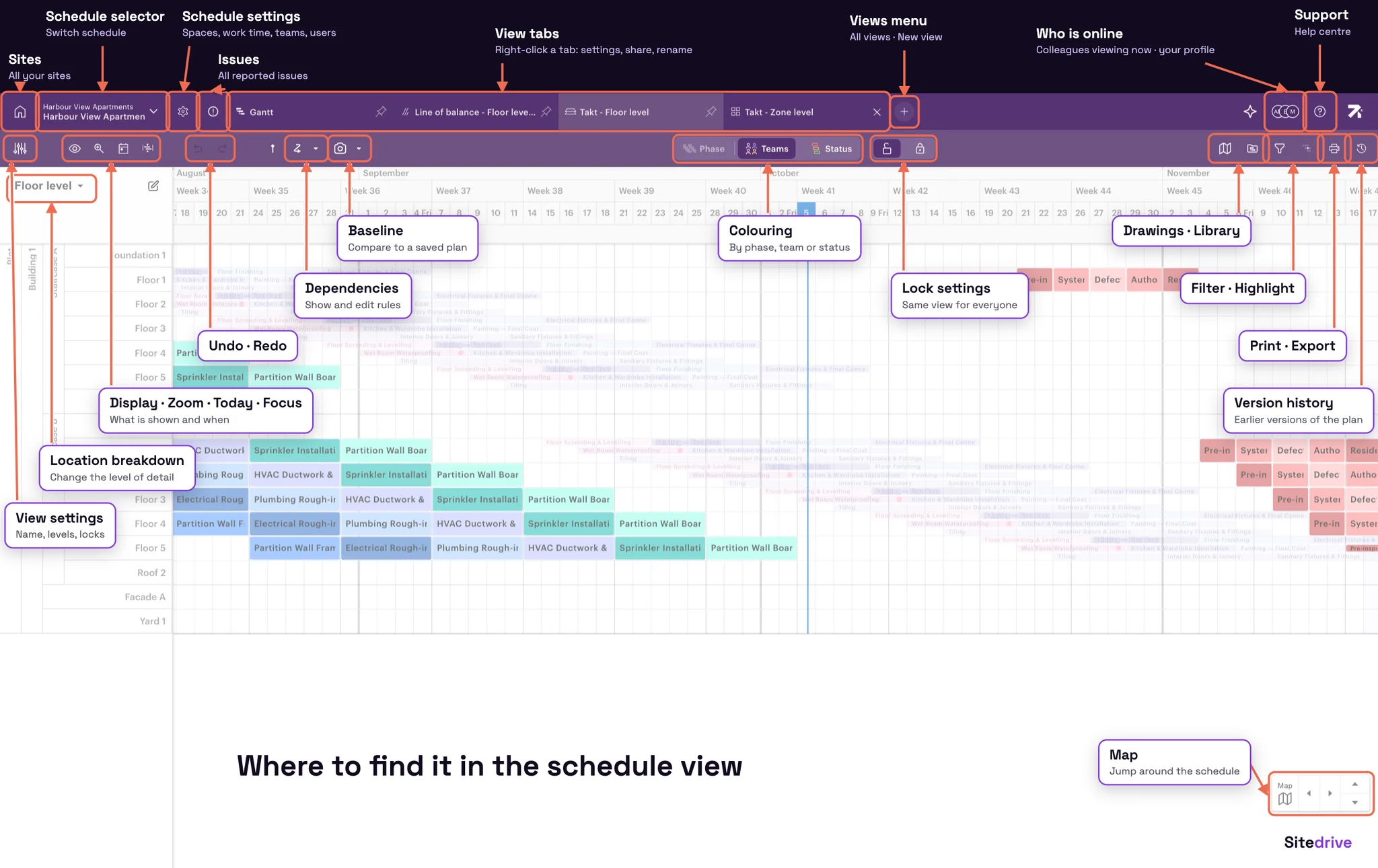
The picture shows where the main functions are on the schedule screen. The sections below go through each part in more detail.
The schedule header
The purple bar at the top of a schedule, from left to right:
| Item | What it does |
|---|---|
 Home | Back to the sites page. |
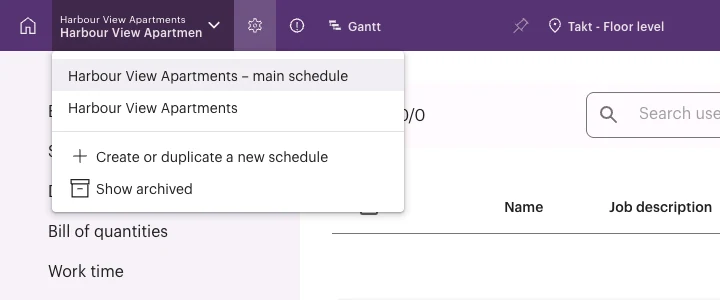
 Schedule selector (site name / schedule name ▾) | Switch to another schedule on the site. Site users also see Create or duplicate a new schedule and Show archived here. |
 Schedule settings | Open the settings pages (see below). |
 Issues | Open the Issues view with all open blockers and issues. See The Issues view. |
 View tabs | The views of this schedule, for example Gantt, Takt - Floor level and Takt - Zone level. A pin icon marks views shared with everyone. |
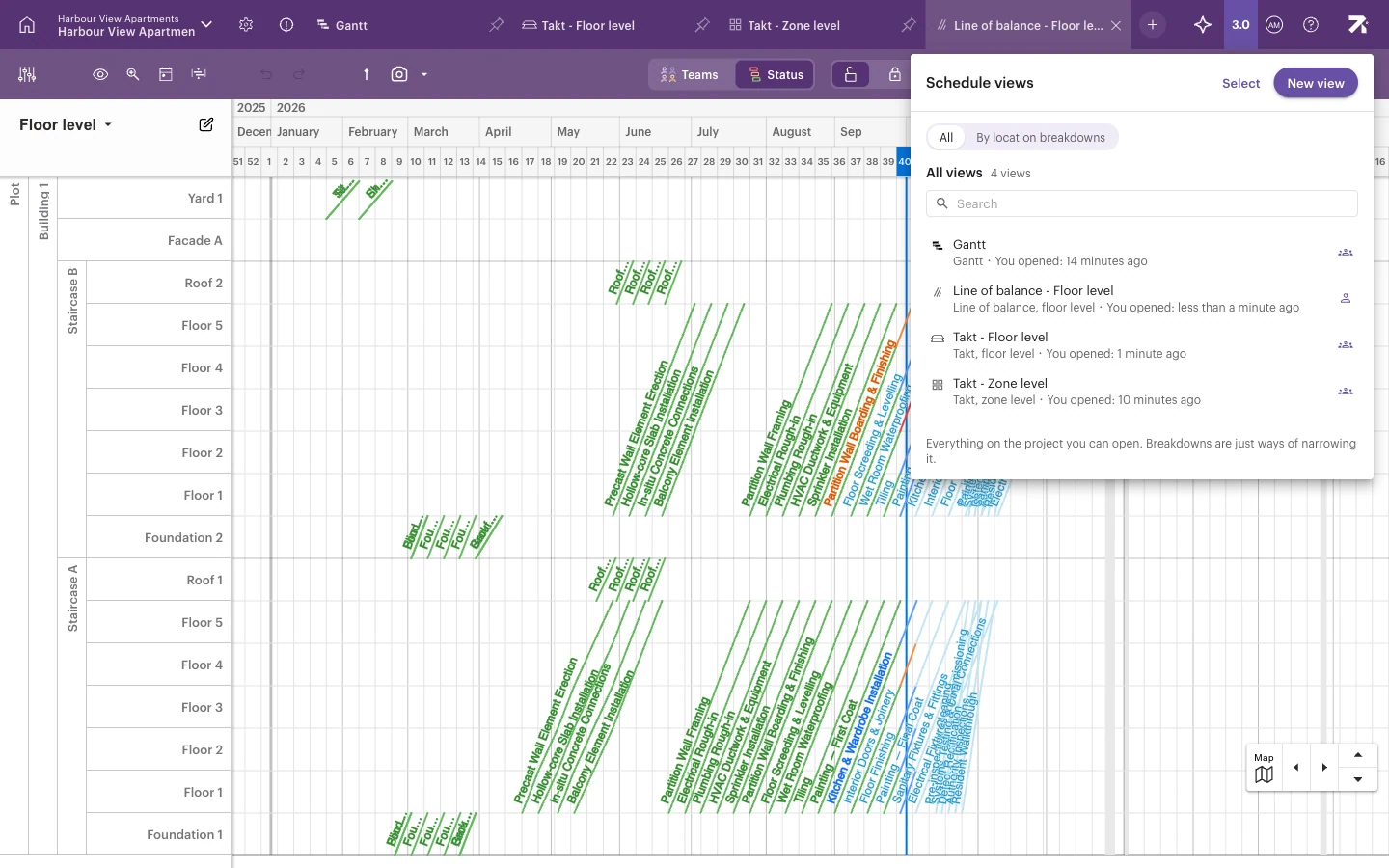
 View selection and management | List all views and create new ones. Schedule and Site users only. |
 Avatars | Who else is viewing the schedule right now. Your own avatar (User settings) opens Edit profile and Logout. |
 Support | Support chat, User guide and Welcome to Sitedrive. |
View tabs
Each tab is a saved view. Select a tab to switch views. Schedule and Site users can select + to see the Schedule views list and select New view to add a Gantt, Takt, Line of balance, Gantt by area or Grouped Gantt view.
Other users see the views that are shared with them as tabs. They can’t close those tabs. Read more in Views as tabs.
The toolbar
Below the header is the toolbar for the current view. In the Gantt view, from left to right:
| Button | What it does | Read more |
|---|---|---|
 View settings | Change and lock settings for this view (Schedule and Site users). | Sharing views |
 Select schedule visualization options | Show or hide the progress line, deadlines, holidays, completed work and more. | Colouring and display |
 Zoom level | Zoom the timeline in or out. | Gantt |
 Today | Scroll to today. | |
 Focus view | Show a rolling window around the current week. | Filter, highlight and focus |
 Columns | Choose the Gantt table columns. | Gantt |
 Undo / Redo | Undo or redo your last changes. | Undo, version history and baselines |
 Import / Export | Import work packages from Excel, or export the Gantt to Excel. | Printing and exporting |
 Open deadline tools | Add and manage deadlines. | Deadlines and milestones |
 Show dependencies / Dependency options | Show dependency lines and choose how they work. | Dependencies |
 Show baseline / Choose baseline | Compare with a saved baseline. | Comparing progress to plan |
 Teams | Status | Colour work by team or by status. | Colouring and display |
 Padlocks | The Edit lock protects you from accidental edits. You can still report progress while it is on. | Sharing views |
 Library | Reuse saved work package sets. | Reusing plans |
 Filter work packages | Show only the work you need. | Filter, highlight and focus |
 Highlight | Emphasise matching work without hiding the rest. | Filter, highlight and focus |
 Print | Print or save the view as a PDF. | Printing and exporting |
 Version history | Open version history. | Undo, version history and baselines |
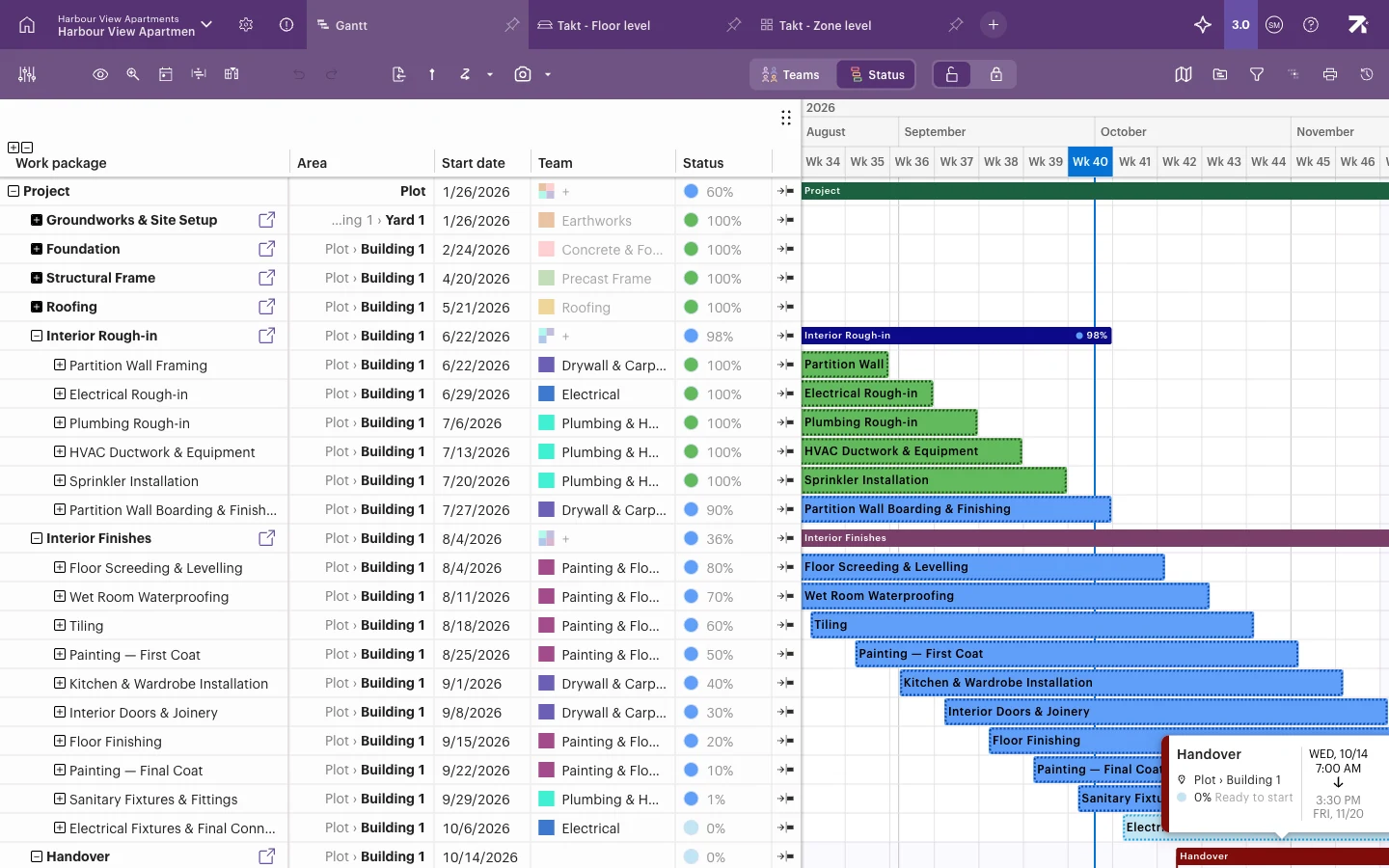 The Gantt table shows Work package, Area, Start date, Team and Status. Today’s line is in week 40.
The Takt view adds a Phase colouring option next to Teams and Status. You only see the buttons your role allows, so your toolbar may have fewer buttons.
Schedule settings
Select the gear in the header to open the settings. The menu on the left has two groups:
- Schedule – settings for this schedule only: Basic settings, Space model, Work time and Custom fields. Depending on your account you may also see Bill of quantities.
- Teams and Users – shared by every schedule on the site.
Which pages you see depends on your role. Schedule and Site users see everything. Refine users see Teams and Users, and Refine (ltd) users see Teams only, without being able to change it. Report and Accept users can’t open settings. See Schedule settings and Roles.
Good to know
- Your open tabs are remembered in your browser. On a new computer you start with the shared tabs only.
- Every view has its own web address. Copy it from the browser to send a colleague straight to that view.