
Teams are the trades and crews who do the work, such as Concrete & Foundations or Electrical. Users are the people who sign in to Sitedrive. Both belong to the site, so every schedule on the site shares the same teams and the same user list. What each user can do is set per schedule.
Before you start
- To create, rename, recolour and delete teams, and to add or remove members and crew leaders, you need the Refine role or higher on a schedule of the site. Refine (ltd) users can view the Teams page but can’t change it, and they don’t see the site’s user list.
- To open the Users page and invite people, you need the Refine role or higher. Refine users can give the roles Report, Accept, Refine (ltd) and Refine. Schedule, Site and Account admin users can give any schedule role. Only Site users and Account admins can give the Site role.
- Report and Accept users don’t see the Teams and Users pages.
See Roles and what each one can do.
Both pages are in Schedule settings (gear icon), below the schedule’s own settings: Teams and Users.
Create a team
- Go to Schedule settings → Teams.
- Select New team.
- Type the team Name, for example “Drywall & Carpentry”.
- Choose a Color. Pick one of the default swatches, or choose Custom and select OK. The colour is used when views are coloured by team.
- Optional: add Crew leaders and Members. You choose them from the site’s users.
- Select Create.
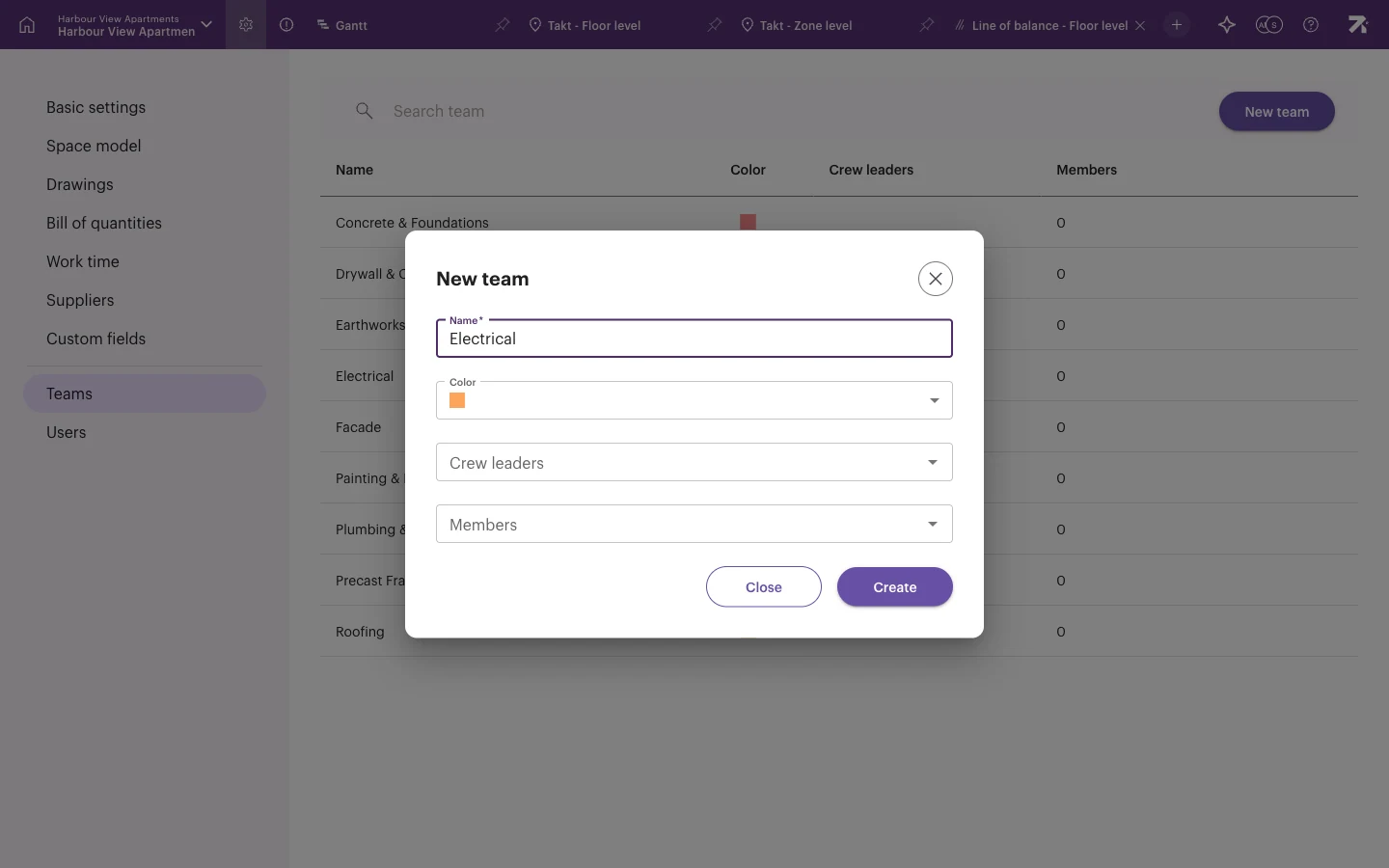
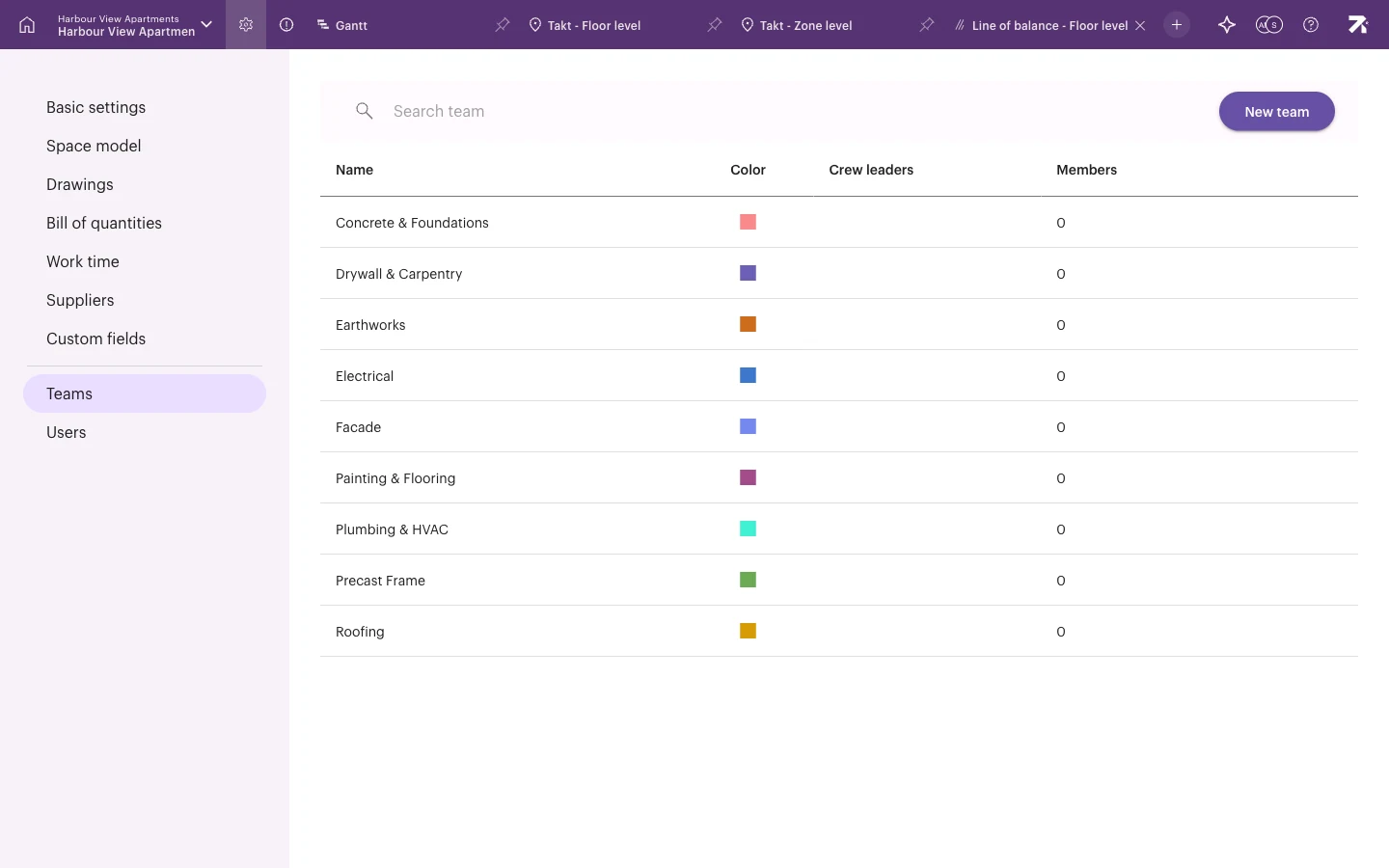
The list shows each team’s Name, Color, Crew leaders and Members. Use Search team to find one. To delete a team, hover over its row and select the delete icon.
Why team membership matters
A work package’s team decides who can report on it. Report and Accept users can update the status of work packages whose team they belong to, or where they are an assignee. Add foremen and subcontractors to their team so they see their work in Sitedrive Mobile and can report progress.
Invite a user
- Go to Schedule settings → Users.
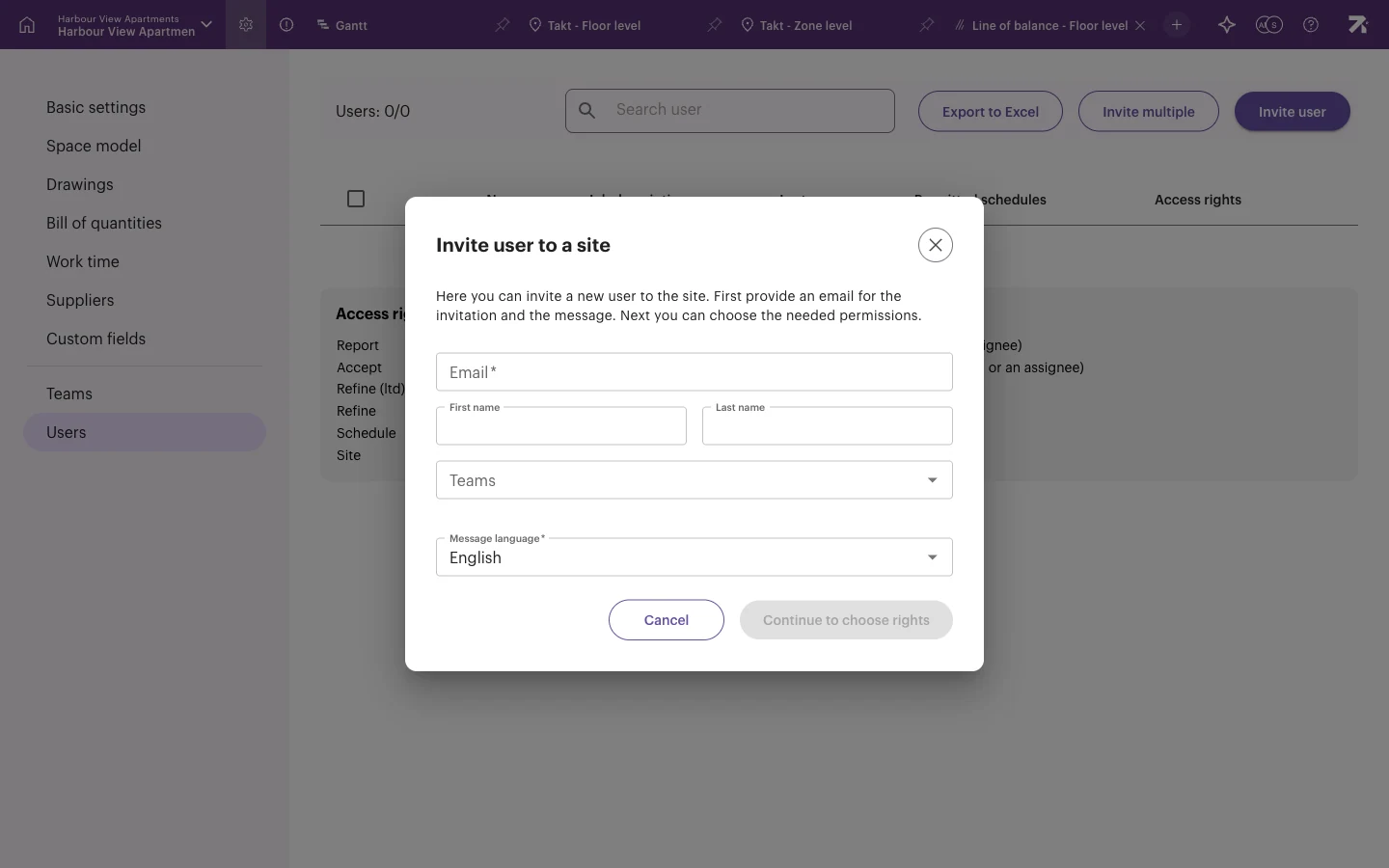
- Select Invite user. The Invite user to a site dialog opens.
- Type the Email, and optionally the First name and Last name.
- Optional: choose the person’s Teams.
- Choose the Message language for the invitation email.
- Select Continue to choose rights.
- Choose the person’s role on each schedule of the site, or give them the Site role for all schedules.
- Select Invite.
The person gets an email titled “You’ve been invited to Sitedrive” with a Go to Sitedrive button. They appear in the list straight away and can sign in with the address you invited.
Enter the email address and name, then continue to choose the access rights.
Invite several people at once
Select Invite multiple to paste a list of email addresses or drop a spreadsheet, and invite up to 100 people in one go.
Manage users and access rights
The Users page lists everyone on the site with their Name, Job description, Last seen, Permitted schedules and Access rights. Use Search user to find someone and Export to Excel to download the list.
The Access rights box on the page explains each role:
| Role | What the user can do |
|---|---|
| Report | Report the status and blockers of their work packages (part of team or an assignee). |
| Accept | Mark their quality tasks complete and work packages accepted (part of team or an assignee). |
| Refine (ltd) | Edit their work packages and sub packages (owner), with limited data visibility. |
| Refine | Edit their work packages and sub packages (owner). |
| Schedule | Edit anything in a schedule, including users. |
| Site | Edit anything in a site (all schedules). |
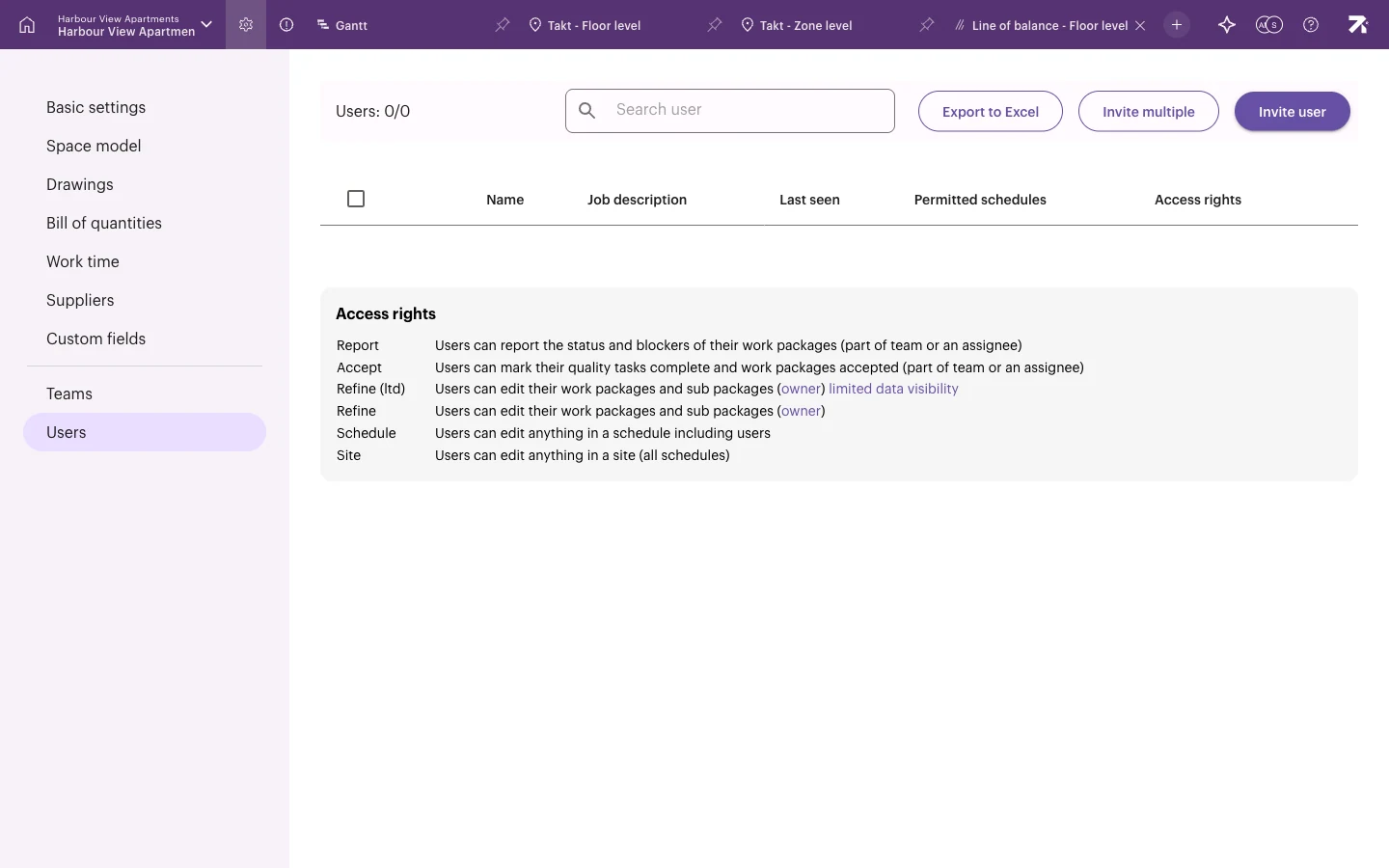
To change someone’s role, select the user in the list and change their access rights for each schedule.
Good to know
- Roles are per schedule. A person can be Refine on the main schedule and Report on another schedule of the same site.
- A new schedule on the site already has all the site’s teams and users. You only need to give people access to it.
- Depending on your subscription, a site in Planning phase may limit how many users you can invite. Move the site to Production phase to invite more. See Creating a site.
- Account admins and account-wide users are managed in the account settings. See Account users.