
When you open a schedule in Sitedrive Mobile, the tabs at the bottom of the screen show your work from different angles. Crew members mostly use My next work and My late work to see what their team should do. Supervisors also get a Schedule timeline and an Issues list for following up on the site.
This article explains what each tab shows and how to move around.
Before you start
- You need access to a site in the production phase. Sites in the planning phase don’t open on mobile, because sites that are not in production can’t take status updates. See Installing Sitedrive Mobile and signing in.
- Which tabs you see depends on your role:
| Role | Tabs |
|---|---|
| Report | My next work, My late work, All work |
| Accept, Refine (ltd), Refine, Schedule, Site, Account admin | Schedule, My next work, My late work, All work, Issues |
For more about roles, see Roles and what each one can do.
Where you land
- Report users land on My next work.
- Other roles land on Schedule. If a user with Schedule rights has set the Mobile main view to All work listing, you land on All work instead, and it becomes the first tab.
Users with Schedule or Site rights change the main view in the web app under Schedule settings > Basic settings > Mobile settings. See Schedule settings.
Move around the app
- To switch tabs, tap a tab in the bottom bar.
- To go back to your list of schedules, tap the schedule name at the top of the screen.
- To switch between a daily and weekly list, tap More options (⋯) and select Show daily or Show weekly. The choice applies to all tabs in the schedule.
- To get the latest data, pull the list down. The app shows when it last synced.
- To open a work package, tap its card.
My next work
My next work lists the work packages, blockers and issues that are yours, starting from the beginning of this week. “Yours” means your team’s work, tasks assigned to you and work packages you own. Who sees what on mobile explains the exact rules.
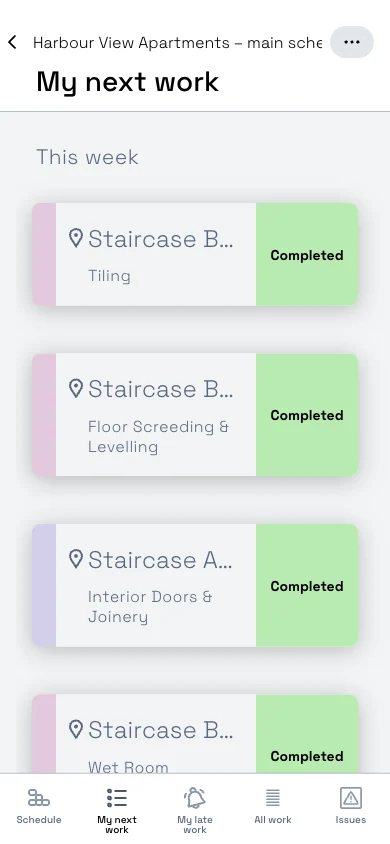
- In the weekly view, the list is grouped into This week and Next week, followed by the coming days.
- In the daily view, there is a heading for each working day, starting from today. A work package that runs for several days appears under each day.
- Work that was completed before today drops off the list.
Report users see large cards with a Mark as completed button, so they can finish a job with one tap. See Reporting status on mobile.
If you are not in any team, the tab shows “You are not part of any team, thus no work packages are visible. Please ask your supervisor for instructions.”
My late work
My late work lists your work that should already be finished but isn’t. A work package appears here when its planned end has passed within the last 100 days and its status is still Not started or In progress. The list is grouped by location.
When you mark a late work package completed, it stays on the list for a moment so that you can undo a mistaken tap.
If you are not in any team, this tab and My next work show a message instead of a list.
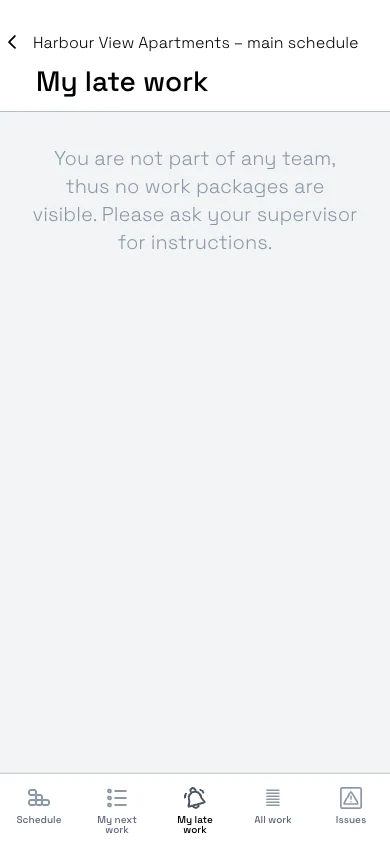 Ask your supervisor to add you to a team.
All work
All work lists every work package you are allowed to update, past and future. The list is grouped by week (for example “Week 40: 9/28 - 10/4”) or by day, and opens at the current week or day.
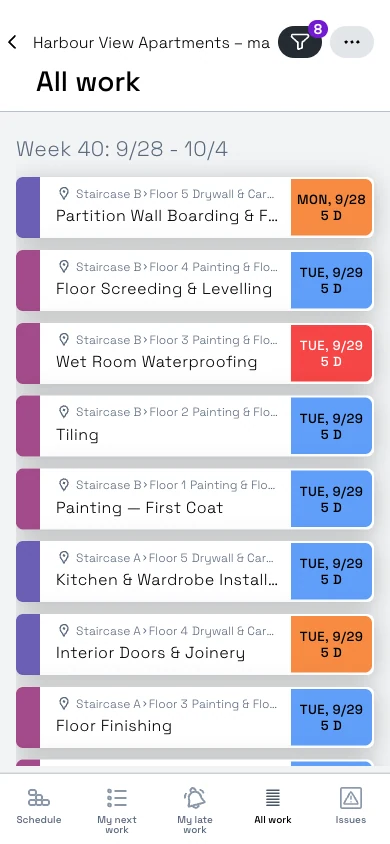 The colour on the left of each card shows the team. The colour of the date box shows the status.
Each card shows the location, the work package name, the start date and the duration.
All work is the only tab with a filter. The filter button shows how many filters are active. By default, Verified work packages are hidden. See Filters, location breakdowns and time scope on mobile.
Schedule
The Schedule tab is a timeline, similar to the Takt view in the web app. Locations run down the side, time runs across, and a blue line marks the current moment. Scroll sideways to move in time.
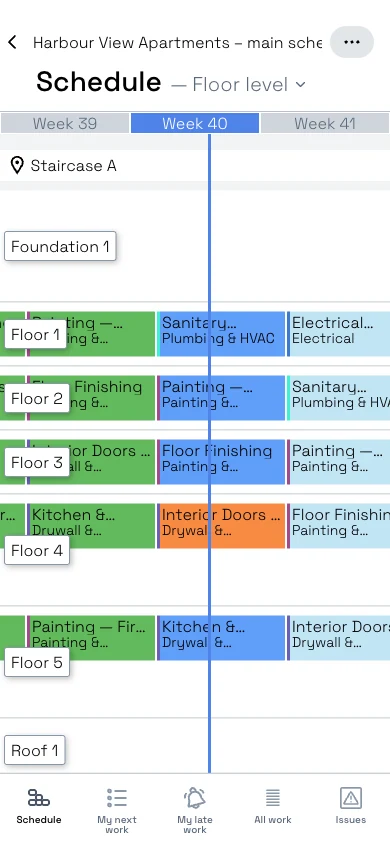 Work packages are coloured by status. The header shows the selected location breakdown, here Floor level.
- Only work from 14 days back to 14 days ahead is loaded. Use the web app to see the full schedule.
- Work packages you can’t update are dimmed and can’t be opened.
- Work planned on a different location breakdown is dimmed. Choose the breakdown from the header. See Filters, location breakdowns and time scope on mobile.
- More options (⋯) also has Go to today on this tab.
Issues
The Issues tab lists open blockers and issues that you are allowed to update. Completed ones are not shown.
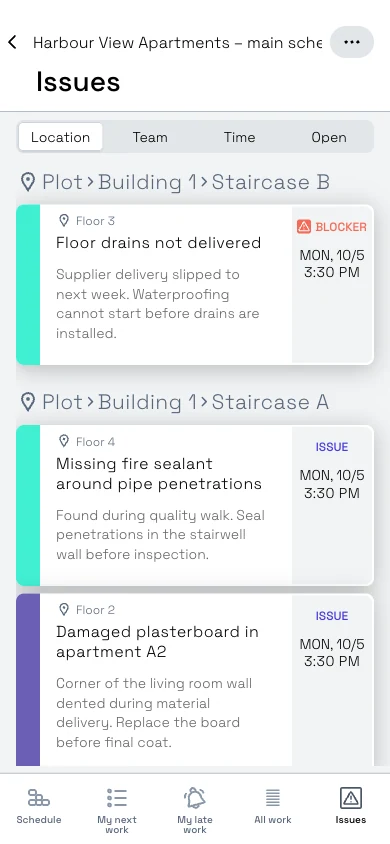
Choose how to group the list at the top:
| Grouping | What it shows |
|---|---|
| Location | Issues grouped by where they are (the default). |
| Team | Issues grouped by the team that resolves them. |
| Time | Issues in date order. |
| Open | Needs Attention (no team yet) and Assigned. A dot on Open means some issues still need a team. |
Cards that are missing information prompt you to Add instructions, Add team or both. Tap a card to open it. Users with Schedule or Site rights, and the person who reported it, can then add the team and instructions. See Photos, comments, blockers and issues on mobile.
Good to know
- “My” means yours. Even users with Refine or Refine (ltd) see only their own, their team’s and their owned work in My next work and My late work. Only Schedule, Site and Account admin users see everything there.
- If a tab is empty and you expect work, check with your supervisor that you are in the right team. See Who sees what on mobile.
- If the Schedule tab says there are no work packages in recent or coming weeks, the schedule has no work within 14 days of today.