Not sure where to start? Pick the path that matches your job. Each one is a short click path with links to the full articles. If you don’t know your access rights, see Roles and what each one can do.
I plan the schedule
Who: planners and project managers with Schedule or Site rights. Creating a site needs an Account admin.
- Create the site. On the sites page, select New site, enter a Site name and select Create. Sitedrive creates the site and its first schedule and opens the Gantt. → Creating a site
- Build the space model. In the empty Area column, select + next to “Add space model to start!”. Enter your buildings, staircases and floors, then select Ready. → Building the space model
- Set working time. Select Schedule settings (gear) › Work time. Check the working week, and use Manage public holidays to import holidays. → Working time and holidays
- Add teams and people. In Schedule settings, select Teams › New team, then Users › Invite user. → Teams and people
- Add work packages. In the Gantt tab, add phases and work packages, and set a Team for each. → Work packages
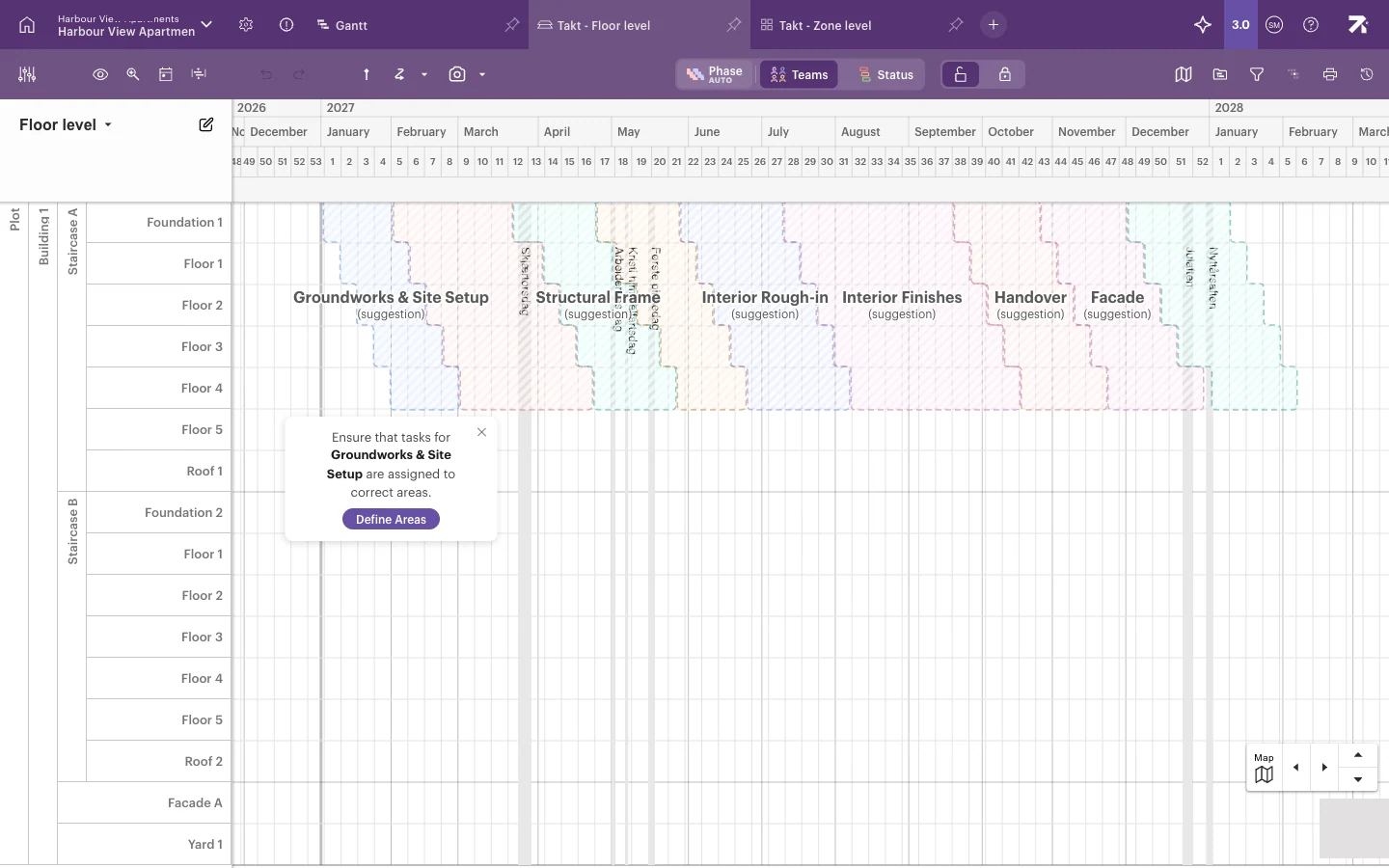
- Put the work into locations. Open the Takt - Floor level tab and select Define Areas on each phase. → Define areas
- Fine-tune the plan. Link work with dependencies, adjust durations and takt, and add deadlines. → Takt planning, Dependencies, Deadlines and milestones
- Share views. Right-click a view tab and select Share to all, or Share… to pick people. → Sharing views and locking settings
I run the site
Who: site managers and foremen, usually with Site, Schedule or Refine rights.
- Move the site to production. When the plan is ready, change the site from the Planning phase to the Production phase so that reporting can start. → Creating a site
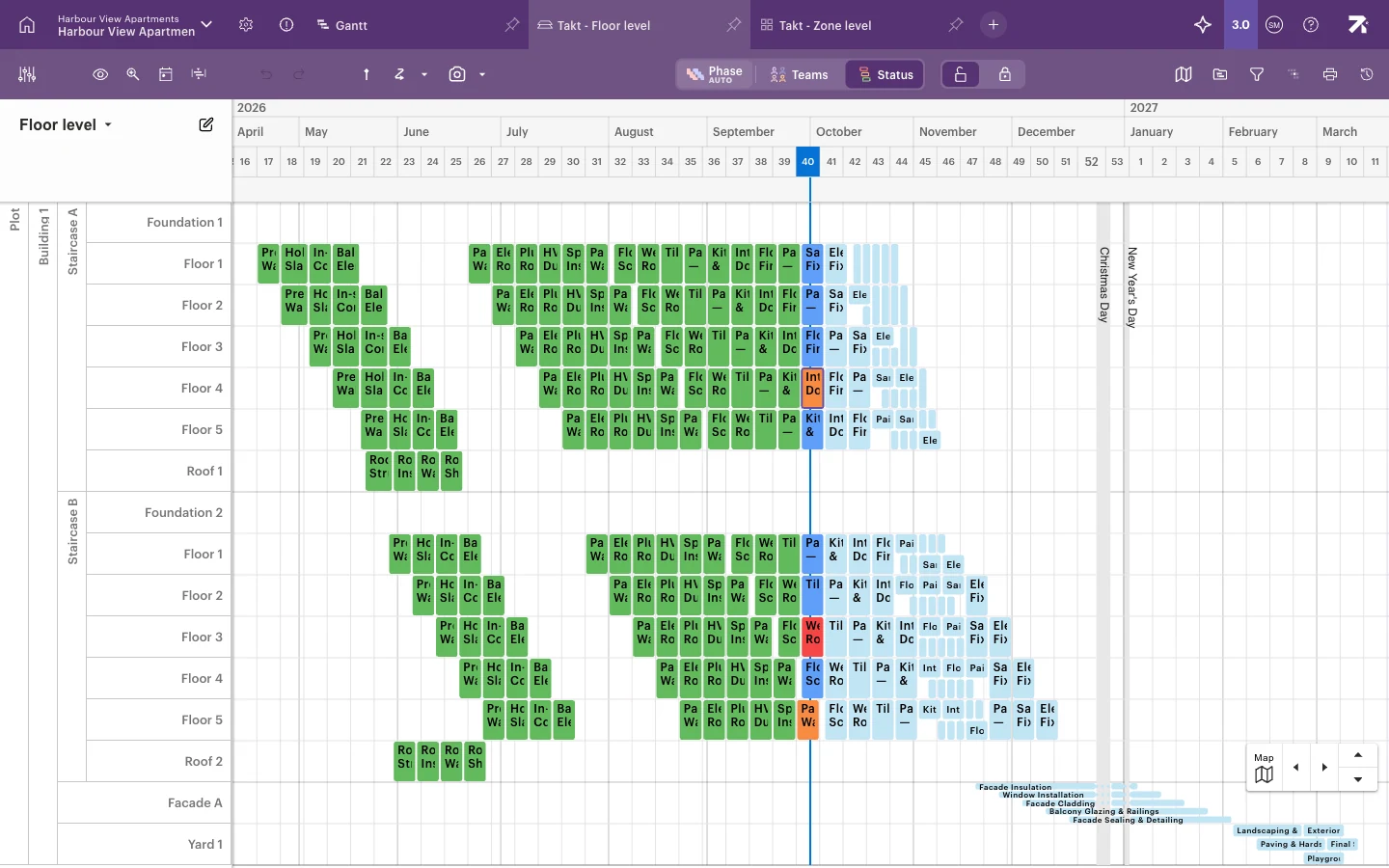
- See where you are. Open a Takt or Line of balance tab and select Status in the toolbar. Late work shows in orange, work in progress in blue and completed work in green. → Tracking progress
- Look ahead. Select Focus view to show only the coming weeks. → Filter, highlight and focus
- Update progress. Select a work package to open its side panel and choose Not started, In progress or Completed. → Tracking progress
- Deal with problems. Select Issues (! icon) in the header to see every open blocker and issue. → Working with issues
- Run the weekly meeting. Follow the recipe, then print the lookahead with Print. → Recipe: running a site meeting, Printing and exporting
- Compare with the plan. Use version history or a baseline. → Comparing progress to plan
I report from the field
Who: crew members, supervisors and subcontractors, usually with Report or Accept rights.
- Install the app. Get Sitedrive Mobile from the App Store or Google Play and sign in with the email address you were invited with. → Installing Sitedrive Mobile and signing in
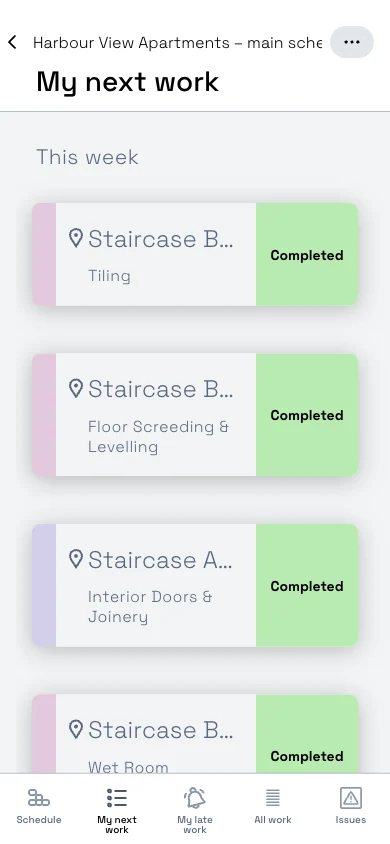
- Find your work. Open the schedule and tap My next work for what’s coming up, or My late work for what’s overdue. → Finding your work on mobile
- Report status. Tap a work package and choose Not started, In progress or Completed. On the list, Mark as completed does it in one tap. → Reporting status on mobile
- Report a problem. On the work package, tap Blocker if the work can’t go on, or Issue for extra or corrective work. Add a description and a photo, then tap Report. → Photos, comments, blockers and issues on mobile
- Keep people informed. Tap the speech-bubble icon to add a comment. → Photos, comments, blockers and issues on mobile
If a work package has no status buttons, it isn’t assigned to your team or to you. Ask your site manager. → Who sees what on mobile