
The Account users page lists everyone who has access to any site in your account. Use it to invite new account admins, check who has edit rights, and remove people who have left the company. To give someone access to a particular schedule, you invite them from that site instead (see Teams and people).
Before you start
- You need the Account admin role. Only account admins see Account settings in the gear menu. See Roles and what each one can do.
Open the Account users page
- Select the gear icon (System settings) in the top-right corner.
- Select Account settings.
- In the left menu, select Account users.
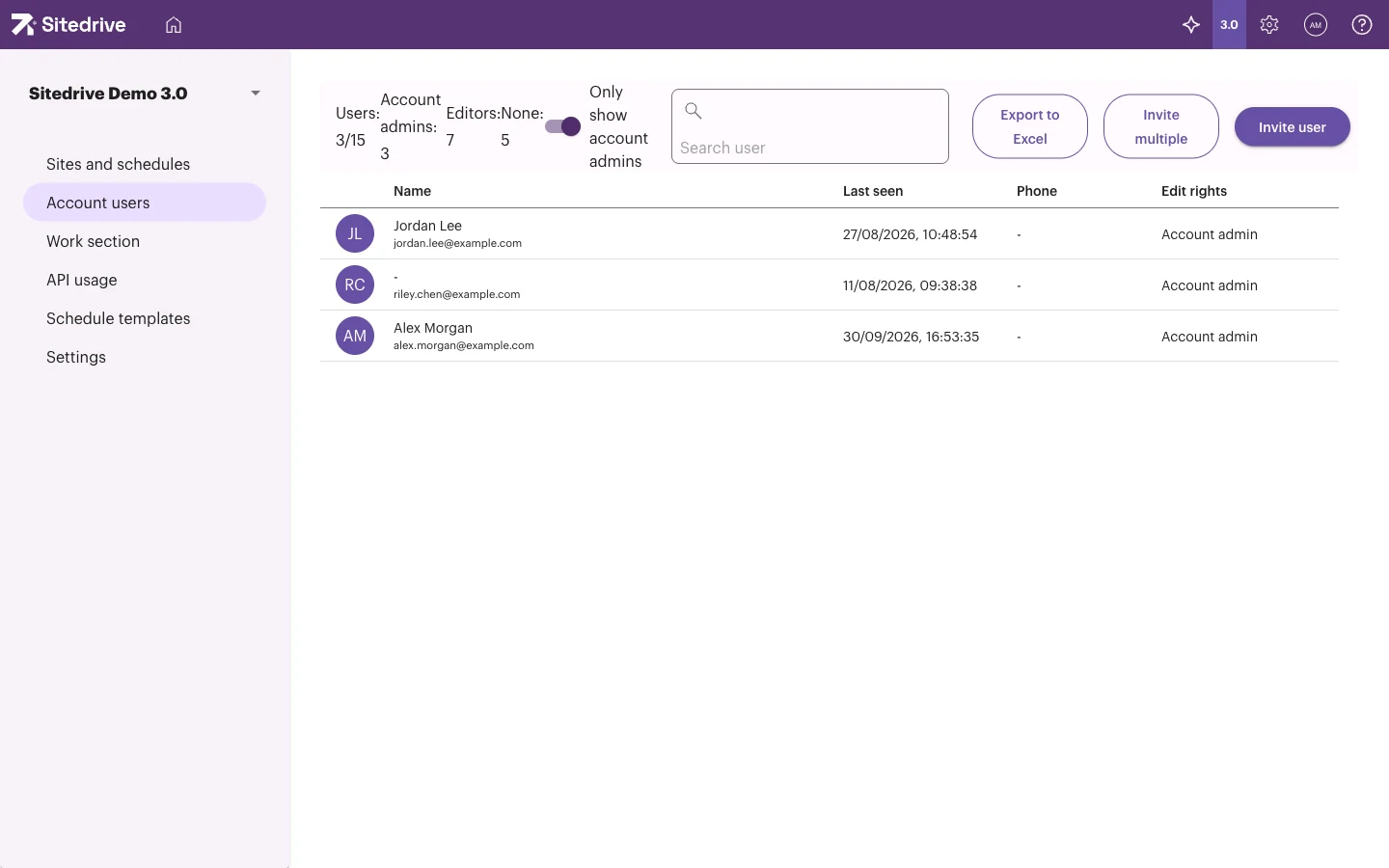
The left menu of the account admin area has these pages: Sites and schedules, Account users, Work section, API usage, Schedule templates and Settings.
Read the user list
At the top of the page you see how many users there are, and how many of them are Account admins, Editors and None.
The Only show account admins switch is on by default, so at first the list shows only account admins. Switch it off to see every user in the account. If someone seems to be missing, check this switch first.
Use Search user to find a person by name or email.
The list has these columns:
| Column | What it shows |
|---|---|
| Name | The user’s name and email. |
| Last seen | When the user last used Sitedrive. |
| Phone | The user’s phone number, if they have added one. |
| Edit rights | Account admin, Editor or None. |
Edit rights summarises what the person can change:
- Account admin: can see and edit everything in the account, including creating sites.
- Editor: has a Site role, or a Refine, Schedule or higher role on at least one active site.
- None: can only report or accept work (Report or Accept role), or has no site access.
Invite an account admin
Invite user on this page always creates an account admin. To invite someone with a schedule role such as Report or Refine, open the site’s Schedule settings → Users and invite them there. See Teams and people.
- Select Invite user.
- Type the person’s Email. Sitedrive fills in First name and Last name from the email.
- Correct the names if needed.
- Choose the Message language for the invitation email.
- Select Invite.
The person gets an email titled “You’ve been invited to Sitedrive” with a Go to Sitedrive button.
Invite several account admins at once
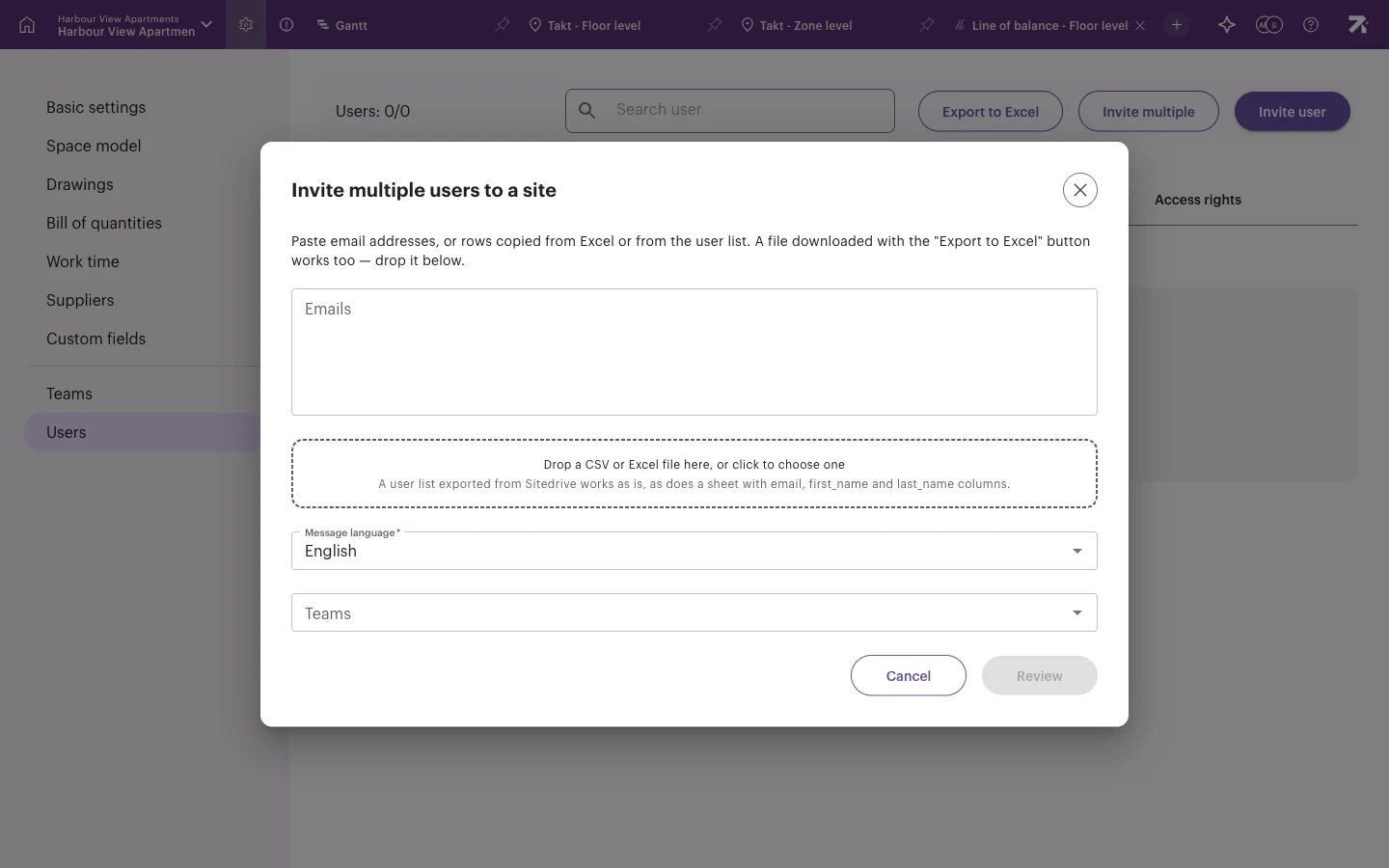
- Select Invite multiple.
- Paste email addresses, for example
jane.doe@example.com, Bob Smith <bob@example.com>, or drop a CSV or Excel file. A user list exported from Sitedrive works as it is, as does a sheet withemail,first_nameandlast_namecolumns. - Select Review. Each row is marked New, Already a member, Invalid email or Duplicate.
- Confirm the invitations.
The summary shows how many people were invited, how many were already members and how many failed. If some emails didn’t go out, select Retry sending emails.
You can invite up to 100 people in one batch. API users can’t be invited this way.
Change a user’s access
- Select the user’s row in the list.
- Turn Account administrator on or off. When it’s on, the user can see and edit all account information, including creating new sites.
- Select Save.
The same view lists Site level access rights: every site where the user has a role. Select a site name to open that site’s users page, where you change the person’s schedule roles.
Remove a user
- Select the user’s row in the list.
- Select Remove all access.
This removes the account admin role and the person’s access to every site and schedule in the account. If you only want to take away the account admin role, turn off Account administrator and select Save instead.
Export the user list
Select Export to Excel to download the list as a spreadsheet. The file can also be used as input for Invite multiple.
Good to know
- People who are only invited to a site do not appear while Only show account admins is on.
- Users manage their own name and other profile details in User settings (their avatar).
- Remove all access affects every site in the account. Check the site list in the user’s details before you use it.
- Sites in the planning phase may have a limit on how many collaborators you can add, depending on your subscription.