
A site is your construction project in Sitedrive. It holds one or more schedules, and the teams and users you add to it are shared by all of those schedules. You create a site once, at the start of a project, and it also gives you the first schedule to plan in.
Before you start
- You need the Account admin role to create a site. If you don’t see the New site card on the home page, ask an account admin to create the site or to give you the rights. See Roles and what each one can do.
- Have the site name ready. The address and other details are optional and you can add them later.
Create a site
- Select the home icon in the top-left corner to open the site list.
- Select New site.
- Type a Site name. This is the only required field.
- Optional: choose a Schedule template (optional) if you want the first schedule to start from an existing plan. Templates are described in Reusing plans: templates and libraries.
- Optional: select + Add description, and fill in the Address, Postal code, Post office, Country and External ID.
- Select Create.
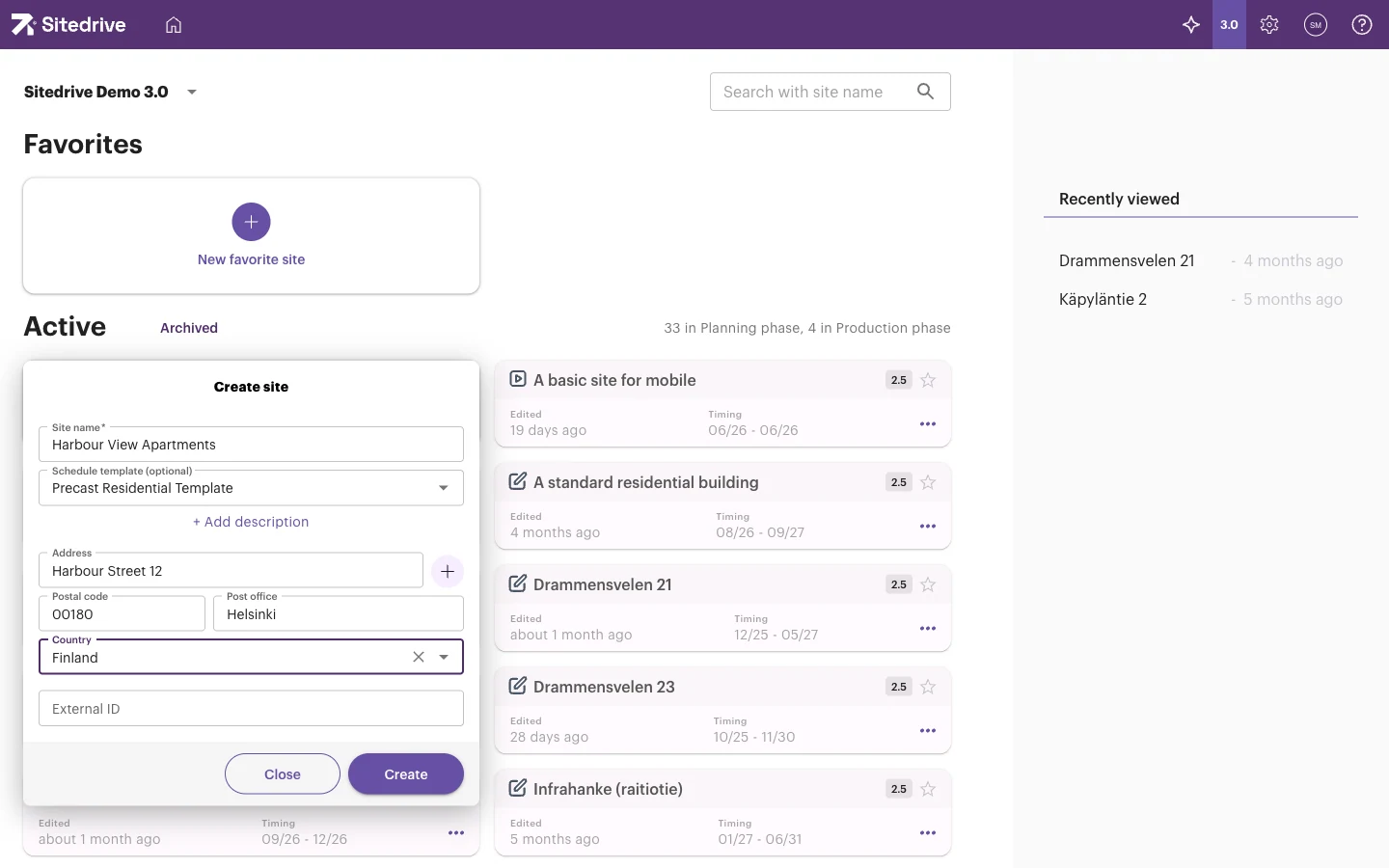
The dialog also has a drop zone: Drop a schedule file, or click to choose — MS Project, Primavera and similar · max 250 MB. Dropping a file builds the first schedule from your existing plan instead of a blank one or a template. See Creating a schedule.
What happens when you select Create
- Sitedrive creates the site and its first schedule, and opens that schedule’s Gantt straight away. The schedule has the same name as the site.
- The site dialog doesn’t ask for a start date. The schedule’s calendar initially starts on the Monday that is at least three months from today. This only sets up a reasonable calendar view; you can move work anywhere on the timeline.
- The site starts in Planning phase.
Your next step is to add locations: see Building the space model.
Find and manage your sites
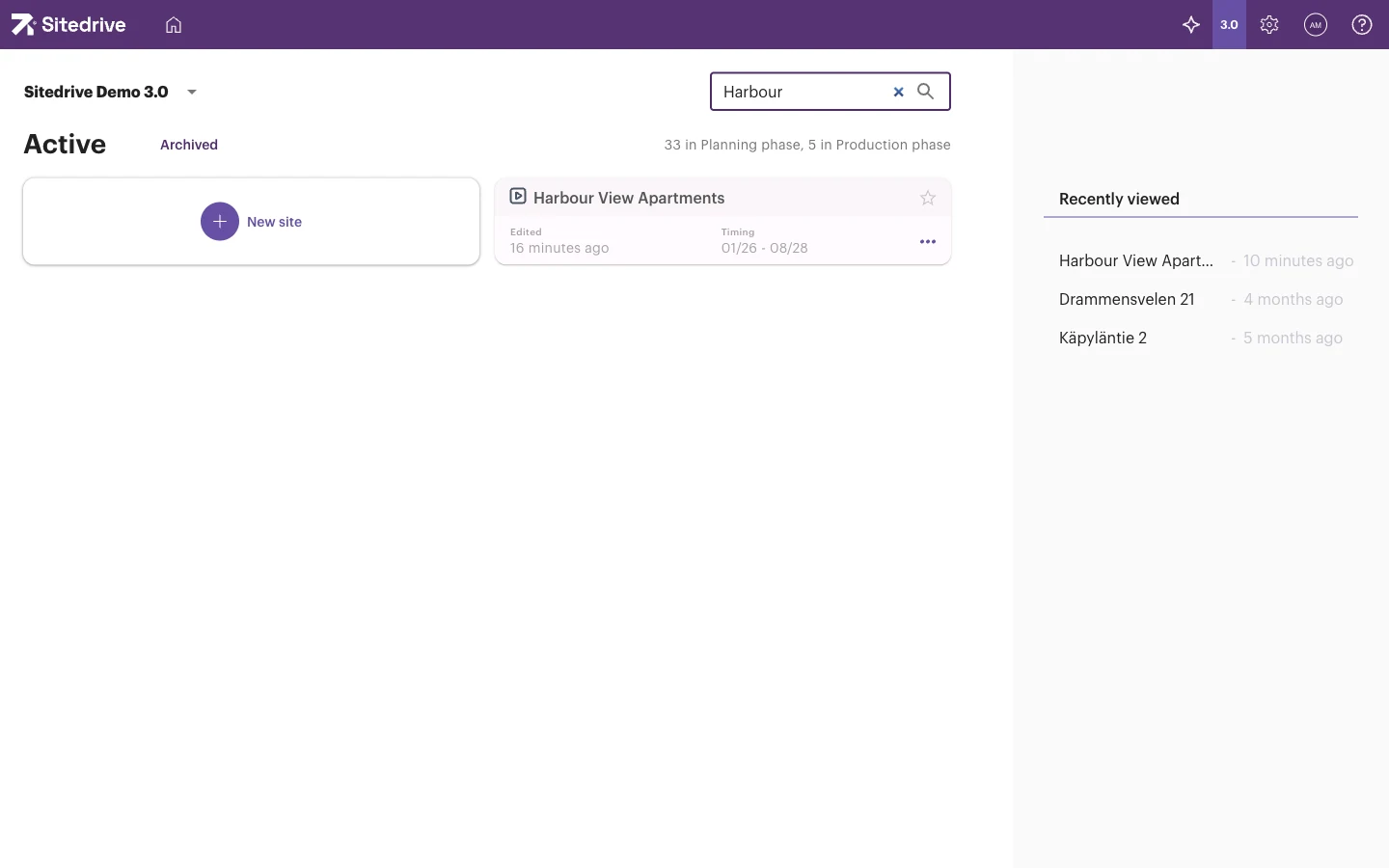
The home page lists your sites with Active and Archived tabs, a search field (Search with site name) and a count such as “34 in Planning phase, 4 in Production phase”. Select the star on a site card to add it to your Favorites. Recently viewed lists the sites you opened last.
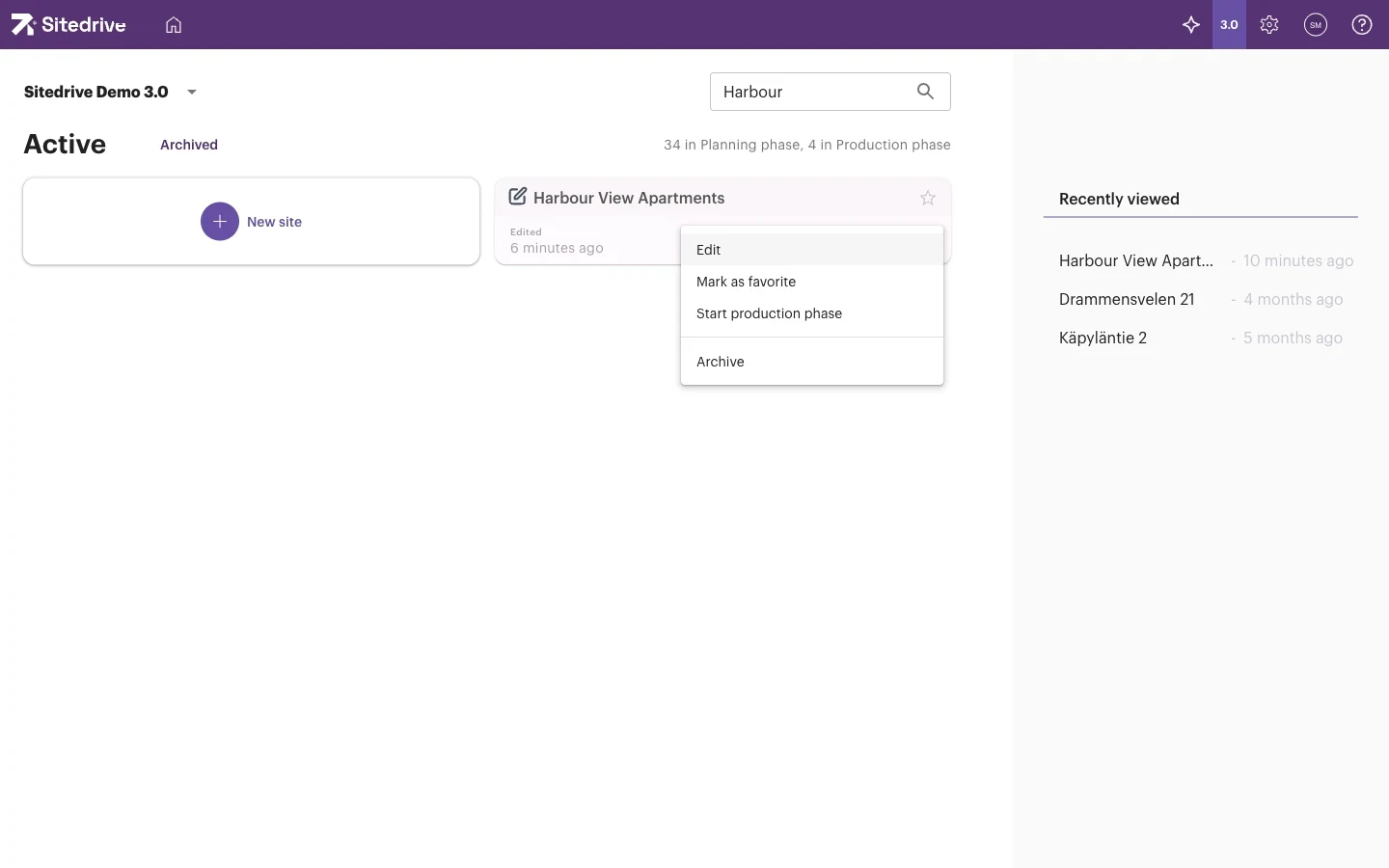
Each site card has a menu (⋯) with these options. You need the Site role on the site, or be an Account admin, to use them.
| Option | What it does |
|---|---|
| Edit | Change the site name, address and other details. |
| Mark as favorite | Pin the site to your Favorites. |
| Start production phase | Move the site from Planning phase to Production phase. |
| Archive | Move the site to the Archived tab. |
Move the site to Production phase
Plan the site in Planning phase. When construction starts and people on site need to report progress, move it to Production phase. Status updates can only be reported on sites in Production phase.
- On the home page, open the site card menu (⋯).
- Select Start production phase.
Good to know
- Sitedrive Mobile only opens schedules of sites in Production phase, because sites that are not in production can’t take status updates. If foremen or subcontractors can’t find the site in the app, check the phase first.
- Status reporting isn’t possible on the web either while the site is in Planning phase.
- Depending on your subscription, sites in Planning phase may limit how many users you can invite. Moving the site to Production phase removes this limit.
- Depending on your subscription, you may not be able to move a site back to Planning phase yourself. Contact Sitedrive support if you need it.
- Only account admins create sites. Users with the Site role can add more schedules to an existing site.