
Sitedrive has no passwords. You sign in with your Google or Microsoft account, or with a one-time code sent to your email. This article also covers which browsers work best and how to choose your language and date format.
Before you start
- Someone must invite you to a site first. You receive an email titled “You’ve been invited to Sitedrive” with a Go to Sitedrive button.
- Use the email address the invitation was sent to. You can sign in with any address, but you only see the sites you were invited to.
Sign in on the web
- Open Sitedrive in your browser. The Welcome! page opens.
- Choose how to sign in:
- Sign in with Google – for Google or Google Workspace accounts.
- Sign in with Microsoft – for Microsoft 365 and other Microsoft work accounts.
- Sign in with Email – for any email address.
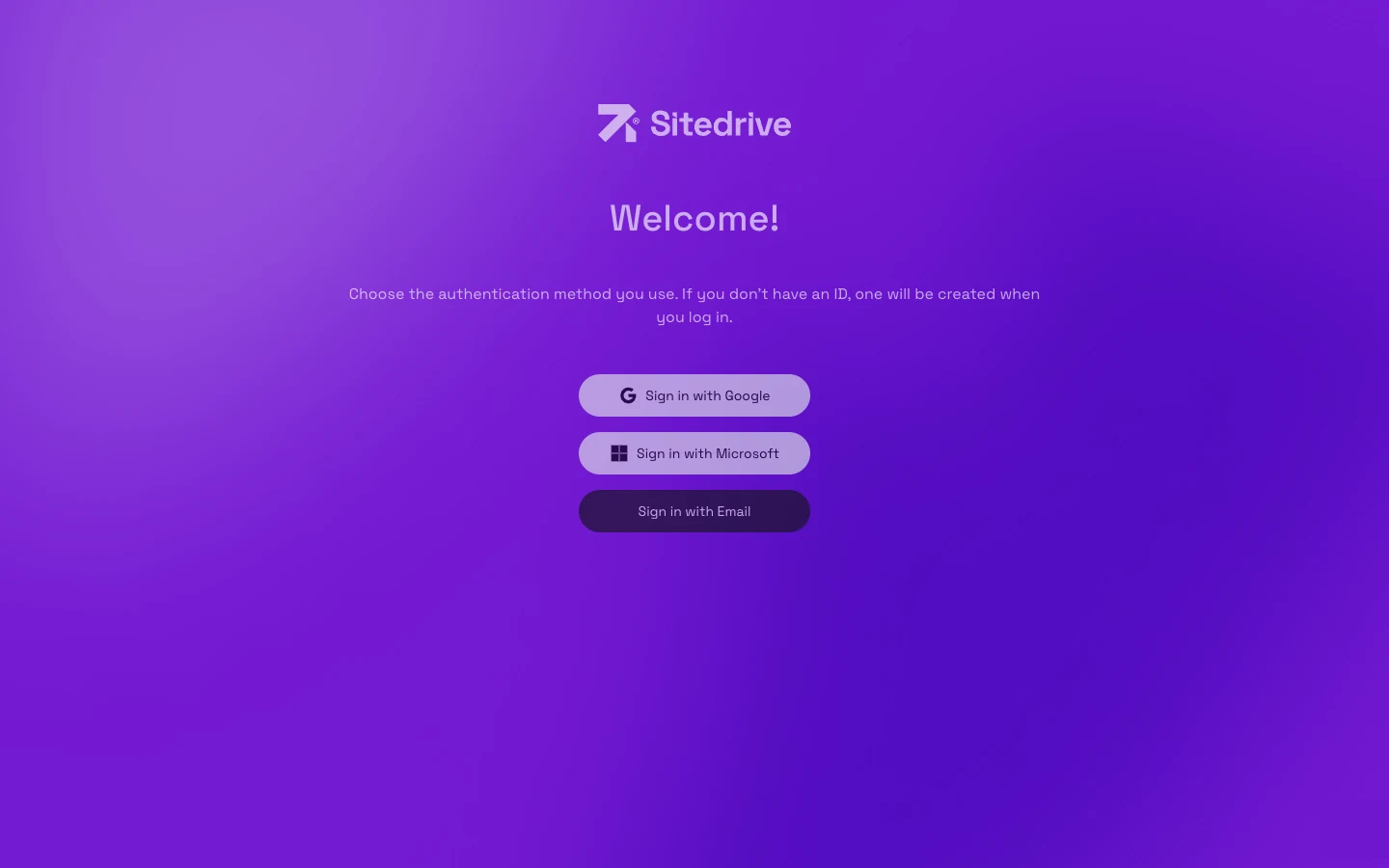
If you don’t have a Sitedrive ID yet, one is created the first time you sign in. Sitedrive may then ask you to Complete your profile, including your phone number.
Sign in with an email code
- Select Sign in with Email.
- Type your address in Email and select Continue.
- Open the email titled “Sign in to Sitedrive”. It contains an 8-digit code.
- Type the code on the Enter sign in code from email page. Sitedrive signs you in as soon as the code is complete.
Each code works once. If you see “That code is wrong or has expired” or “That code has already been used”, ask for a new code and try again.
Link your Microsoft account
If you first signed in with an email code, you can link Microsoft so you can use Sign in with Microsoft next time.
- Select your avatar (your initials, labelled User settings) in the top-right corner.
- Select Edit profile.
- Select Link Microsoft account.
- Sign in to your Microsoft account.
Supported browsers
Use the web app in an up-to-date desktop browser. Sitedrive web works best in Google Chrome or Microsoft Edge. Mozilla Firefox also works. We recommend not using Safari.
On phones and tablets, use Sitedrive Mobile instead. The mobile app also offers Sign in with Apple on iPhone.
Change your language, date format and status colours
Each user chooses their own settings. They don’t affect anyone else.
- Select your avatar (User settings) in the top-right corner.
- Select Edit profile.
- Choose your Language. Sitedrive is available in English, Suomi, Español, Čeština, Norsk, Français, Dansk and Svenska.
- Optionally choose Date formatting. The default, Match interface language, follows your language.
- Optionally choose Status colors: Default or Color blind.
- Select Save.
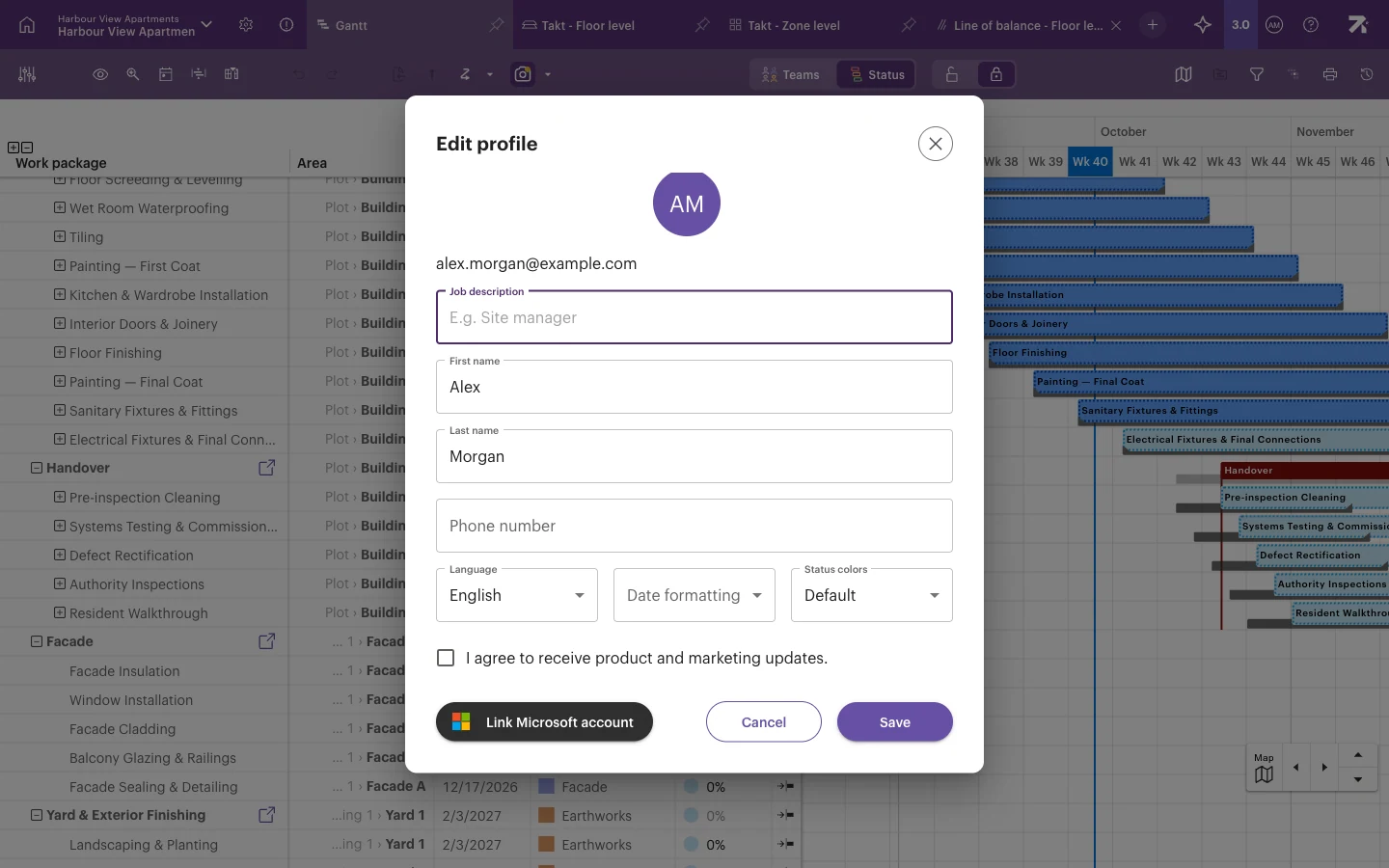
You can also update your name, phone number and Job description in the same dialog.
Sign out
Select your avatar in the top-right corner, then Logout.
Good to know
- If you see “We can’t find you in any account”, you signed in with an address nobody has invited. Select Sign Out and Retry and use the invited address, or ask your site contact.
- If you sign in but see no sites, ask your site manager to add you to a site.
- Too many code requests from the same network are paused for a few minutes. Wait and try again.