
Sitedrive has a REST API that lets your other systems read and update schedule data, for example to bring task statuses in from a quality system or to pull schedule data into reporting. You can also connect an AI assistant, such as Claude, so that it can look up and create schedule data for you. This article explains both.
Before you start
- To create API keys for the account, you need the Account admin role. See Roles and what each one can do.
- Anyone can connect an AI assistant with their own personal API key. The assistant can only do what you can do yourself.
Create an API key
API keys are the recommended way for integrations to authenticate. They give direct access to the API with no additional login step.
- Select the gear icon (System settings) in the top-right corner.
- Select Account settings.
- In the left menu, select API usage.
- Under API Keys, select New API Key.
- Choose the Scope:
- Account-wide: access to all API key-supported endpoints across the account.
- Site-specific: access to the sites you pick. Use Search sites… to find them.
- Choose the Access level: Read only or Read and write.
- Select Add.
- Copy the key and store it somewhere safe. You won’t be able to see it again.
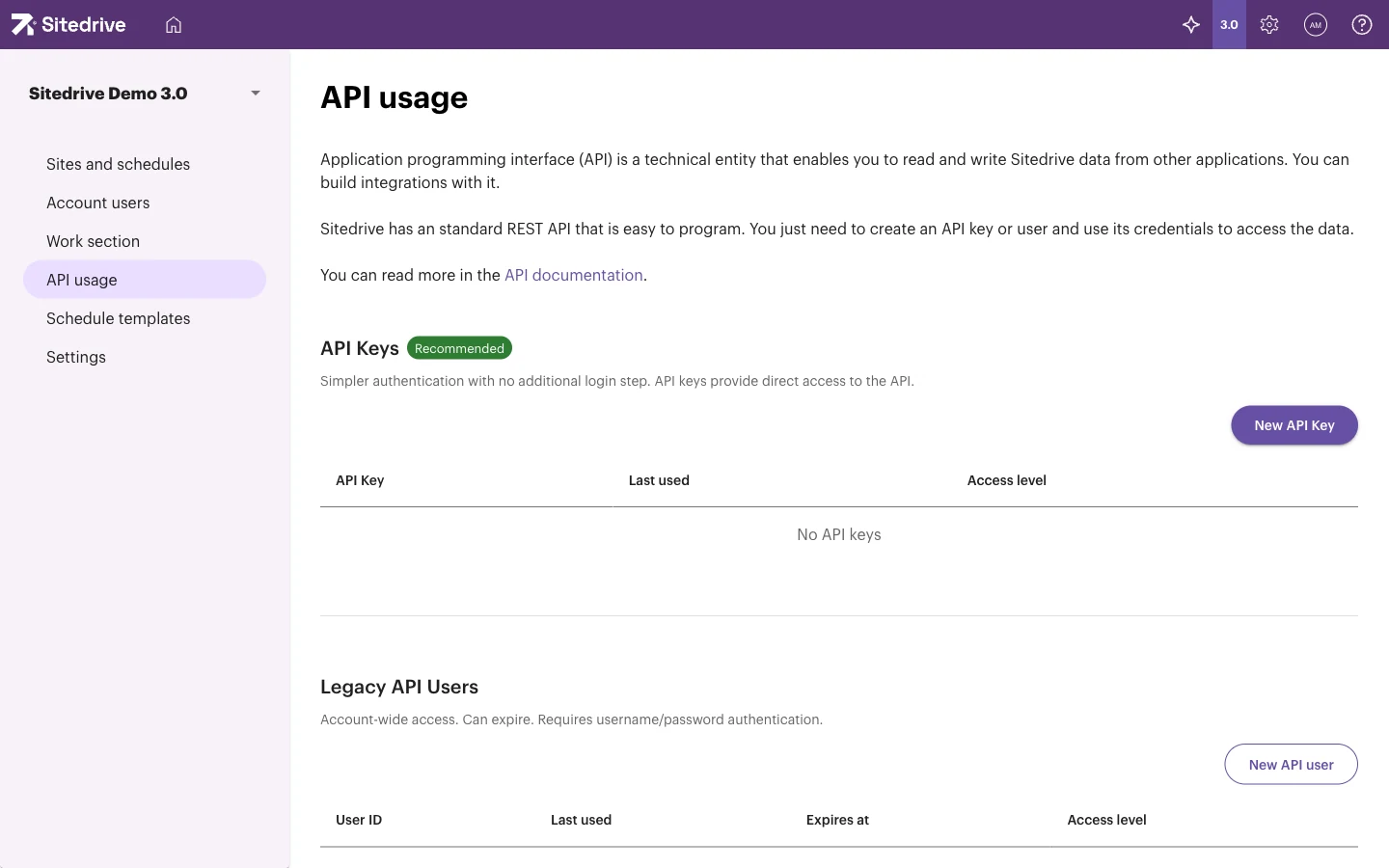
The API Keys table shows each key with API Key, Last used and Access level. To stop an integration from using a key, remove the key from the table.
Legacy API Users
The Legacy API Users section is for older integrations. These users have account-wide access, can expire and need username and password authentication. Select New API user only if an existing integration requires it; use an API key for anything new.
Find the API documentation
The API documentation lists every endpoint, with examples: https://api.app.sitedrive.com/api/docs. The API usage page links to it as well.
A few things to know when you build an integration:
- Send the key in the request header as
Authorization: Bearer <your API key>. - A Read only key can only read data. A Read and write key can also create, change and delete.
- Not every endpoint accepts API keys. The documentation shows which ones do.
- Each key can make up to 15 requests in 5 seconds. If you send more, the API answers with HTTP 429 and you should try again shortly.
If the page says that API access is disabled, contact Sitedrive support to have it switched back on.
Connect an AI assistant
Sitedrive has an MCP server, which lets AI assistants (MCP clients) such as Claude connect to Sitedrive and act on your behalf. The assistant can, for example, find projects, locations and teams, summarise work packages, list schedule templates and create a new site and schedule from a plan you describe.
You connect an assistant with a personal API key.
- Select your avatar (User settings) in the top-right corner.
- Select Personal API keys.
- Select New key.
- Give the key a name, for example “Claude Desktop”.
- Select Create.
- Copy the key. You won’t be able to see it again.
- In your AI assistant, add the Sitedrive MCP server with the address
https://api.app.sitedrive.com/mcpand your key. Setup instructions for different assistants are at https://api.app.sitedrive.com/mcp/docs.
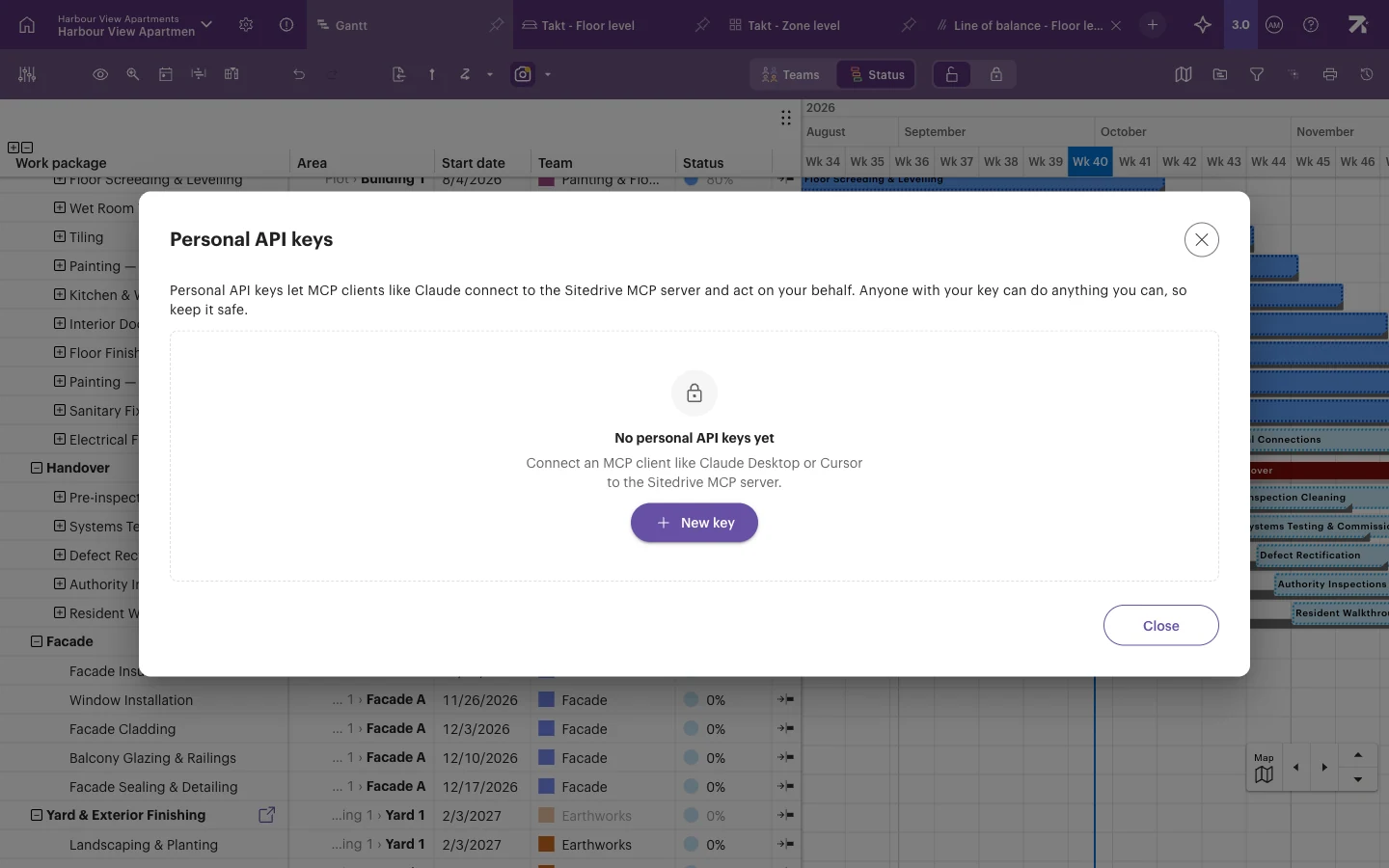
To check that the connection works, ask the assistant who you are in Sitedrive.
Anyone with your key can do anything you can, so keep it safe. If a key may have leaked, or you no longer use it, select Revoke next to it.
Good to know
- API keys and personal API keys are shown only once. If you lose one, create a new one and remove the old one.
- An AI assistant always works with your rights. If you only have the Report role on a schedule, the assistant can’t change the plan either. The account’s Allow LLM capabilities setting doesn’t change this. See Account settings.
- When an assistant creates a site or schedule, it creates real data in your account, just as if you had done it yourself.
- Hosted assistants such as claude.ai need the public address above; they can’t reach a local address.
- Other ways to get data out of Sitedrive include Export to Excel on the user lists and the Gantt export. See Printing and exporting.