
Once work starts on site, the schedule is only useful if it shows what has really happened. In Sitedrive you record progress on each work package in each area: whether it has started, how far it has got and whether it is finished. Sitedrive then colours the schedule so everyone can see at a glance what is on track, what is late and what is blocked.
Before you start
- Users with Schedule or Site rights can report status on any work package.
- Users with Report, Accept, Refine (ltd) or Refine rights can report status only on work packages where they belong to the team, are an assignee or are the owner. See Roles and what each one can do.
- Status reporting isn’t possible while the site is in the Planning phase. On the web you see “Editing disabled while schedule is in planning mode”, and Sitedrive Mobile doesn’t open the site, because sites that are not in production can’t take status updates. Move the site to production first (see the FAQ).
- You report status on a single area, not on a sum work package or a master. If the status buttons are greyed out, pick the work package in one area instead. Sums and masters show the combined progress of the areas below them.
Report status in the work package panel
- Open the schedule in the Gantt or Takt view.
- Open the work package panel:
- In Gantt, select the row for one area and press Enter, or hold Alt (Option on Mac) and click it.
- In Takt, double-click the work package, or right-click it and choose Show this in side panel.
- Under the work package name, select Not started, In progress or Completed.
- If you want to be more precise, type a value in the Progress field (%).
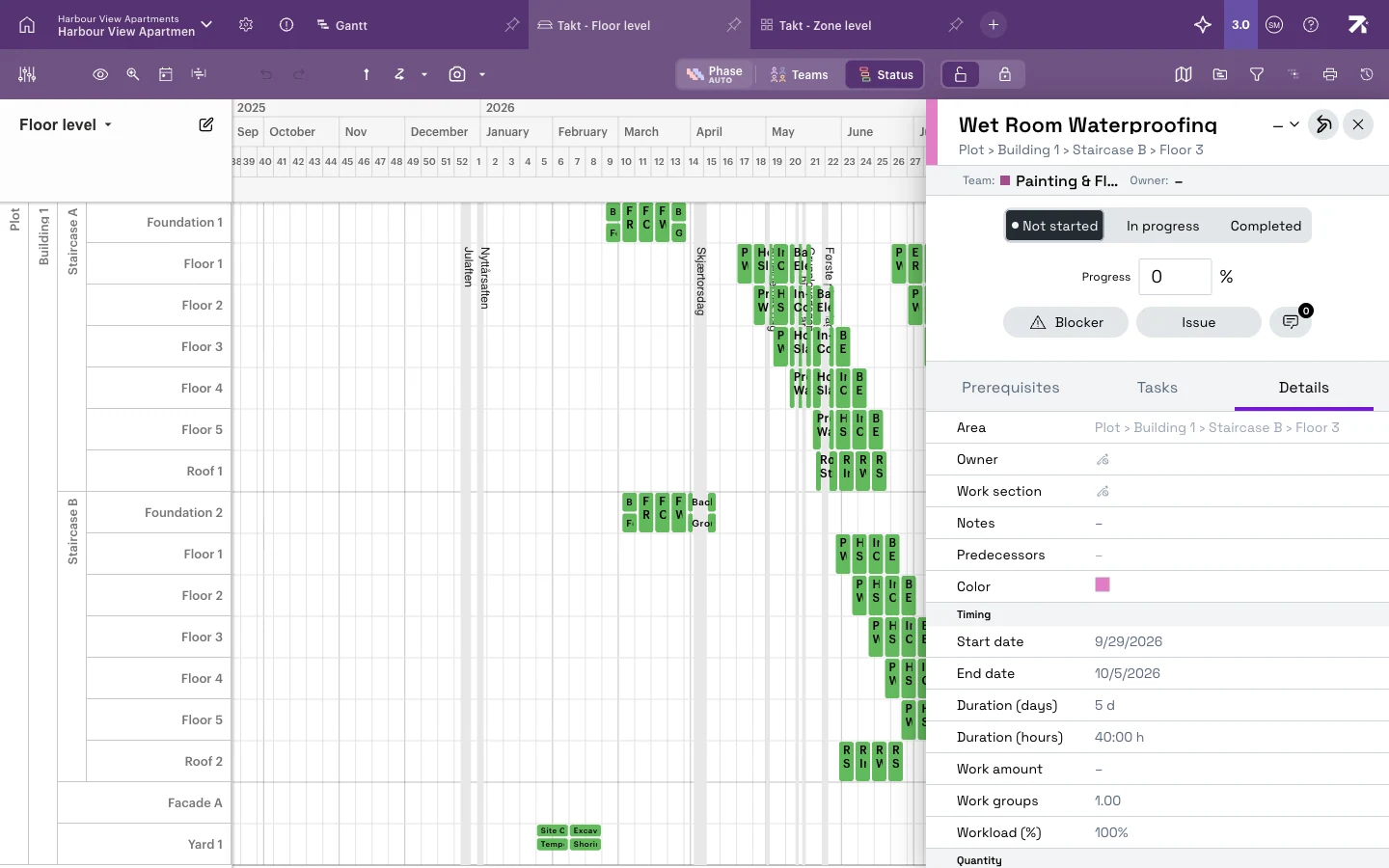
Status and percentage are linked:
| You do this | Sitedrive sets |
|---|---|
| Select Not started | 0 % |
| Select In progress | 1 % |
| Select Completed | 100 % |
| Type 0 % | Not started |
| Type 1–99 % | In progress |
| Type 100 % | Completed |
Values just above 0 % show as 1 %, and values just below 100 % show as 99 %. So 100 % always means truly finished.
Report status for several work packages at once
- In the Gantt Status column, click the cell to open the same buttons and a percentage field. If several rows are selected, the status applies to all of them.
- In Takt, select the work packages, right-click and choose Set status › Not started, In progress or Completed.
Let tasks drive the percentage
A work package can have a checklist on its Tasks tab. When you tick tasks, Sitedrive calculates the progress from the share of tasks completed. When all tasks are ticked, the work package becomes Completed.
Once some but not all tasks are ticked, you can’t type a percentage any more, and the In progress button is disabled. The field shows “Progress is automatically calculated from task completion”. Blockers, issues and quality tasks never count towards the percentage. They only change the colour (see below).
Add a status comment
A status comment explains the situation, for example “Waiting for window delivery, starts Monday”.
- In the work package panel, select the comments icon (next to Blocker and Issue).
- Switch on the Status toggle.
- Type in Write a status comment and select Send status.
The latest status comment appears in the panel and in the Gantt Status comment column, which you can add from Columns. It also appears in the tooltips in Line of balance.
Read the status colours
To colour the schedule by progress, select Status in the Teams | Status switch in the toolbar (“Show schedule by”). Your admin may have locked this for the view.
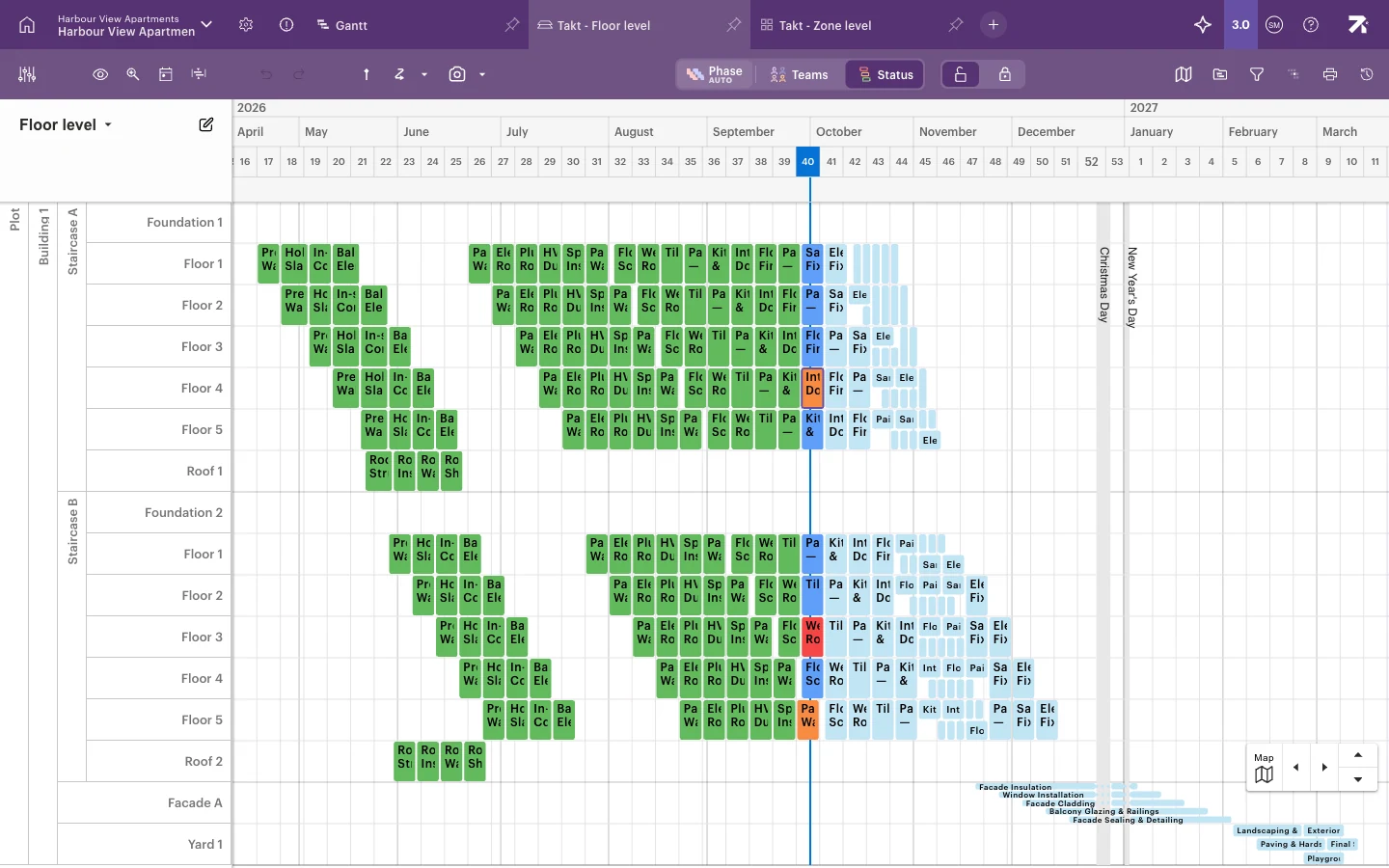
The colour shows a derived status. Sitedrive works it out from the reported status, the dates and any open blockers, issues or quality tasks. It checks the rules in this order:
| Derived status | Colour | When |
|---|---|---|
| Blocked | Red | The work package has an open blocker. This beats every other status, even Completed. |
| Verified | Green | Completed, and all blockers, issues and quality tasks are closed. |
| Open Issues | Light green | Completed, but an issue is still open. |
| Completed | Light green | Completed, but some quality tasks are not yet met. |
| Delayed (started) | Light orange | In progress, and the planned end has passed. |
| Delayed (not started) | Orange | Not started, and the planned start has passed. |
| In progress | Blue | In progress and still within its planned time. |
| Ready to start | Light blue | Not started, and the planned start is still in the future. |
In short, work is late when it hasn’t started after its planned start, or is still in progress after its planned end. Completed work is never late, whatever its dates. The comparison uses the exact time, so work turns late as soon as its planned start time passes, not on the next day.
Report status on mobile
Foremen and subcontractors usually report from Sitedrive Mobile. They tap a work package and choose Not started, In progress or Completed, and can tick tasks on the Tasks tab. The percentage field appears on mobile only if an admin has switched on Allow progress entry as percentage under Schedule settings › Basic settings › Mobile settings.
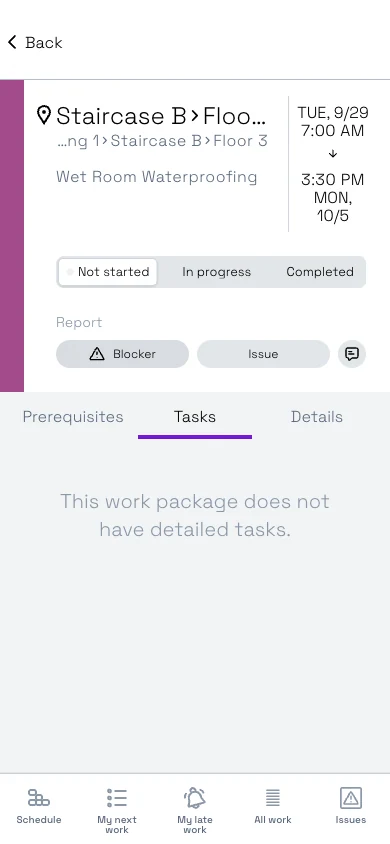
Reports from mobile appear in the web schedule for everyone without anyone reloading the page.
Good to know
- A finished work package that is still red has an open blocker. Close the blocker to clear the colour.
- “Open Issues” and “Completed” use the same light green. Open the work package to see which one it is.
- To hide finished work, select the eye icon (Select schedule visualization options) in the toolbar and tick Hide completed packages.
- The Edit lock in the toolbar does not stop you reporting progress. It only prevents accidental changes to the plan.
- Colours are recalculated when the schedule data loads or changes. A work package that becomes late with nobody editing anything may keep its old colour until the next change or a page refresh.
- You can’t report status while previewing an older version from version history, or on an archived site.
- On mobile, My late work lists your teams’ items whose planned end passed within the last 100 days. A work package that is late only because its start has passed is orange on the web but doesn’t appear there yet.