
Deadlines mark dates that matter: handover, a watertight roof, a contractual completion date. In Sitedrive they are also how you mark milestones. Each deadline is a diamond on a work package’s row, with a name and a date. There are two types:
| Type | Colour | Use it for |
|---|---|---|
| Internal | Yellow | Your own targets, such as “Roof watertight”. New deadlines are internal. |
| Contract | Red | Dates in the contract, such as “Handover”. |
Before you start
- You add deadlines in the Gantt view. Other views show deadlines but can’t add them.
- You need editing rights to the work package you attach the deadline to. The deadline columns and the Deadlines display option are available to Refine and above.
Add a deadline
- In Gantt, select Open deadline tools in the toolbar. The Deadline tools bar opens.
- Select Add new deadline.
- Click the work package’s row at the date of the deadline. The deadline is placed at the end of the time slot you click.
- Type a name and press Enter.
- To make it a contract deadline, select Contract. Select Internal to change it back.
- Close the bar with × or press Esc.
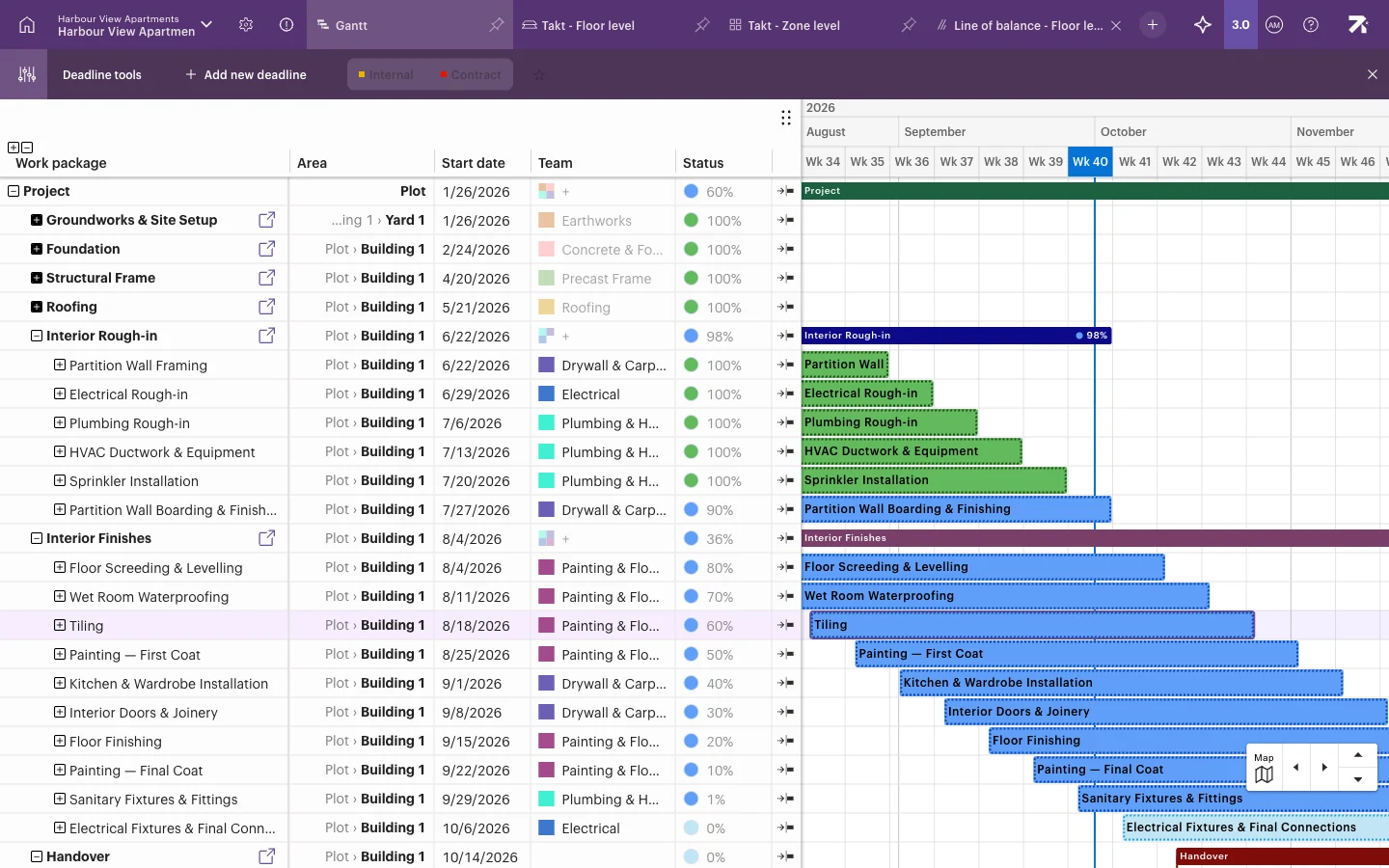
Attach each deadline to the work package it belongs to. For a project-wide milestone such as handover, use the row of the phase or work package that must be finished by then.
Open the deadline tools, select Add new deadline, click the row at the date, type a name and choose Internal or Contract.
Edit, move or delete a deadline
Open Deadline tools first, then:
- Rename: click the deadline and type a new name.
- Move: drag the diamond to a new date.
- Change type: select the deadline, then Internal or Contract.
- Delete: select the deadline and press Delete (Mac: Backspace).
Make a deadline stand out
Select a deadline and select the star, Mark as critical (show more prominently in schedule). A starred deadline is drawn with its full line and name across the schedule, and it is also shown in the Takt and Line of balance views.
Starred deadlines are saved per view. Schedule and Site users can manage them in view settings under Starred deadlines.
Show or hide deadlines
- Open Select schedule visualization options (the eye icon) and turn Deadlines on or off.
- In Gantt, add the Internal deadline and Contract deadline columns with Columns to see and edit the dates in the table.
- When printing, choose which deadlines to include. See Printing and exporting.
Good to know
- There is no separate milestone object. Use a deadline, usually a starred contract deadline, as your milestone.
- Sitedrive does not warn you when work runs past a deadline. Compare the bars with the diamonds yourself.
- In Takt, when you select a phase, only that phase’s deadlines are shown.