
The Gantt shows your schedule as a table of work packages on the left and a timeline of bars on the right. It is the best view for the work breakdown: phases, sum work packages and the work packages under them. Every schedule has a main Gantt view that shows all work, and you can add grouped Gantt views for areas, teams, owners or assignees.
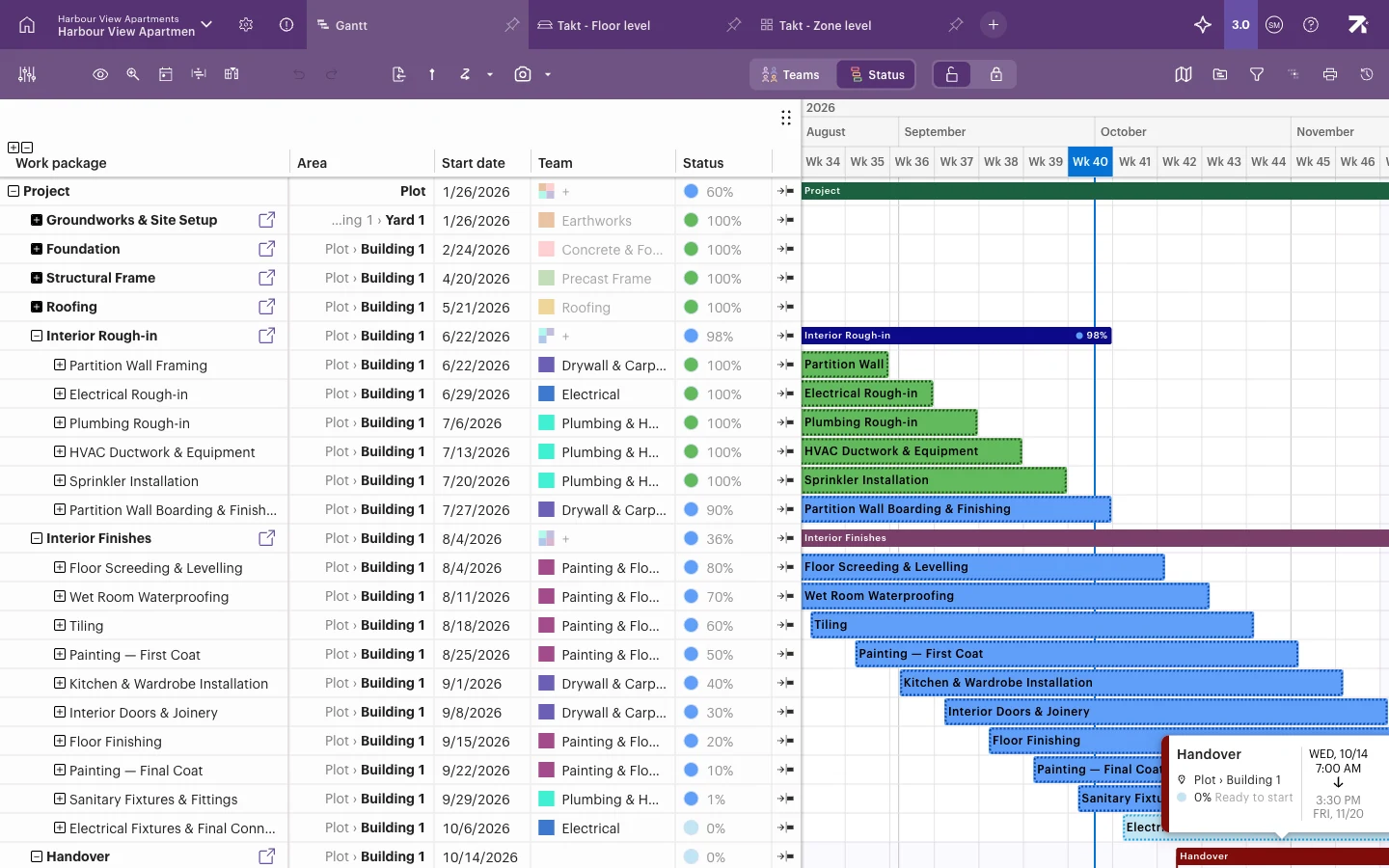 Harbour View Apartments in the Gantt. Today (week 40) is marked with a blue line.
Before you start
- Everyone who can open the schedule can read the Gantt.
- Editing work in the Gantt needs the Schedule, Site or Account admin right, or Refine/Refine (ltd) for work packages you own. See Roles and what each one can do.
- Editing work packages is covered in Work packages and Moving and editing work. This article is about reading and navigating the view.
Read the Gantt
- Rows follow the work breakdown. A sum work package (for example Interior Finishes) groups the work packages under it. Its bar spans all of them.
- Area rows: when a work package has been placed in several areas, each area appears as an extra level under it.
- Bars run from start to end on the timeline. Colour shows the team or the status, depending on the Teams | Status switch in the toolbar. See Colouring and display options.
- Sum rows have an Open Floor level view link icon that jumps to the same work in a Takt view.
The default columns are Work package, Area, Start date, Team and Status. The status column shows progress as a percentage with a coloured dot.
Show or hide columns
- Click Columns in the toolbar.
- Tick the columns you want to see and untick the ones you don’t.
- Click outside the list to close it.
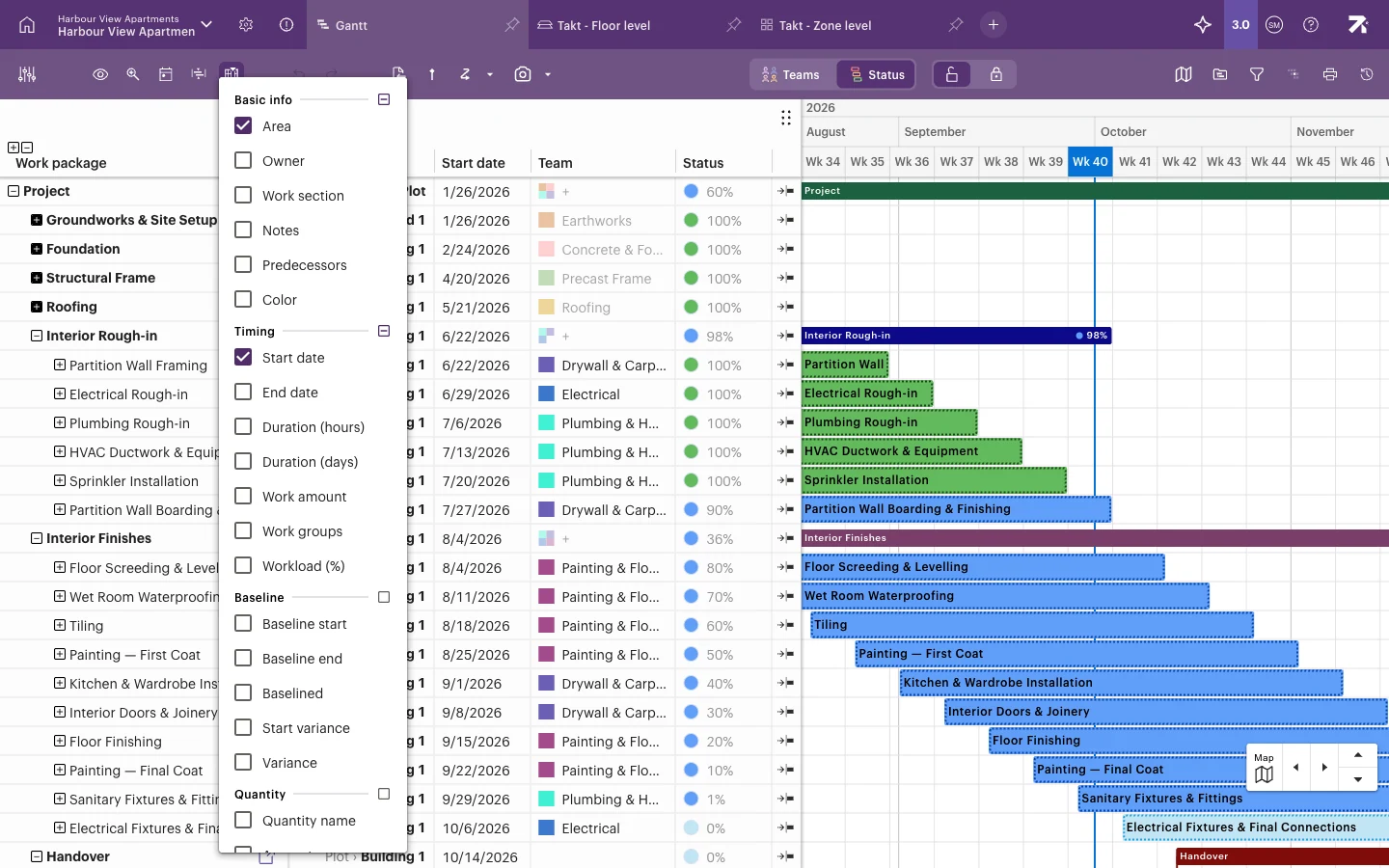
Columns are grouped into sections such as Basic info, Timing, Baseline and Quantity. Available columns include Owner, Work section, Notes, Predecessors, Color, End date, Duration (hours), Duration (days), Work amount, Work groups, Workload (%), baseline dates and variance, quantity fields and your schedule’s custom fields. Reset to default brings back the original set.
Your column choice is personal. Other users keep their own columns. To make the table wider or narrower, drag the edge between the table and the timeline.
Expand and collapse rows
- Click the arrow or +/− in front of a row to open or close it.
- Select a row and press Space to toggle it.
- Use the buttons above the Work package column:
- The expand button opens all branches by one level. Alt/Option+click it to open area rows too.
- The collapse button closes the lowest open level of all branches.
Move around the timeline
- Scroll with the mouse wheel or trackpad to pan. Over the timeline you can pan both ways; over the table you scroll rows.
- Drag an empty part of the timeline to pan. You can also hold Space and drag, or drag with the middle mouse button.
- Zoom with Ctrl/Cmd + scroll, or pinch on a trackpad. Over the timeline this zooms time. Over the table it changes the row height.
- Use the Map control in the bottom-right corner to move left, right, up or down.
- Click Today in the toolbar to jump to the current date.
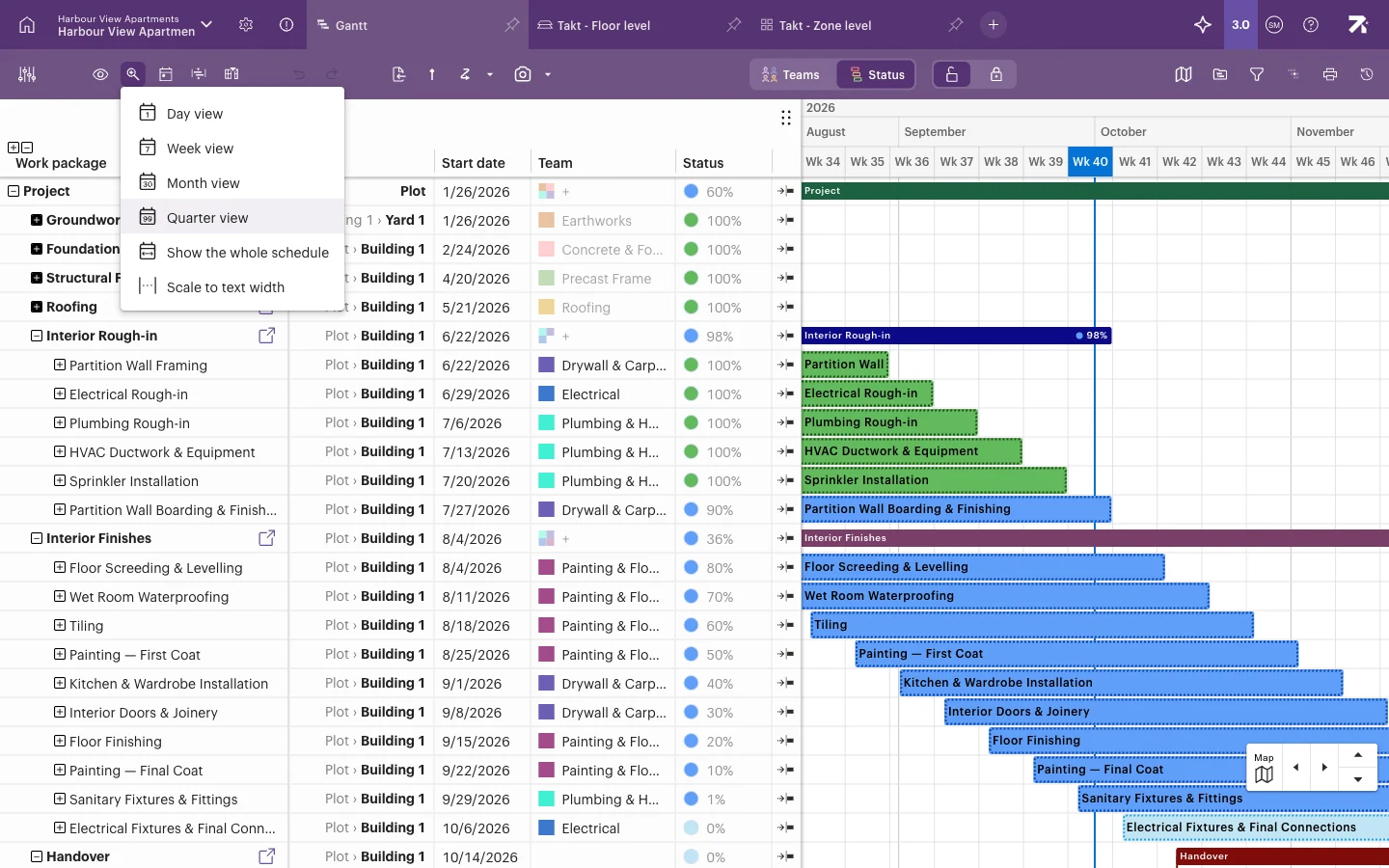
Choose a zoom level
- Click Zoom level in the toolbar.
- Pick Day view, Week view, Month view or Quarter view.
- Or pick Show the whole schedule to fit everything, or Scale to text width to make bars wide enough for their names.
Zooming and panning sideways are switched off while Focus view is on.
Change the row order
The Gantt has no click-to-sort column headers. To change the order:
- Drag rows up or down.
- Or right-click a sum row, choose Sort subpackages, and pick a chronological order by start or end date. Sorting replaces your manual order. The confirmation says it can’t be reverted, but version history can bring back an earlier state.
Gantt by area and Grouped Gantt
These views show the same work packages in a Gantt, grouped by a single attribute instead of the work breakdown.
Gantt by area groups work by a space level. Use it to see everything happening on each floor or in each zone.
- Click + (View selection and management).
- Click New view → Gantt by area ›.
- Pick a level, for example Work by floor.
Grouped Gantt groups work by a person or team:
- Work by team – work grouped by team.
- Work by owner – who is responsible for each work package.
- Work by assignee – work assigned to each person.
Create one from + → New view → Grouped Gantt ›. Work with no value goes into a group such as No team or No owner.
In grouped views:
- Rows in each group are ordered by start date. You can’t drag them into a different order.
- A work package with two teams appears once under each team.
- Work amount can’t be edited from a grouped row.
- If you change a work package that appears in several groups, Sitedrive asks you to confirm Change to all instances. The change affects every place the work package appears, not only the group you are looking at.
Good to know
- Deadline columns are shown to users with Refine or higher.
- If filters hide every row, the Gantt says No work packages match and lists the filters that hide them. Click Clear all filters to see everything again.
- A schedule with no space model shows Sitedrive is best with locations. Add space model to start! in the Area column. See Building the space model.
- The Gantt has no phase colouring. Phase colouring is available in Takt.