
A full schedule has hundreds of work packages. Three tools help you see only what matters right now:
- Filter hides everything that doesn’t match.
- Highlight keeps everything visible but dims what doesn’t match.
- Focus view fixes the timeline to a window of weeks around today.
All three work in the Gantt, Takt and Line of balance views. Your choices are personal unless a Schedule or Site user has locked them for everyone.
Before you start
- Anyone who can open a view can filter, highlight and use Focus view.
- Locking a filter or focus window for everyone needs the Schedule, Site or Account admin right. See Sharing views and locking settings.
Filter work packages
- Click the funnel icon (Filter work packages) on the right of the toolbar. The filter panel opens.
- Choose a tab:
- Work package hierarchy – pick phases, sum work packages or single work packages. Picking a parent includes everything under it.
- Space – pick buildings, staircases, floors or smaller spaces. Picking a space includes the spaces inside it.
- Team – pick one or more teams.
- Status – pick statuses such as In progress, Delayed (not started), Blocked or Completed.
- Tick the items you want to see. The view updates straight away.
- Click the funnel icon again to close the panel. The icon shows how many filters are active.
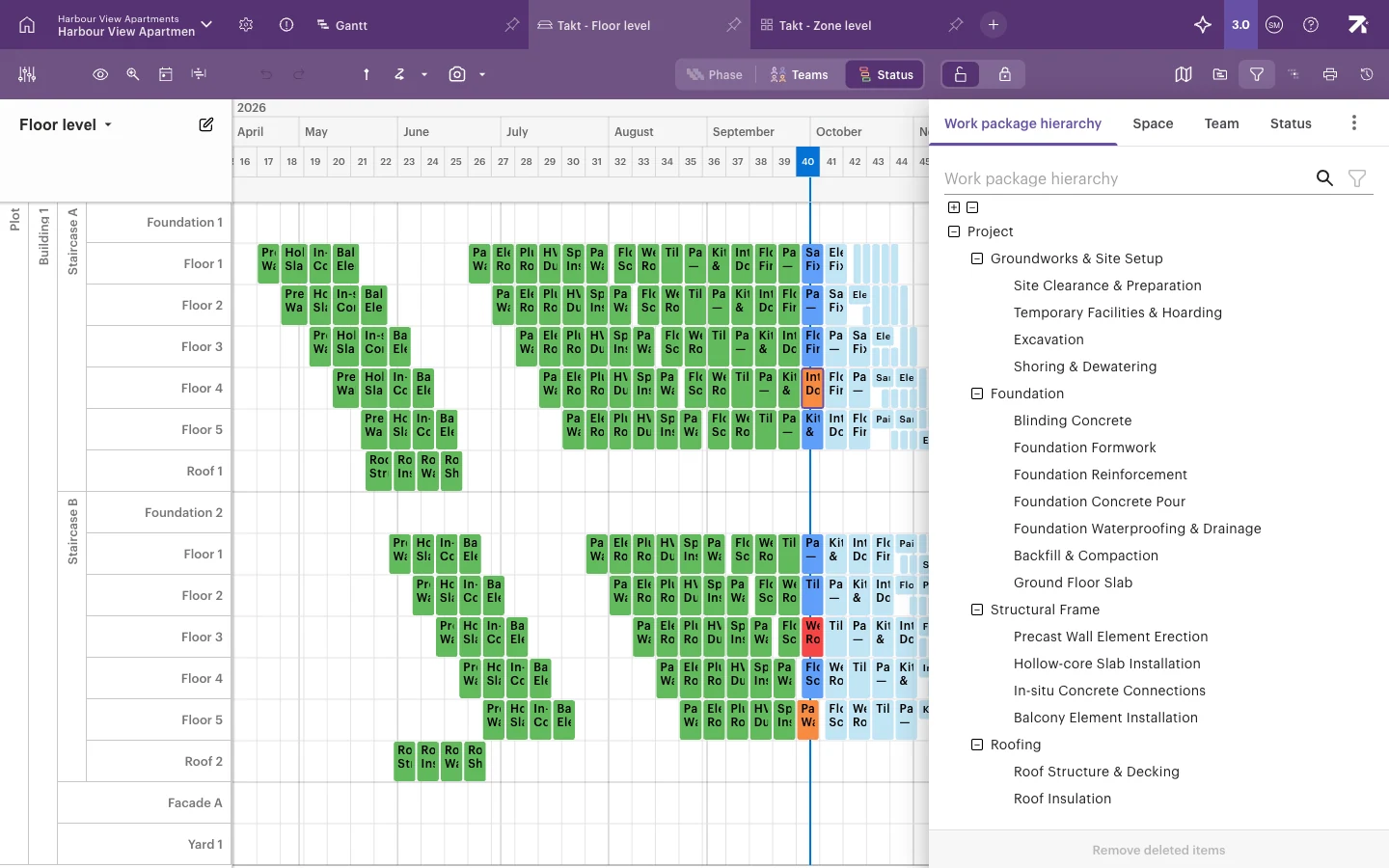
Work section filters are under the ⋮ menu at the end of the tabs (More filters).
How filters combine
- Within one tab, a work package matches if it matches any ticked item. Ticking Electrical and Plumbing & HVAC shows both teams’ work.
- Across tabs, a work package must match every tab. Ticking Electrical on Team and Staircase A on Space shows only electrical work in staircase A.
Tips for the filter panel
- Use the search field at the top of each tab to find items by name.
- Use the +/− buttons above a tree to open or close all branches by one level.
- If items you filtered on have since been deleted, click Remove deleted items at the bottom of the panel to clean them up.
Clear your filters
- Click Clear filters when filters are active.
- In the Gantt, if filters hide every row, you see No work packages match with a list of the filters in use. Click Clear all filters.
Your filters are saved for you in each view and follow you to other computers.
Locked filters
A Schedule or Site user can lock filters in a view’s settings so that everyone sees the same selection. Locked criteria can’t be changed or cleared in the filter panel, and the filter button tooltip tells you that some criteria are locked in view settings. Clear filters clears only your own choices.
Filter by team, then turn on Focus view to see only the weeks around today.
Hide completed work and empty rows
These are quick filters in the eye menu (Select schedule visualization options):
- Hide completed packages hides finished work. It is available in every timeline view and is always personal.
- Hide empty space rows (Takt and Line of balance) hides areas with no work in them.
Highlight work packages
Highlight is useful when you want to point something out but keep the context, for example in a site meeting.
- Click Highlight in the toolbar, next to the filter icon.
- Choose a tab (Work package hierarchy, Space, Team or Status) and tick what you want to stand out.
- Matching work packages stay in full colour. Everything else is dimmed.
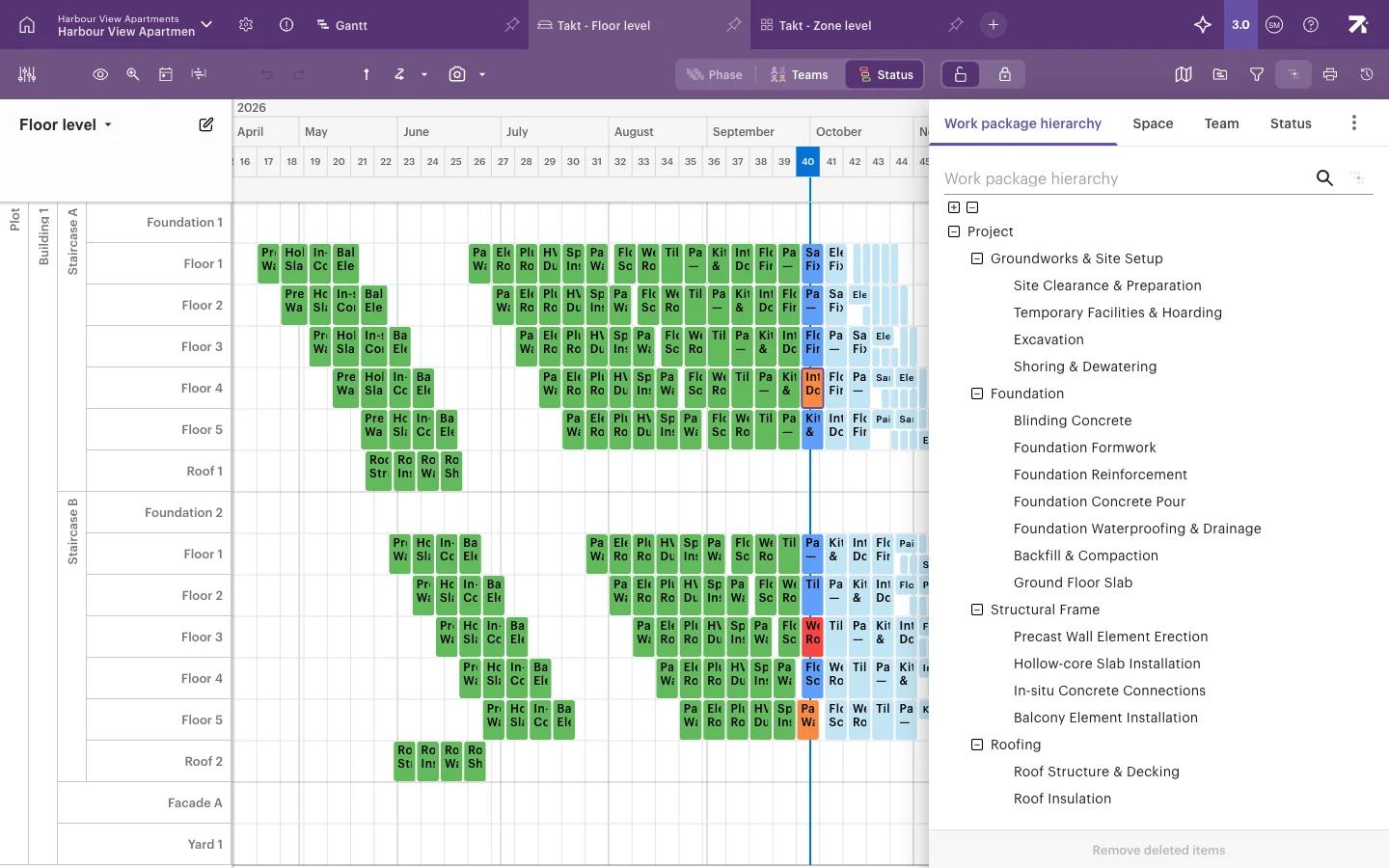
To remove highlighting, click Clear highlighting. Highlight can’t be locked in view settings.
Focus on the weeks around today
Focus view pins the timeline to a window of weeks relative to the current week. It is ideal for weekly planning, site screens and meetings, because the window moves forward automatically every week.
- Click Focus view in the toolbar.
- Set Start week offset, for example −1 for last week.
- Set End week offset, for example 3 for three weeks ahead.
- To leave Focus view, click Close focus view.
The default window is one week back to three weeks ahead.
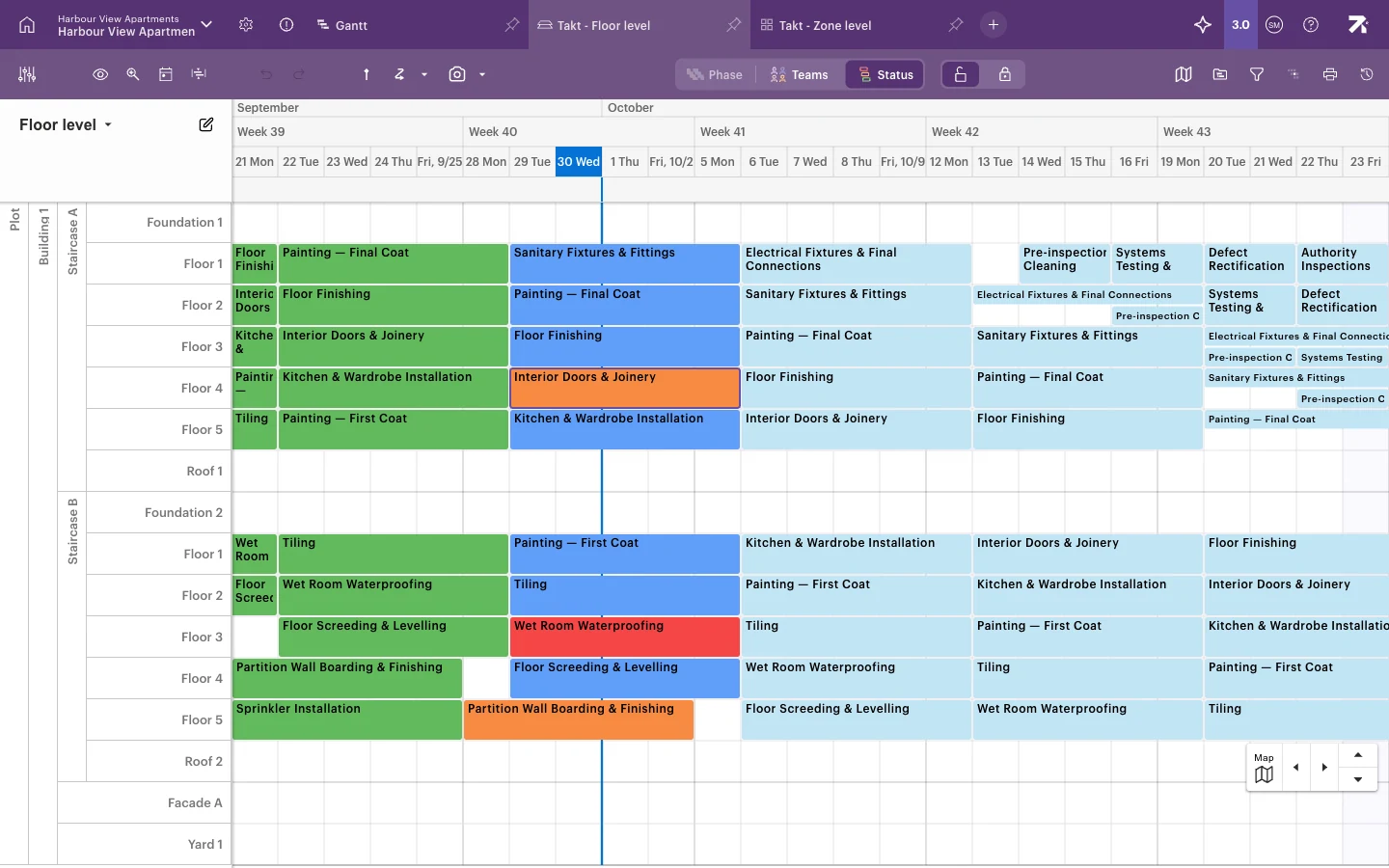
While Focus view is on:
- You can’t zoom or pan sideways, and the Zoom level menu does nothing. This is expected; close Focus view to zoom again.
- Work outside the window drops out of the view.
A Schedule or Site user can lock a focus window in view settings. Viewers then see that window by default and can’t change the offsets.
Good to know
- Filters and highlight are saved per view. A filter in the Gantt doesn’t affect your Takt view.
- Focus view is not available in the Issues view or the Team swimlane.
- If a view seems to be missing work, check for active filters, Hide completed packages and Focus view before anything else.