
Libraries let your company plan every project the same way. A work section library is the list of work sections (trades or cost codes) that work packages are sorted into. Schedule templates are ready-made schedule structures that planners start new schedules from. Account admins manage both in the account admin area; planners use them in the schedule, as described in Reusing plans: templates and libraries.
Before you start
- You need the Account admin role to manage libraries and templates. See Roles and what each one can do.
- Open the account admin area: select the gear icon (System settings) in the top-right corner, then Account settings.
Work section libraries
Every schedule needs a work section library. Work sections are used when you colour, filter and report work, and their codes may be used in reports and integrations.
In the left menu, select Work section. The Work section libraries list has Active and Archived tabs and these columns: Name, Description, Created and Status. For example, the ready-made “Sitedrive Standard Phases” library is shown as Locked.
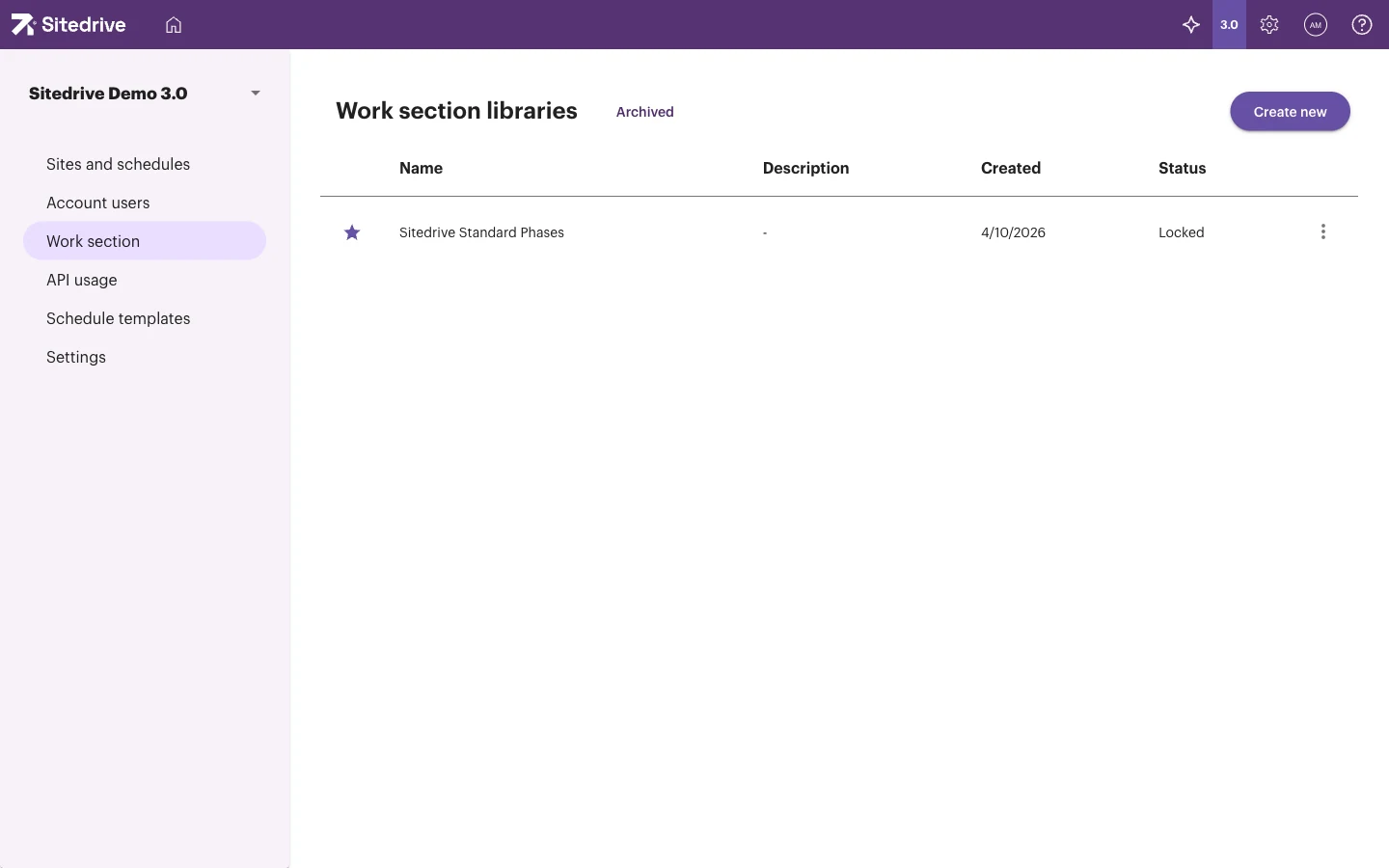
Create a work section library
- Select Create new.
- Choose how to start:
- Create using a ready-made template, for example Talo2000 or another commonly used classification.
- Duplicate existing library, to start from one of your own libraries.
- Create an empty library, to build it from scratch.
- Type a Name. Each library name must be unique.
- Optional: type a Description.
- Create the library.
- Add or edit work sections. Each work section has a Name and a Code.
Link a library to a schedule
Each schedule uses one work section library. Choose it in the schedule’s Schedule settings → Basic settings → Work section model. See Schedule settings.
Archive a library
- Open the row menu of the library.
- Select Archive.
To bring it back, open the Archived tab and select Restore to active in the row menu.
Schedule templates
In the left menu, select Schedule templates. As the page says: schedule templates are a great way to ease the making of schedules and to standardise the scheduling structures. The templates you create here are available across the company.
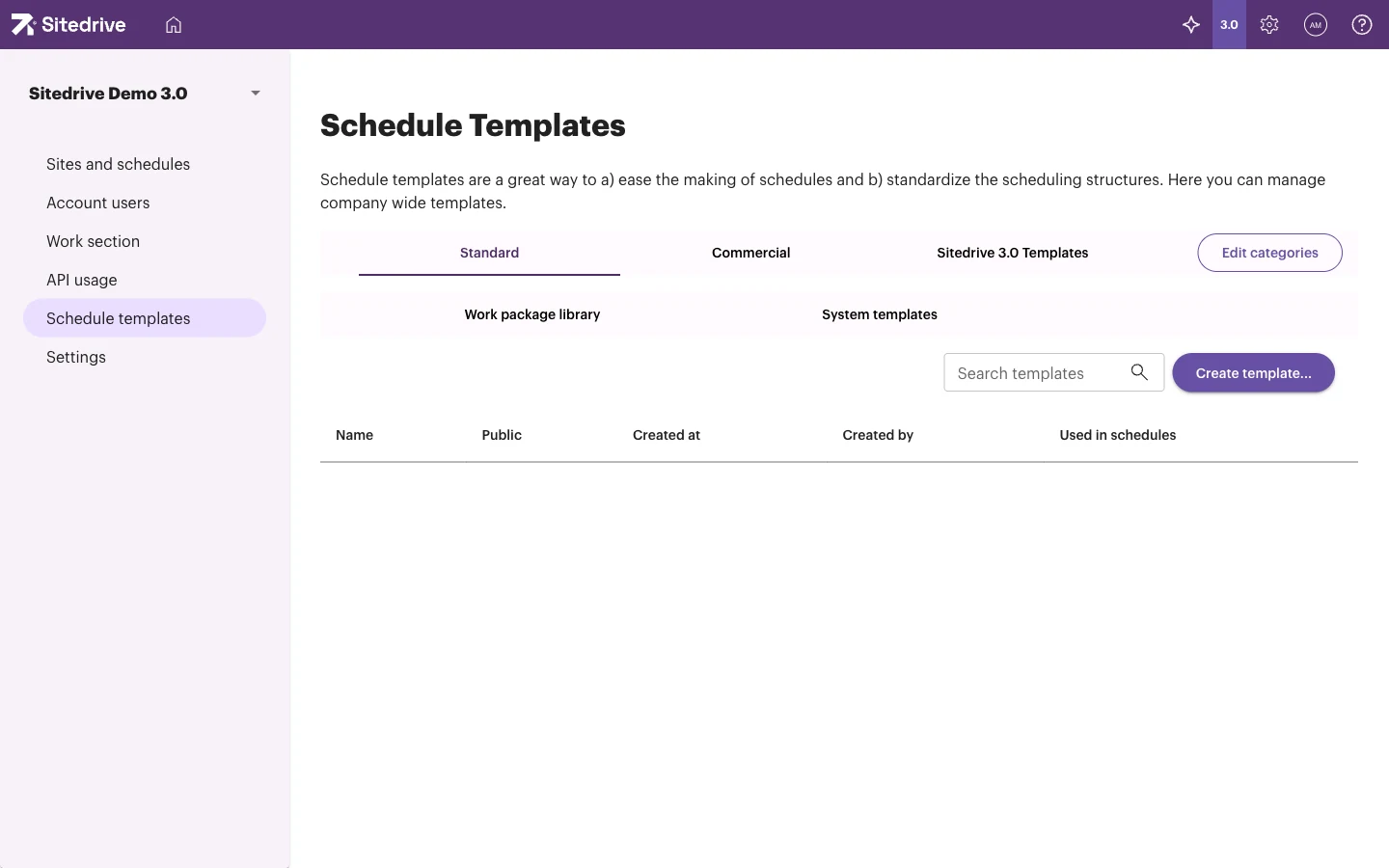
The list has these columns: Name, Public, Created at, Created by and Used in schedules. Use Search templates to find a template.
Create a template
- Select Create template….
- Choose the schedule you want to use as the template. You can also use this to create a new version of an existing template.
- Rename the template and edit its content. You can remove rows, change a row’s work section and lock rows.
- Publish the template with Make public version in the template dialog. You can also publish a version later from the row menu with Public version.
Locking a row means that users can’t remove the row or change its work section in schedules that use the template.
Organise templates
- Select Edit categories to add categories. Each category becomes a tab on the page.
- The row menu of a template has Edit and view versions, Create new version, Public version, Hide template / Show template, Lock or unlock, Move to category and Remove.
Company-wide work package library
The page also has the tabs Work package library and System templates. The work package library contains reusable snippets that can be added to any schedule. Here you manage the company-wide snippets; use Search snippets to find one. Planners add snippets from a schedule, see Reusing plans: templates and libraries.
Good to know
- After starting a schedule from a template, check where the work happens and place it into areas with Define areas.
- Changing work section codes in a library that is already in use can affect reports and integrations that rely on those codes.
- If a schedule has no work section library linked, some views can’t be created until you link one.