
Work packages are the building blocks of your schedule. Each one is a piece of work done by one team, such as “Tiling” or “Partition Wall Framing”. You organise work packages into a hierarchy in Gantt, then place them into locations with Define areas so that each floor or zone gets its own dated occurrence.
This article explains how the hierarchy works and how to create, organise and remove work packages.
Before you start
- Users with the Schedule, Site or Account admin right can edit every work package.
- Users with Refine or Refine (ltd) can edit the work packages they own and their subpackages.
- Other roles can view work packages and report progress, but cannot change the structure. See Roles and what each one can do.
How work packages are structured
Sitedrive uses a few kinds of work package. The work package panel labels each one as Sum, Master or Instance.
| Kind | What it is | Example |
|---|---|---|
| Sum work package | A grouping row with subpackages under it. Its dates cover all of its subpackages. | “Interior Finishes” |
| Phase | A sum work package whose subpackages are actual work. Phases are what you place into areas. | “Interior Finishes” in Harbour View Apartments |
| Master | The definition of one piece of work: name, team, tasks. Its dates cover all its instances. | “Tiling” |
| Instance | The master’s occurrence in one area, with its own dates and status. | “Tiling” on Staircase A, Floor 3 |
Dates and statuses live on the instances. When you move a sum or a master, you are really moving the instances under it. You can’t give a sum or master its own dates, because Sitedrive always calculates them from what is underneath.
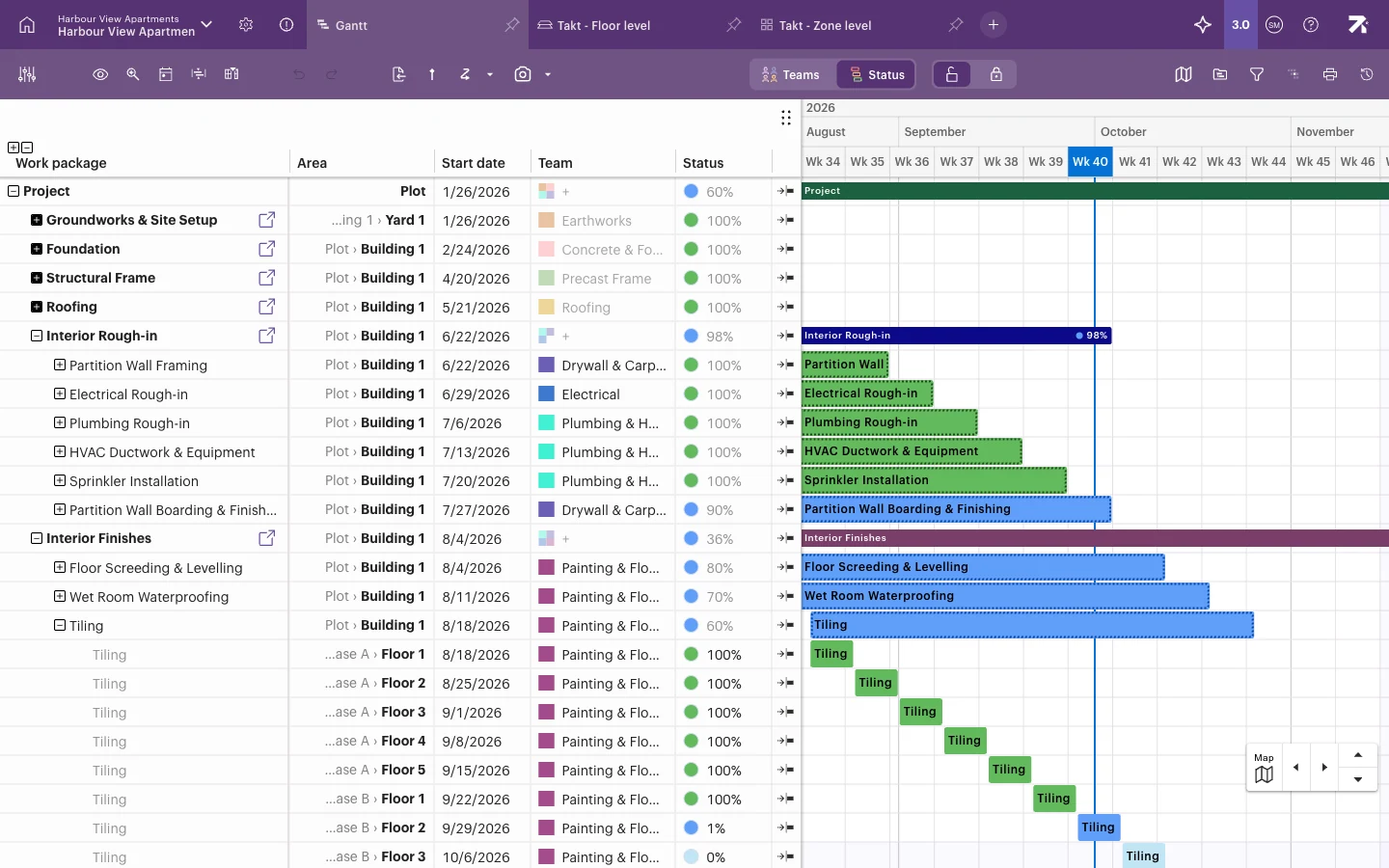 Phases sit under the Project row. Expand a work package to see its instances, one per area.
A good structure is one root row (for example “Project”), phases under it, and work packages under each phase.
Add work packages in Gantt
- Open the Gantt view.
- Right-click the row next to where you want the new work package. You can also select the row’s actions button.
- Select Add below or Add above. To add a row under a sum work package, select Add subpackage.
- Type the name and press Enter.
- Fill in the other columns, such as Team and Start date.
If the sum work package is expanded, Add below adds the new row as its first subpackage. If the sum is collapsed, the new row becomes the next row at the same level.
You can also select a row and press + to add a row below it.
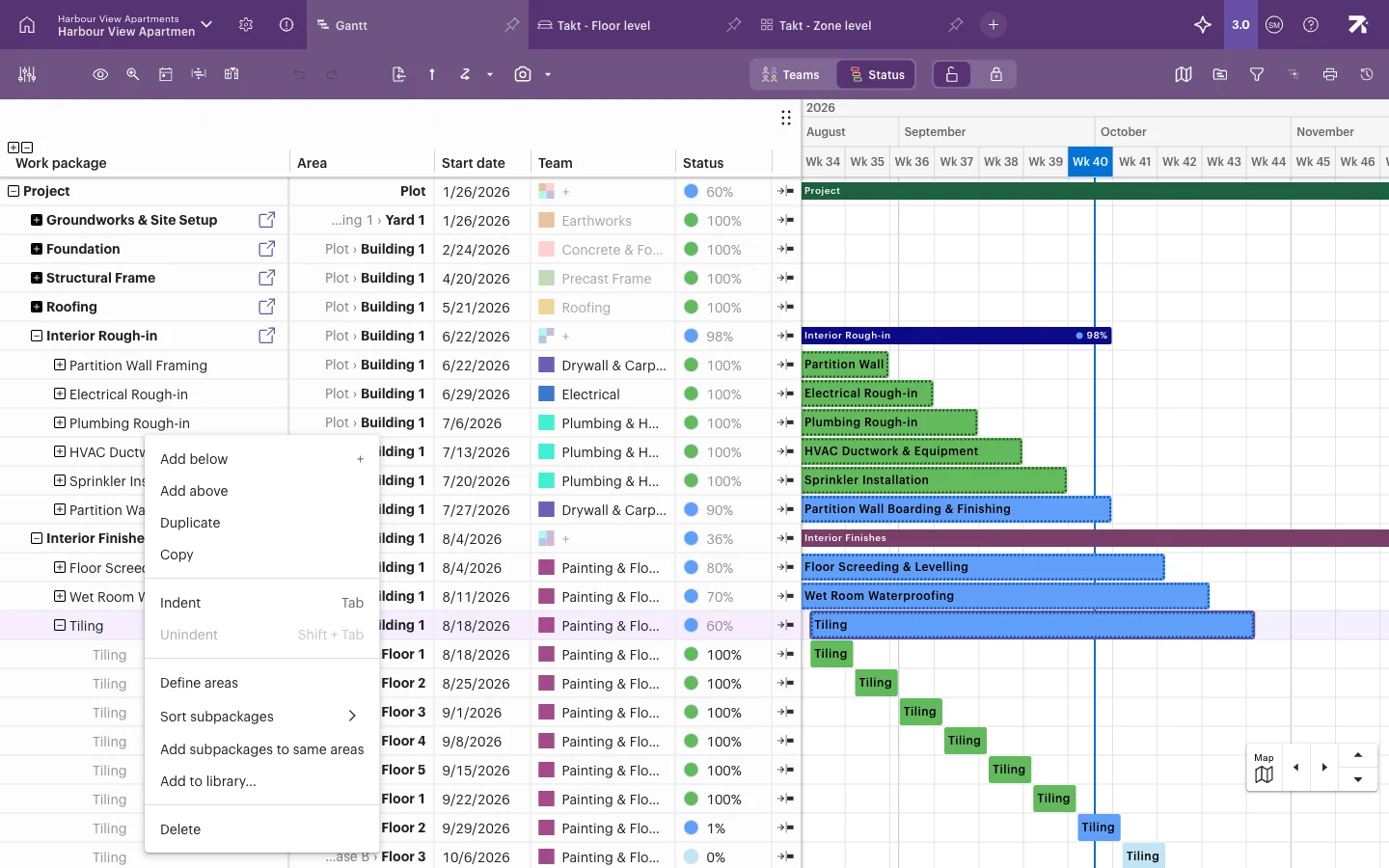 The row menu. Options depend on the kind of row you right-click.
Add work packages in Takt
- Open a Takt view.
- Right-click an empty cell in the area row and time where the work happens.
- Select Add work package. You can also hold Alt (Mac: Option) and click the empty cell.
- Type a Name.
- Choose a Phase. Every work package created in Takt must belong to a phase. To create a new phase, type its name and select the Create option that appears.
- Optionally set Team, Owner, Color and Notes.
- Select Create.
Organise the hierarchy
| To do this | Do this |
|---|---|
| Move a row one level down | Select the row and press Tab, or right-click and select Indent. |
| Move a row one level up | Press Shift+Tab, or select Unindent. |
| Change the order | Drag the row to a new place in the Gantt table. |
| Sort a phase by date | Right-click the sum row, select Sort subpackages, choose Chronological by start (or another option), then Sort immediate or Sort all. |
| Colour a sum row | Right-click the sum row and select Set color. |
| Open a phase in its own view | Right-click the sum row and select Open work phase. |
When you indent a row directly under a master, the master becomes a sum work package. If the master already had tasks, Sitedrive asks what to do with them: keep them in a new work package, move them to the first new work package, or forget them.
To split a master into smaller pieces of work that use the same areas, right-click it and select Add subpackages to same areas.
Copy and duplicate
- Duplicate in the Gantt row menu (Ctrl/Cmd+D) copies the row with all its subpackages. It works on one row at a time.
- In Takt, select one or more work packages and press Ctrl/Cmd+C. Then select an empty cell and press Ctrl/Cmd+V. See Takt planning for pasting a sequence onto several floors.
- To reuse work packages in other schedules, use Add to library. See Reusing plans.
Delete work packages
- Select one or more rows in Gantt. Use Ctrl/Cmd+click to select several.
- Press Delete (Mac: Backspace), or right-click and select Delete.
- Confirm. Deleting a row also deletes all its subpackages.
In Takt, right-click a selection and select Delete selected.
Good to know
- Sorting replaces your manual order. The confirmation says it can’t be reverted, so check before you confirm. Version history can still bring back an earlier state.
- Add subpackage is not offered on masters. Indent a row under the master instead, or use Add subpackages to same areas.
- Duplicate is not available on instances or in the Grouped Gantt view.
- Tasks, quality tasks and prerequisites are added on the master. Each instance shows them, and task status is marked separately in each instance.
- Rows that come from a locked template row can’t be deleted and keep their work section.