
The Issues view lists every issue and blocker in the schedule in one table. Use it to check what is open, who is responsible and when each item is due, without hunting for them on the timeline. Older help articles called this the Notifications view.
Issues and blockers are created on a work package, on the web or in Sitedrive Mobile. See Blockers, issues and quality tasks and Working with issues.
Open the Issues view
- Open the schedule.
- Click Issues (the ! icon) in the header, next to Schedule settings.
Every user who can open the schedule has the Issues button.
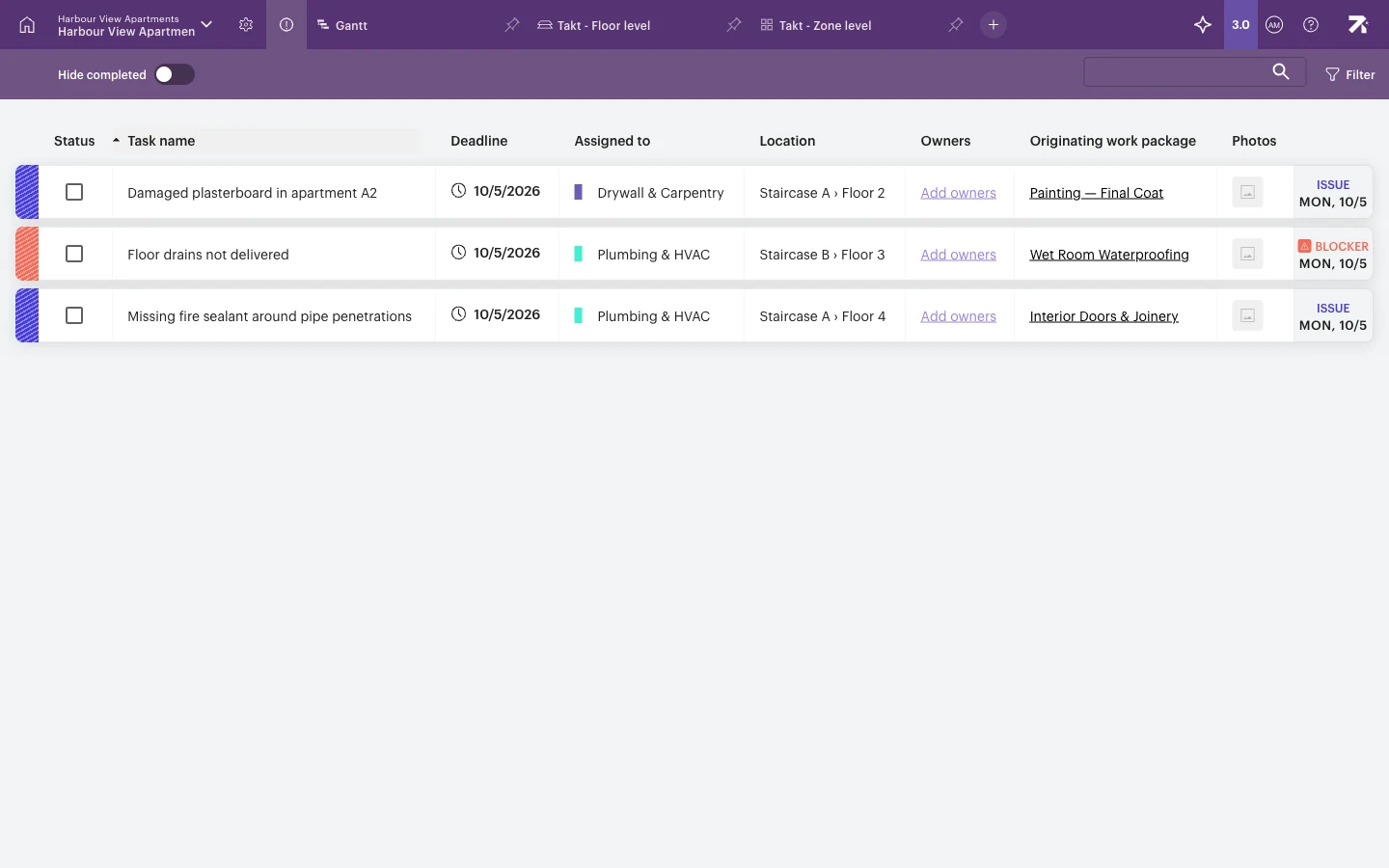
Read the list
Each row is one issue or blocker. The coloured stripe on the left and the label on the right show the type: ISSUE or BLOCKER (with a warning icon), with the deadline date underneath.
| Column | What it shows |
|---|---|
| Status | Tick box showing whether the item is done. |
| Task name | The name of the issue or blocker. |
| Deadline | When it must be resolved. |
| Assigned to | The team responsible. |
| Location | The area, for example Staircase B › Floor 3. |
| Owners | The people responsible. Click Add owners to set them. |
| Originating work package | The work package the item was raised on. |
| Photos | Photos attached to the item. |
- Click a column header to sort by that column.
- Drag column headers to reorder them.
- Double-click a row to open the item and edit it.
Find what you need
- Hide completed – turn this switch on to show only open items.
- Search – type in the search field at the top right to find items by text.
- Filter – click Filter to narrow the list by Team, Owner or Task type (issue or blocker). Click Restore default to clear the filters.
Search and filters are saved in your browser for this schedule.
Good to know
- The list shows issues and blockers only. Quality tasks are not included.
- An item without an originating work package can’t be opened by double-clicking.
- The timeline toolbar (zoom, view settings and so on) isn’t shown in this view.
- When the list is empty, it says No blockers and issues.