
Status updates from site keep the schedule live. When a crew marks work started or completed on their phone, the change appears straight away in every view of the web app, so planners and supervisors can see where the site really is.
This article shows how to change the status of a work package, tick off its tasks and report progress as a percentage.
Before you start
- You can change the status only of work packages you are allowed to update:
- Schedule, Site and Account admin users can update every work package.
- Other users can update a work package when every task on it belongs to one of their teams or is assigned to them, or when they own the work package.
- Marking a work package Verified and ticking off quality tasks needs the Accept right or higher.
- If the status buttons are missing on a work package, you don’t have update rights on it. See Who sees what on mobile.
Change the status of a work package
- Open a tab, for example My next work. See Finding your work on mobile.
- Tap a work package card. The work package opens.
- Under Status, tap Not started, In progress or Completed.
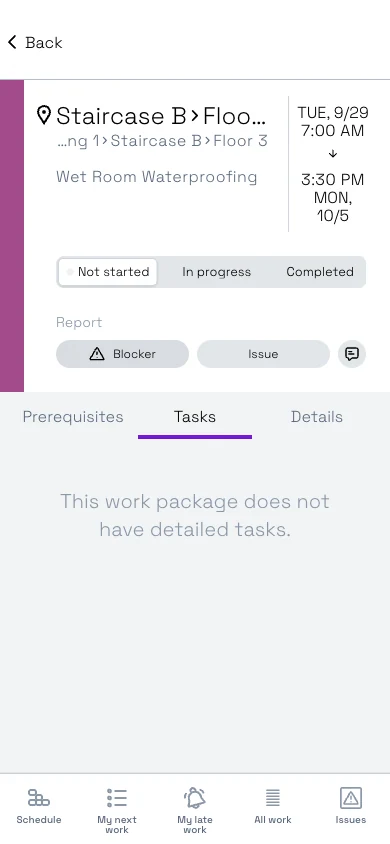 The top of the screen shows the location, the work package name and its planned start and end.
The change is saved at once. To correct a mistake, tap the right status.
| Status | Use it when |
|---|---|
| Not started | Work hasn’t begun. This is the starting status. |
| In progress | The team has started the work. |
| Completed | The work is finished. |
| Verified | The work has been inspected and accepted. See below. |
Open a work package and tap a status. The card in the list changes colour straight away.
Complete work with one tap
Report users see a Mark as completed button on their cards in My next work.
- Open My next work.
- Tap Mark as completed on the card.
The card changes to the completed style. Mark as completed also completes any open blockers on the work package, so use it only when the work really is done.
Verify completed work
The Verified button appears only when all of these are true:
- you have the Accept right or higher,
- the work package has quality tasks,
- the work package is Completed or has open issues.
Tap Verified to accept the work. This marks all quality tasks on the work package as done. If you change the status back from Verified, the quality tasks are no longer marked done.
For more about quality tasks, see Blockers, issues and quality tasks.
Tick off tasks
A work package can contain a checklist of tasks. The work package opens on the Tasks tab.
- Open the work package.
- On the Tasks tab, tap the checkbox next to a task when it is done.
Quality tasks are listed in their own Quality section. Each one has three states: passed (✓), failed (✗) or not checked yet. When you mark a quality task failed, the app opens a new issue for you, with the description “Quality not met” and the task name. Describe what needs fixing and select Report. See Photos, comments, blockers and issues on mobile.
If the work package has no checklist, the Tasks tab says “This work package does not have detailed tasks.”
Enter progress as a percentage
Some schedules also let you enter how far the work has got, as a percentage.
- Open the work package.
- In Progress, type the percentage.
The Progress field appears only when a user with Schedule or Site rights has turned on Allow progress entry as percentage in the web app, under Schedule settings > Basic settings > Mobile settings. See Schedule settings.
Statuses you see on cards and in filters
Besides the status you set, cards and the All work filter show a status that Sitedrive works out from dates, blockers and issues:
| Shown status | Meaning |
|---|---|
| Planned | Not started, not yet due to start, and prerequisites are still open. |
| Ready to start | Not started, not yet due to start, and nothing is holding it back. |
| In progress | Started, and the planned end hasn’t passed. |
| Delayed (started) | Started, but the planned end has passed. |
| Delayed (not started) | Not started, but the planned start has passed. |
| Blocked | Has an open blocker. This overrides the other statuses. |
| Open issues | Completed, but issues on it are still open. |
| Completed | Completed, but some quality tasks are not yet done. |
| Verified | Completed, and all blockers, issues and quality tasks are closed. |
Good to know
- There is no multi-select on mobile. To change the status of many work packages at once, use the web app. See Tracking progress.
- The Details tab on a work package is hidden for Report and Accept users.
- Status changes appear in the web app right away. Planners see them as status colours. See Colouring and display options.
- Photos you take without a connection are queued and uploaded when you are back online. Check that you have a connection before relying on status changes made offline.