
You can print any schedule view or save it as a PDF, for example to pin a lookahead on the site office wall or attach it to meeting minutes. From Gantt views you can also export the schedule to an Excel file for reporting or further analysis.
Before you start
- Anyone who can open a view can print it and export it.
- The printout shows the view as you have set it up: filters, expanded rows, colouring (status or teams) and columns. Set up the view first, then print.
- Use Chrome or Edge for the most reliable PDF output.
Print or save as PDF
- Open the view you want to print.
- Set it up: filters, focus view, colouring and expanded rows.
- Select Print (printer icon) in the toolbar. A print page opens with a preview and the Print setup panel.
- Choose the paper Size, for example A4 or A3. All pages are landscape. Automatic (all on one page) fits everything on one page, and you can adjust the Horizontal scale with a slider.
- Set the Date range with the slider or the Start and End dates. Select Fit to visible interval to use the dates currently visible in the view.
- In Gantt, use Row range to choose which rows to print. In Takt and Line of balance, use Location range instead.
- Choose the extra options you want (see the table below).
- Check the preview. You can change the preview zoom to see details.
- Select Print. Your browser’s print dialog opens.
- To create a PDF, choose Save as PDF as the destination and save.
To leave without printing, close the print page without selecting Print.
Print options
| Option | What it does |
|---|---|
| Repeat table headers (Gantt) / Repeat calendar headers (Takt, Line of balance) | Repeats the headers on every page, so each page can be read on its own. |
| Show calendar header also on bottom | Adds the dates at the bottom of each page too. Handy for tall printouts on the wall. |
| Show current date line | Draws today’s date on the printout. |
| Deadlines shown | Choose whether Internal and Contract deadlines appear. |
Printing Takt and Line of balance
Takt and Line of balance printouts also let you choose how many Pages to spread the schedule across, and the direction in which the pages flow. Line of balance adds a Label size option.
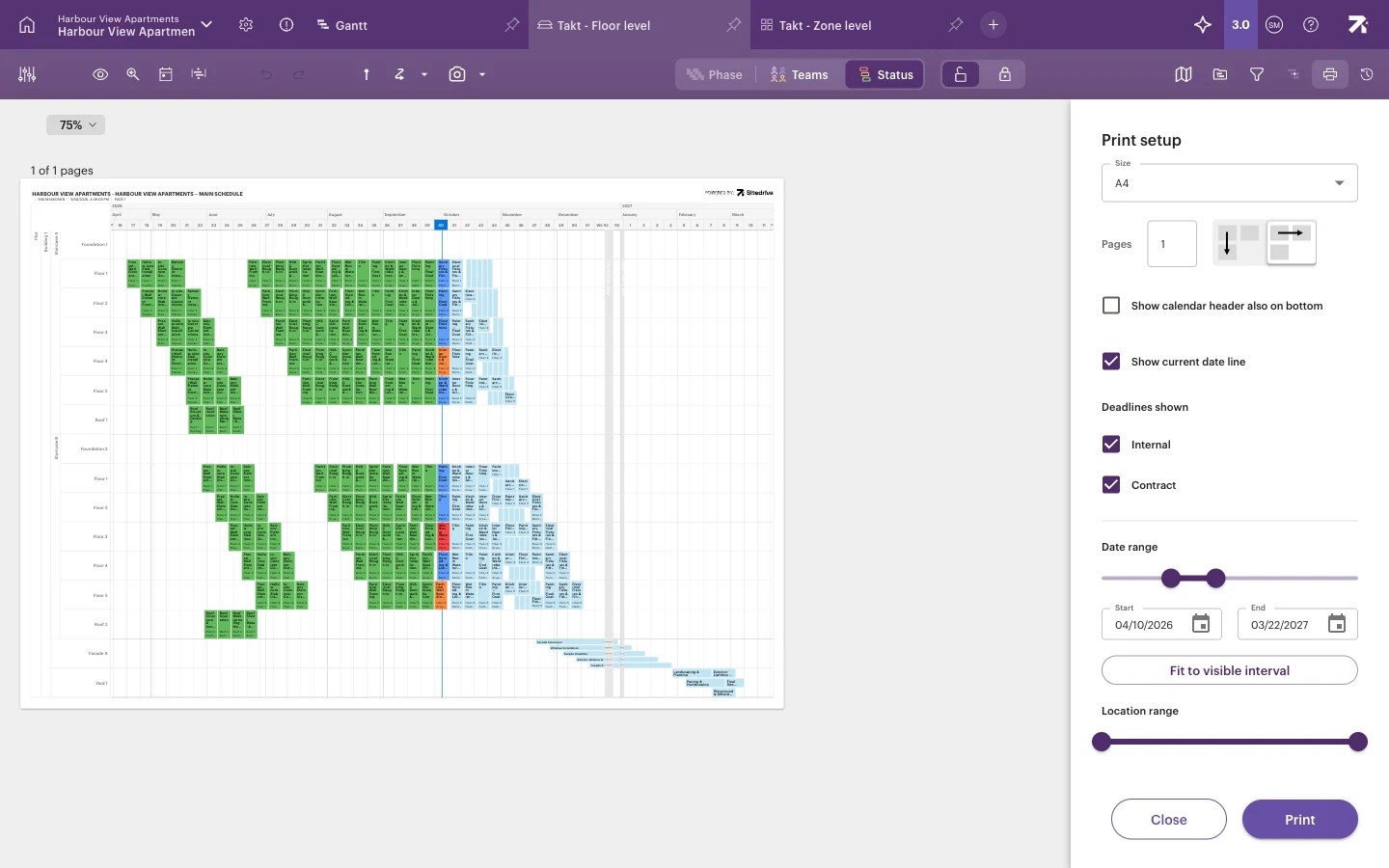
Choose the paper size and what to show. The preview updates as you go.
Export to Excel
- Open a Gantt or Grouped Gantt view.
- Set up the view: the export follows the current filters and hierarchy.
- Select Import / Export in the toolbar.
- Select Export. Sitedrive prepares the file and downloads it.
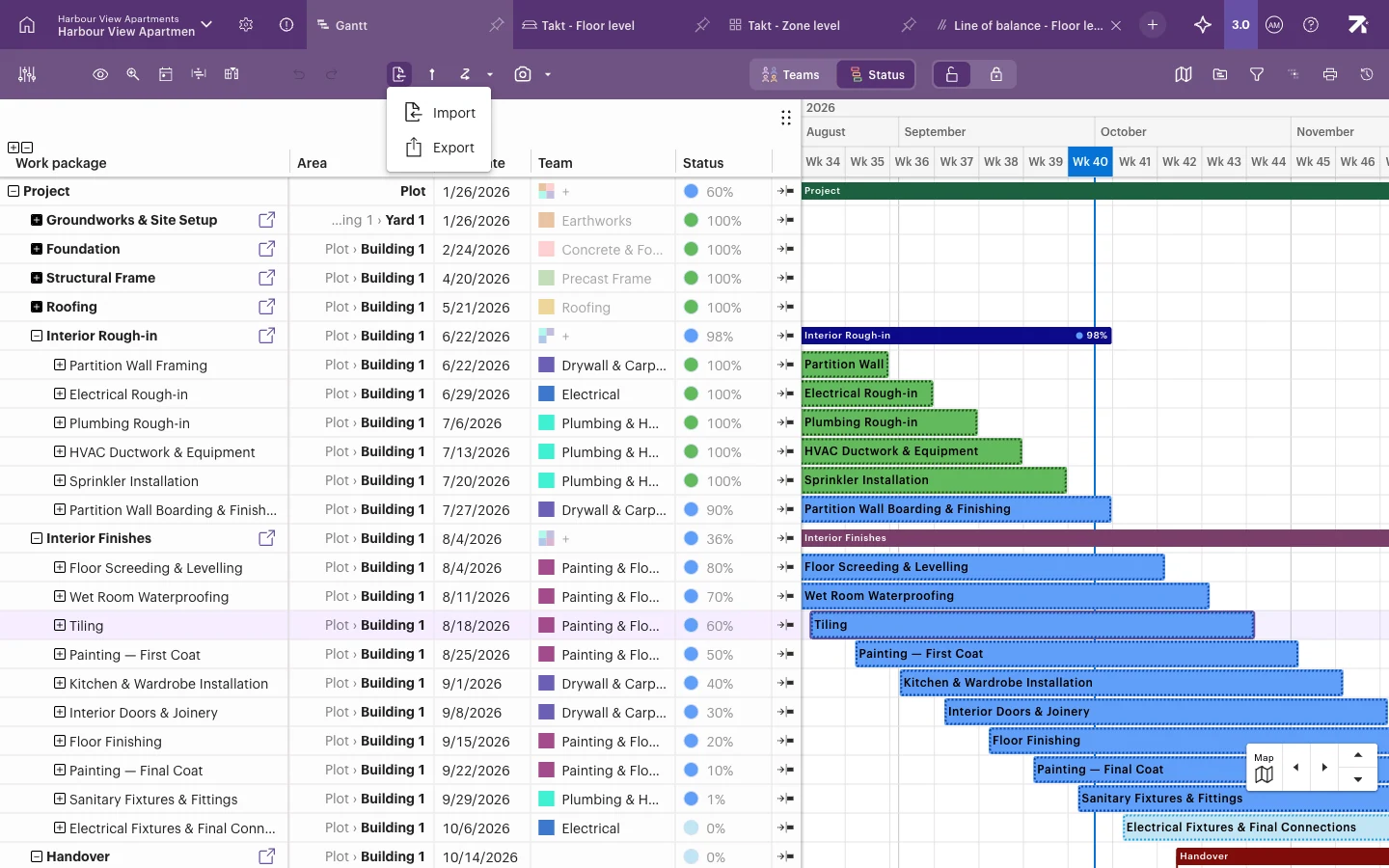
The file is an Excel workbook (.xlsx) named after the project with the date and time. It has one sheet, “Schedule”, with a row for each Gantt row. Columns include:
- Hierarchy (the row’s level), Work package, Area hierarchy, Area and Location Breakdown
- Owner, Work section, Notes and Color
- Start date, End date, Duration (days), Duration (hours) and Work amount, plus workload and quantity columns
- Team, Assignees, Internal deadline, Contract deadline and Predecessors
- Status and Status comment
- all your custom fields (Yes/No fields show as Yes or No)
Baseline start, end and baselined columns are included too.
The same menu has Import, which users with Schedule or Site rights can use to bring work packages into the Gantt view. See Creating a schedule for other ways to bring in an existing plan.
Good to know
- When focus view is on, the print date range follows the focus window: “Focus view is on, so the interval follows its window.” Switch focus view off if you need a different range.
- Printing always uses landscape pages. Physical printer drivers may rescale the page; saving as PDF first gives the most predictable result.
- If a baseline is shown in the view, the printout header names it.
- You can’t export to Excel from Takt or Line of balance. Switch to a Gantt or Grouped Gantt view.
- If the export fails, you see “Failed to export schedule. Please try again.”