
Most projects repeat work you have planned before. Sitedrive gives you three ways to reuse it:
| Tool | What it reuses | Where you manage it |
|---|---|---|
| Schedule templates | A whole work package structure for a new schedule | Account administration |
| Work package library | Smaller sets of work packages (snippets) you drag into a schedule | The Library button in the schedule toolbar |
| Duplicate a schedule | An entire schedule, optionally with its tasks | The schedule selector |
Before you start
- Schedule templates are managed by Account admin users.
- The Library button is available to Refine (ltd) and above. Adding work packages to the library needs Refine or above.
- A schedule needs a work section library linked to it. Snippets and templates use work sections. See Libraries: work sections and templates.
Create a schedule template
- Open Account settings. Libraries: work sections and templates shows how to get there.
- Select Schedule templates.
- Select Create template….
- Choose the schedule to use as the template.
- Rename the template and edit its content. You can remove rows, change work sections and lock rows. Locked rows can’t be removed and their work section can’t be changed.
- Select Make public version to publish it.
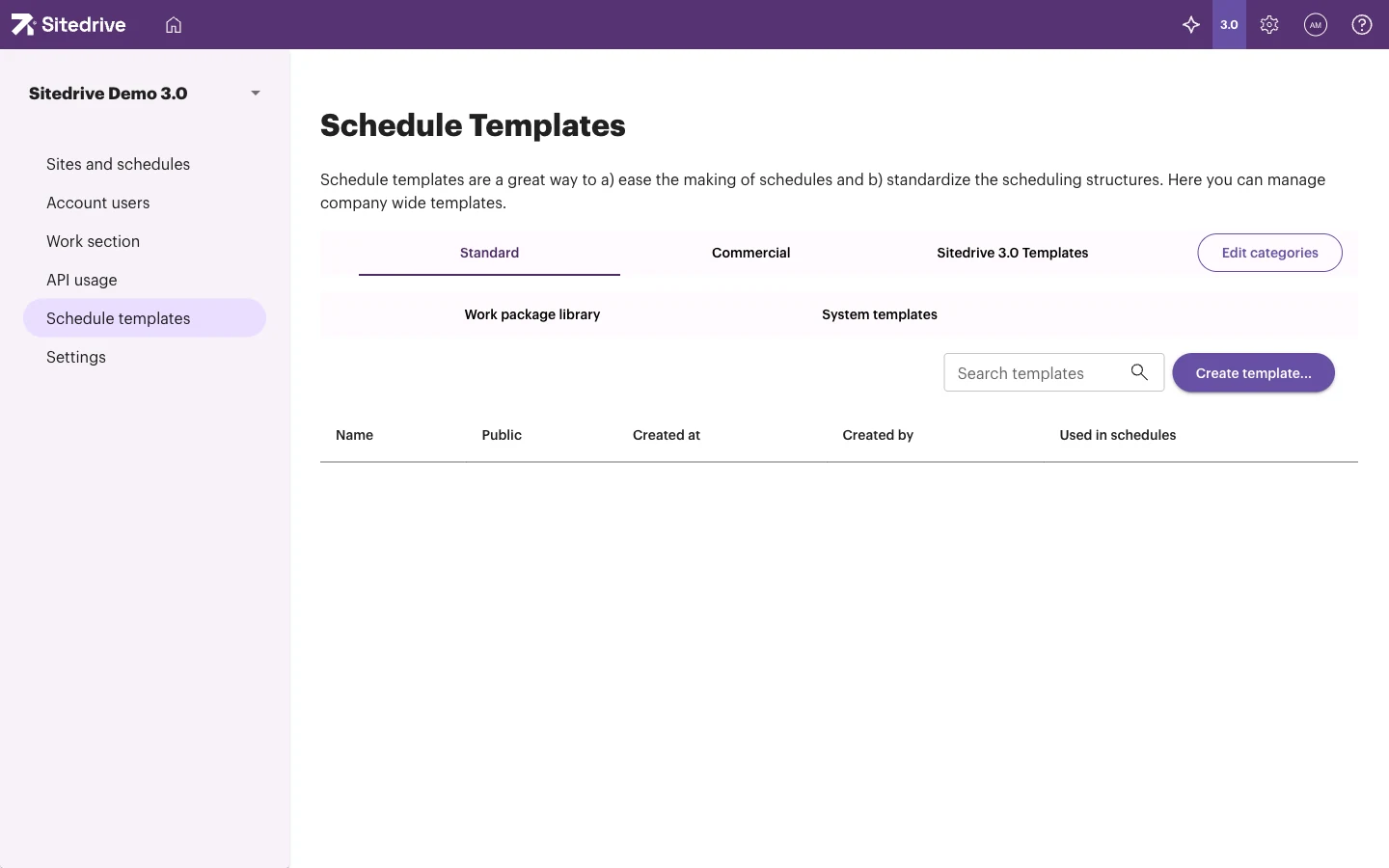
Organise templates into tabs with Edit categories. The template row menu lets you edit and view versions, create a new version, hide a template, lock or unlock it, move it to another category, or remove it. The Used in schedules column shows how many schedules use each template.
Start a schedule from a template
When you create a site or a schedule, choose a template in Schedule template (optional). The new schedule gets the template’s work package structure. See Creating a schedule.
Templates don’t include areas. After creating the schedule, place the work into locations with Define areas.
Save work packages to the library
- Select the work packages. In Gantt, select rows. In Takt, select work in one area only.
- Right-click and select Add to library.
- Choose whether to add the selected work packages with all their subpackages, or only the selected ones.
- Give the snippet a Name, check the preview and select Save.
Hierarchy, names and work sections are kept, and the work packages keep their timing relative to each other. Area placements are not included.
Use a snippet from the library
- Select Library in the schedule toolbar. The Work package library panel opens.
- Find a snippet with Find, the filters (Filter by work section, Filter by schedule category), or the icons for hierarchies, work queues and starred snippets.
- Drag the snippet:
- onto the Gantt table, to add it to the hierarchy at that row, or
- onto a cell in Takt, to place it in that area and time.
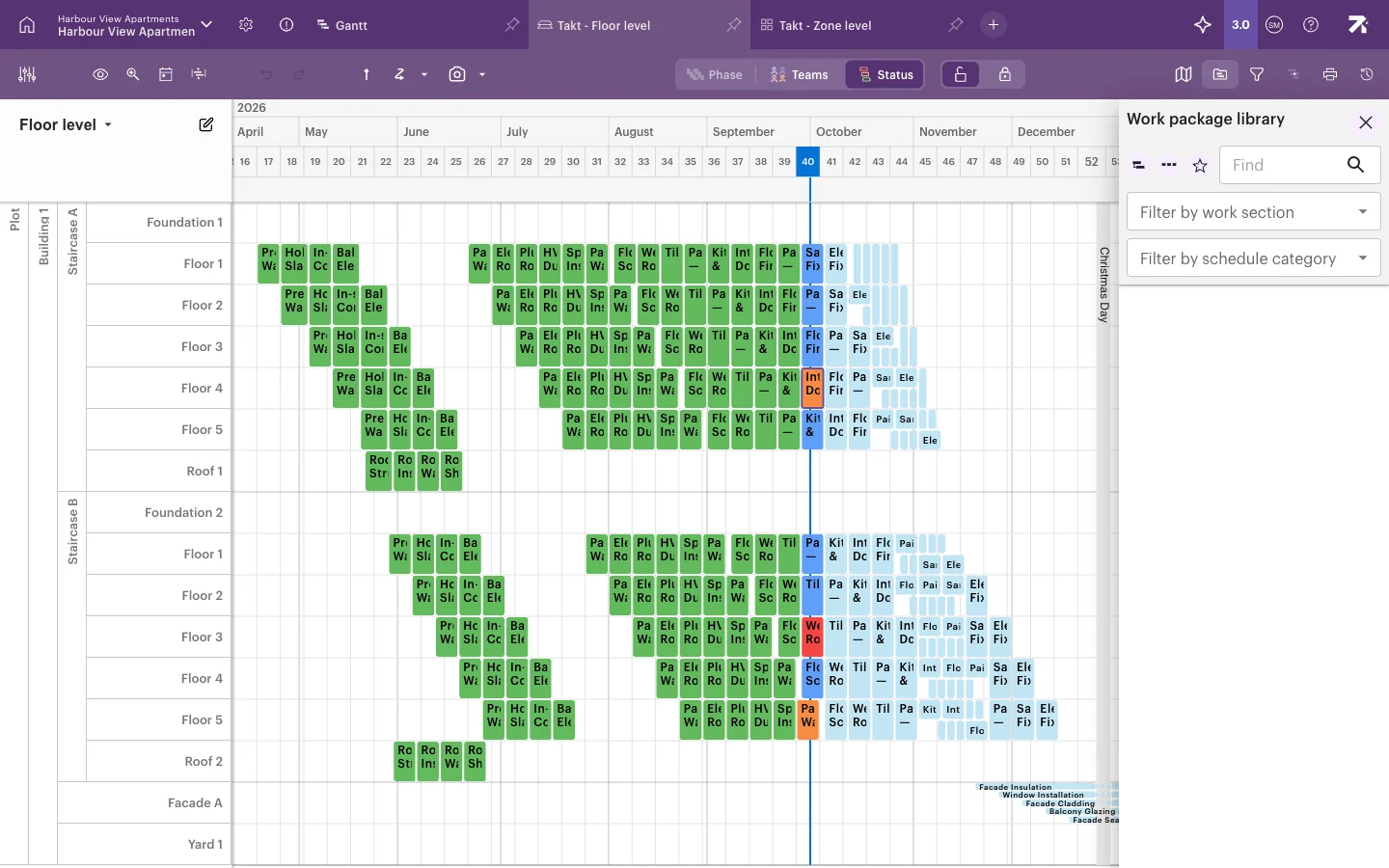
Snippets dropped into Gantt have no areas yet. Use Define areas afterwards.
Manage company-wide snippets
Account admins can manage snippets for the whole company in account administration → Schedule templates → Work package library.
Duplicate a schedule
To copy a whole schedule, open the schedule selector and select Create or duplicate a new schedule, then Duplicate a schedule. You can copy tasks with or without statuses, or copy only the space model and location breakdowns. See Creating a schedule.
Good to know
- Rows from locked template rows can’t be deleted in schedules made from the template.
- Snippets and templates never carry area placements. Plan to run Define areas after using them.
- You can rename or delete snippets from the snippet’s actions menu in the library panel.