
A schedule in Sitedrive is one set of data that you can look at in many ways. Each way of looking at it is a view, and each view you have open appears as a tab in the header. A Gantt, a Takt at floor level and a Line of balance at section level all show the same work packages. When you change something in one view, every other view shows the change straight away.
Deleting a view never deletes schedule data. It only removes that way of looking at the schedule.
Before you start
- Anyone who can open the schedule sees the views that are shared with them as tabs.
- Creating, renaming, deleting and sharing views needs the Schedule, Site or Account admin right. See Roles and what each one can do.
The tab bar
The header runs from left to right:
- The home icon, which takes you back to the sites page.
- The schedule selector, showing the site and schedule name.
- Schedule settings (gear icon).
- Issues (! icon), which opens the Issues view.
- Your view tabs. Pinned tabs come first and show a pin icon.
- + (View selection and management), which opens the list of all views.
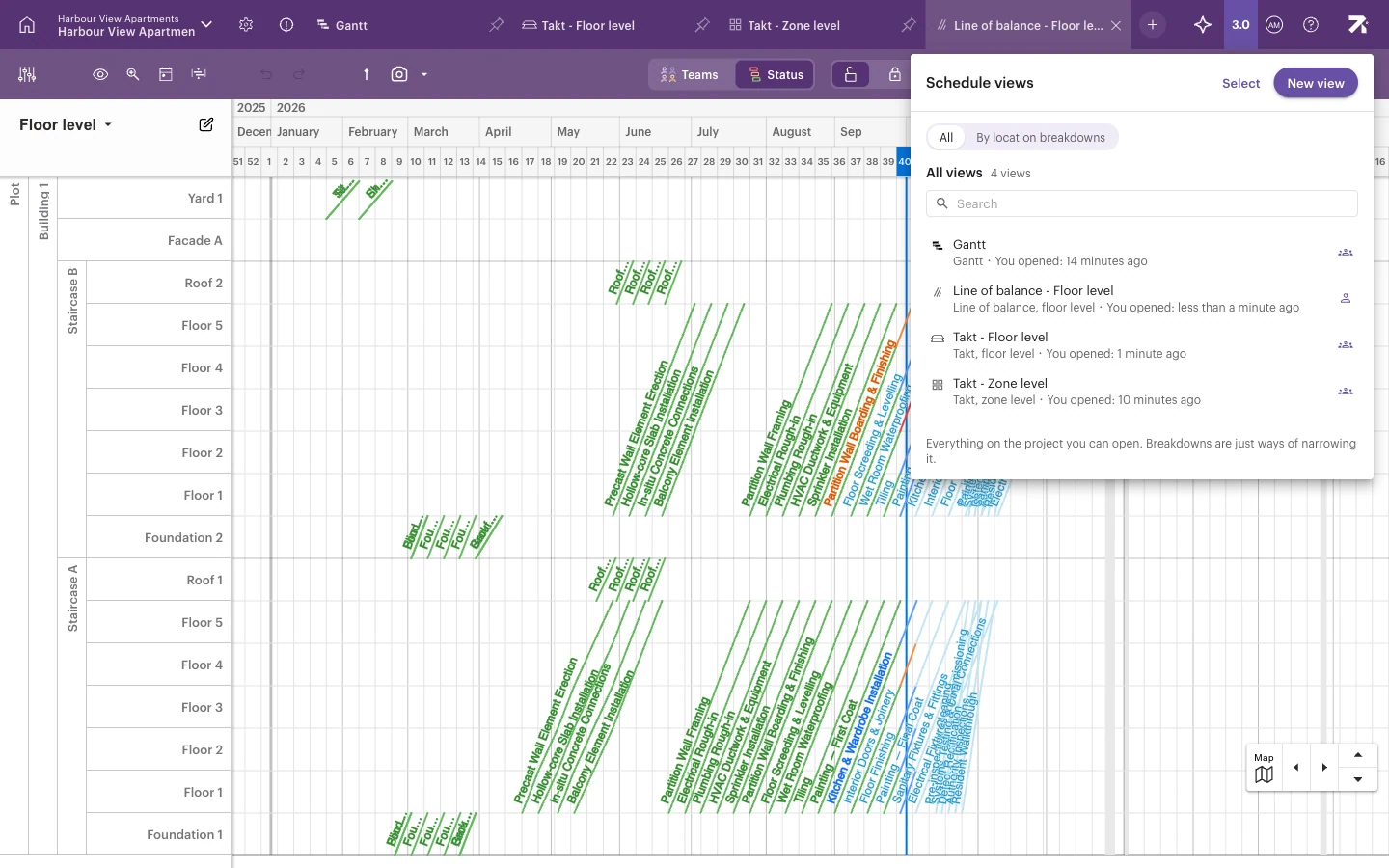
Every schedule has a main Gantt view that shows all work. It cannot be renamed, deleted or closed. When you first create the space model, Sitedrive also adds two pinned Takt views, Takt - Floor level and Takt - Zone level (the zone view only if your space model has a zone level). See Building the space model.
Pinned tabs and your own tabs
- Pinned tabs are views shared with everyone. Every user sees them, in the same order, and nobody can close them.
- Your other open tabs are personal. You can drag them to reorder them and close them when you are done. This list is saved in your browser, so a different computer or browser starts with only the pinned and shared tabs.
Open a view
- Click its tab.
- If the view has no tab, click + (View selection and management).
- Click the view in the list. It opens and gets a tab.
The list has two filters: All shows every view, and By location breakdowns groups views by the location breakdown they use. Use Search to find a view by name.
Create a new view
- Click + (View selection and management).
- Click New view.
- Pick a view type:
- Gantt – a plain Gantt of all work.
- Takt – pick Floor level, Zone level or All location breakdowns….
- Line of balance – pick Section level, Floor level or All location breakdowns….
- Gantt by area › – a Gantt grouped by a space level, such as floors.
- Grouped Gantt › – a Gantt grouped by team, owner or assignee.
- The new view opens in its own tab.
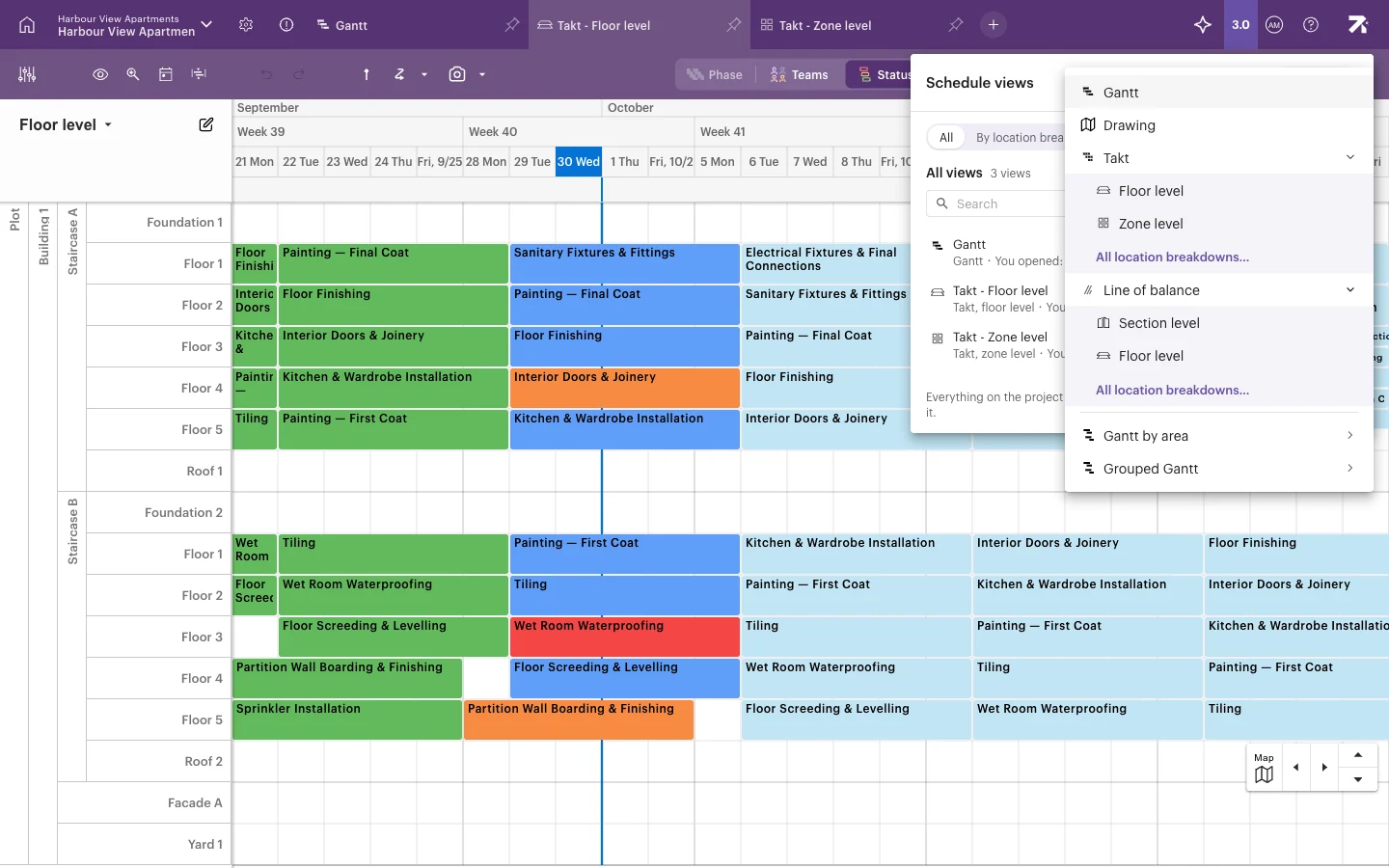
The levels offered depend on your space model. See Gantt, Takt and Line of balance for what each view shows.
Create a view from New view, then use Share view and View always open for everyone to pin it for all users.
Rename, delete or share a view
- Click + (View selection and management).
- Hover over the view in the list.
- Choose Rename view, Change location breakdown, Delete view or Share view.
To act on several views at once, click Select, tick the views, then share or delete them together.
You can also right-click a tab. Schedule and Site users get View settings, Duplicate, Share to all / Unshare from all, Share…, Close and Close other tabs. See Sharing views and locking settings.
Close tabs
- Hover over a tab and click ×, or right-click it and choose Close.
- Right-click a tab and choose Close other tabs to keep only that one (pinned tabs stay).
A closed view is not deleted. Reopen it from +.
What other users see
Users below the Schedule right do not get the + button. They see the views shared with them as tabs and cannot close them. If they open a link to a view that is not shared with them, Sitedrive takes them to a view they can see.
Good to know
- At least one view must stay shared with everyone.
- Duplicate is not available for the main Gantt or for Takt views. Create a new Takt view from New view instead.
- Two views on location breakdowns with the same name get the same tab label. Rename the breakdown to tell them apart.