
Things rarely go exactly to plan. Sitedrive gives you three ways to record what is standing in the way of finishing a work package, each with a different effect on the schedule:
| Type | Use it for | Effect on the status colour |
|---|---|---|
| Blocker | Something that stops the work, such as missing drawings, a late delivery or an area that isn’t ready. | The work package turns Blocked (red) until the blocker is closed, even if the work is marked Completed. |
| Issue | Work still to do or extra work that doesn’t stop progress, such as a snag, a repair or an additional task. | A completed work package with an open issue shows Open Issues instead of Verified. |
| Quality task | An inspection point that must be checked, such as “Waterproofing checked”. | A completed work package with unmet quality tasks shows Completed instead of Verified. |
None of them affects the progress percentage. Only the tasks on the Tasks tab do. See Tracking progress.
Before you start
- To report a blocker or issue on a work package, you need the same rights as for reporting its status. Users with Report or Accept rights can report on work packages of their own team or where they are an assignee or owner.
- To close (tick) a blocker or issue, Report, Accept, Refine (ltd) and Refine users must be in the work package’s team, be assigned to it, or own the work package (or a parent work package). Schedule and Site users can always close them.
- The person who created a blocker or issue can edit it, as can Schedule and Site users. Only Schedule and Site users can delete blockers and issues.
- To mark quality tasks met or not met, you need at least Accept rights.
- Blockers and issues belong to a work package in one area. You can’t add them to a sum work package or a master.
Report a blocker
- Open the work package panel for one area. In Gantt, select the row and press Enter. In Takt, double-click the work package.
- Select Blocker below the Progress field.
- Type a Name, for example “Precast delivery delayed”. This is the only required field.
- Optionally add a Description, Photos, the Team that should remove the blocker, an Owner (the responsible manager) and a Deadline. The deadline defaults to the work package’s planned end and must be a working day.
- Check that the Blocker toggle is on.
- Select Save.
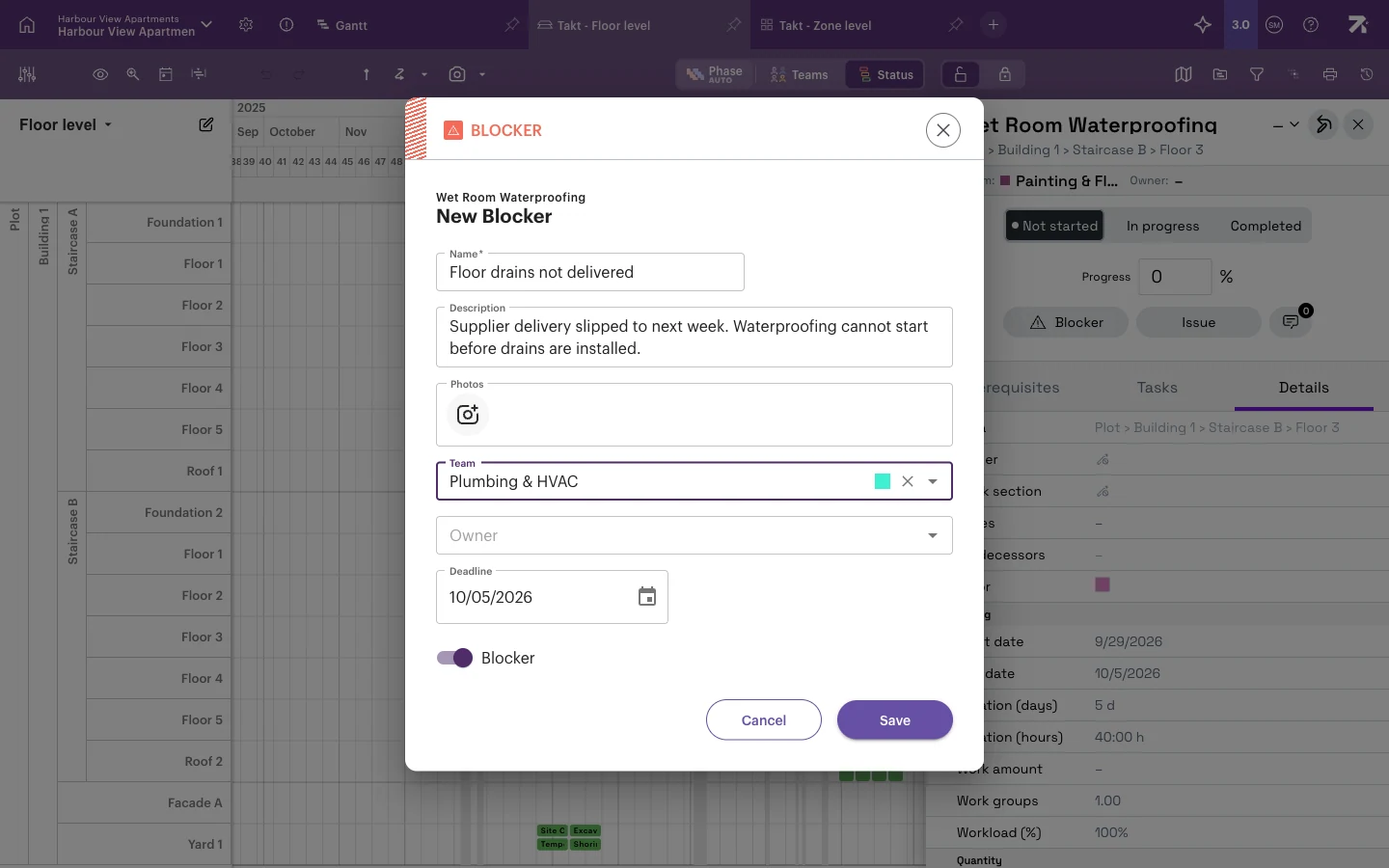
The blocker appears as a count on the Prerequisites tab, and the work package turns red when the schedule is coloured by status.
Report an issue
- Open the work package panel for one area.
- Select Issue.
- Fill in the same fields as for a blocker. The Blocker toggle is off.
- Select Save.
The issue appears on the Tasks tab of the work package. If you can edit the issue (you created it, or you have Schedule or Site rights), you can switch the Blocker toggle later if an issue turns out to stop the work, or the other way round.
Close a blocker or issue
When the problem is solved, tick it. Before you start above explains who can.
- in the work package panel, in the Blockers and Issues list, or
- in the Issues view, in the Status column.
When the last open blocker is closed, the work package goes back to its normal colour.
Check quality tasks
Quality tasks are a checklist defined on the master work package, so every area gets the same checks.
Add a quality checklist (needs rights to edit the work package):
- Open the master work package (double-click it).
- In the Quality section, select Add quality task… and type the check.
Mark a check in an area:
- Open the work package panel for the area.
- In the Quality section, set the switch to met or not met.
- If you set it to not met, a New Issue dialog opens with the name “Quality not met:
”. Add any details. - Select Save. The check is marked not met only when you save the issue, so every failed inspection leaves an issue to follow up.
How it all adds up
A work package reaches Verified (dark green) only when it is Completed and all its blockers, issues and quality tasks are closed or met. This makes Verified a useful handover signal: the trade is done and nothing is left open.
Good to know
- A forgotten open blocker keeps a finished work package red. If something looks wrongly red, check the Prerequisites tab.
- “Open Issues” and “Completed” use the same light green. Open the work package to see which one applies.
- Deleting a work package also deletes its blockers and issues.
- You can also report blockers and issues from Sitedrive Mobile, where the fields are worded slightly differently.