
Sitedrive calculates durations in working time. The working hours, days off and public holidays you set decide when work can happen and how long a work package lasts on the calendar. Working time is set separately for each schedule, so set it up before you start planning.
Before you start
- You need the Schedule role on the schedule. See Roles and what each one can do.
- Open the page: Schedule settings (gear icon) → Work time.
Set the weekly working hours
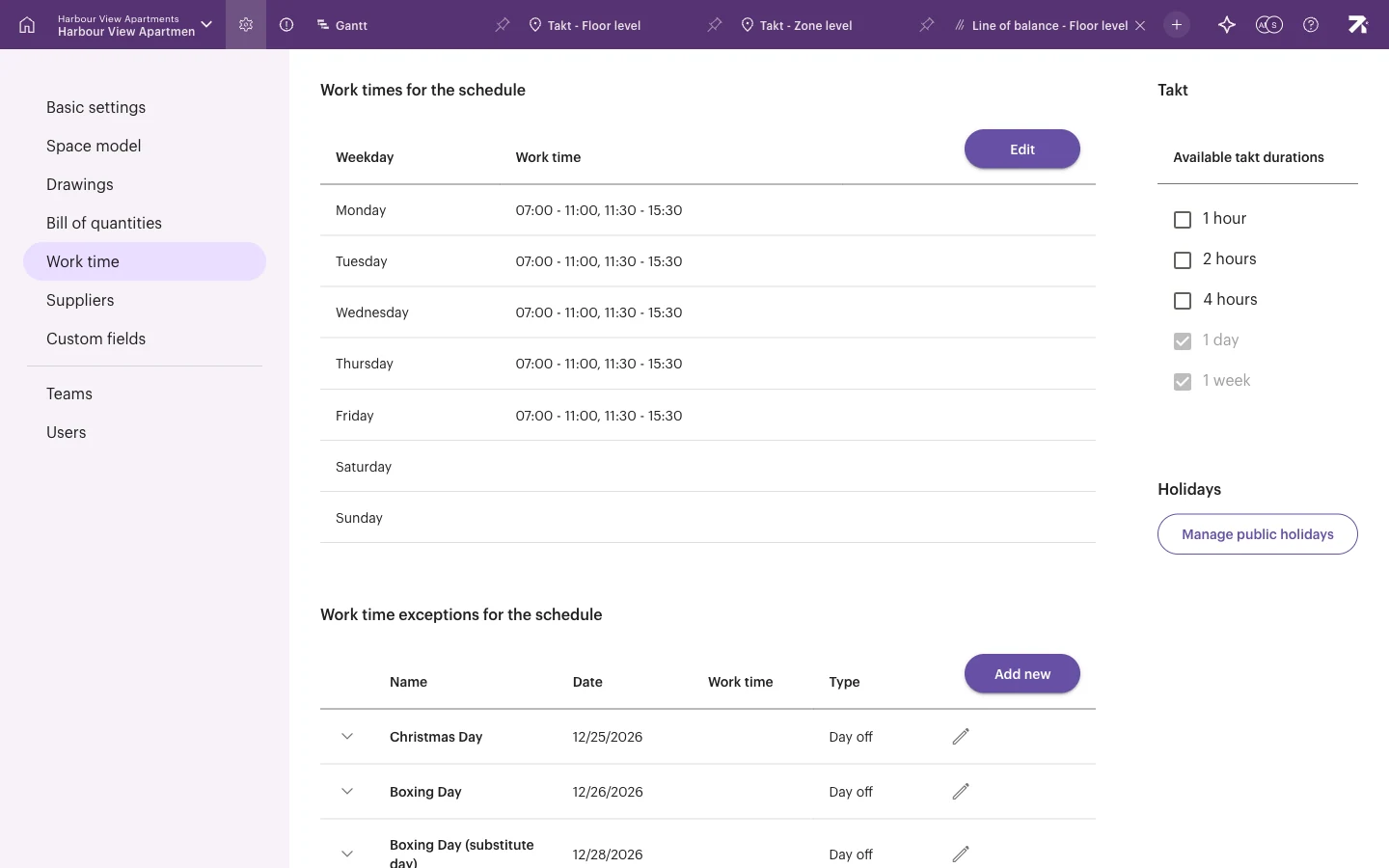
The Work times for the schedule table shows each Weekday and its Work time, for example “07:00 - 11:00, 11:30 - 15:30”. A day with no work time is a non-working day.
- Next to Work times for the schedule, select Edit.
- Set the start time, end time and break for each weekday. Leave a day empty to make it non-working.
- Save.
Changing working hours changes the calculated durations of work that isn’t finished yet.
Add a day off or other exception
Use exceptions for company holidays, a summer shutdown or a weekend when the site works.
- Under Work time exceptions for the schedule, select Add new.
- Give the exception a Name and choose the Date.
- Choose the type: Day off for a non-working day, or Work time for a day with special working hours.
- Save.
To change or remove an exception, select the pencil icon on its row. The dialog has Delete, Cancel and Save.
Import public holidays
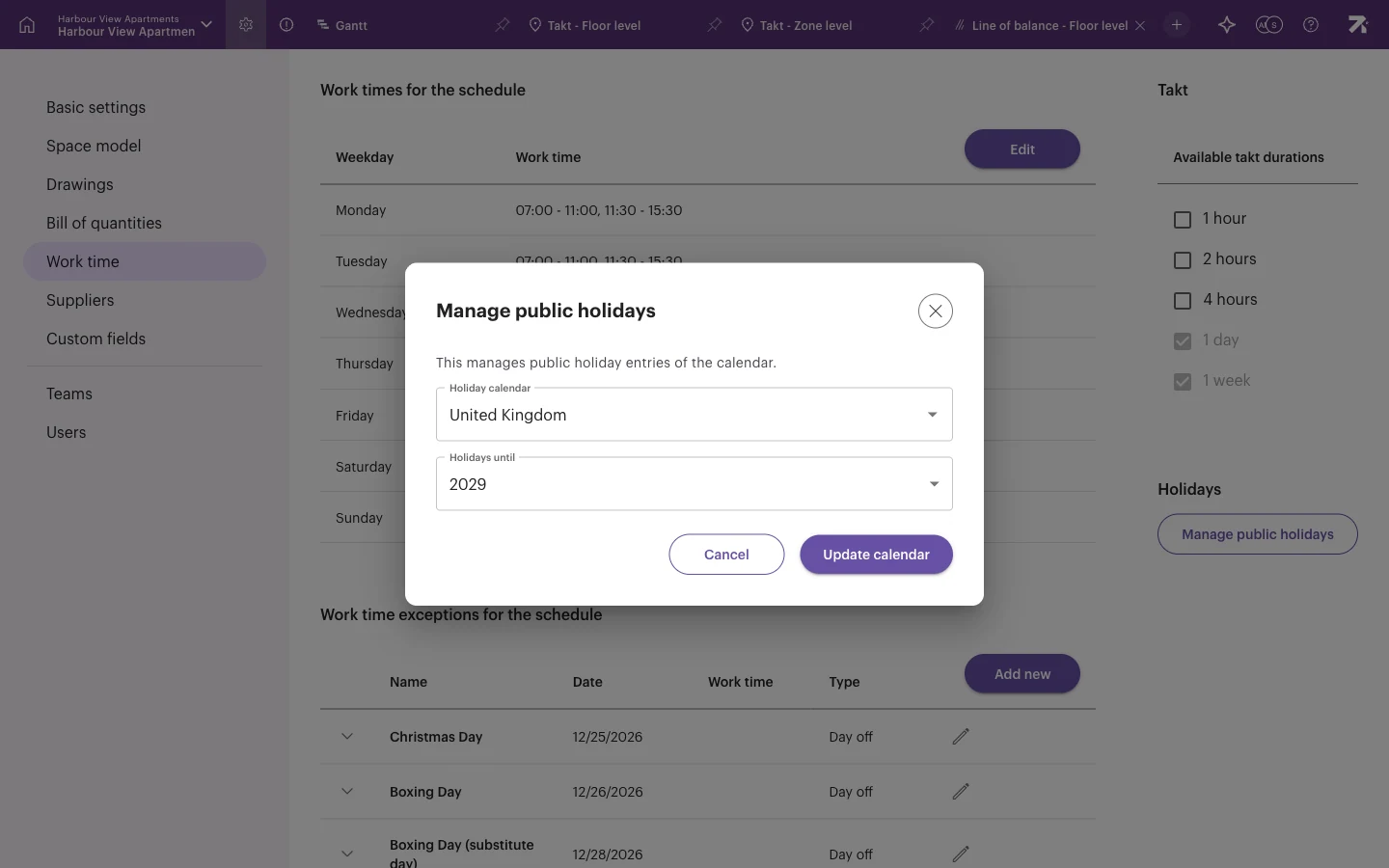
- On the right, under Holidays, select Manage public holidays.
- In Holiday calendar, choose the country. Choose No public holidays if you don’t want any.
- In Holidays until, choose the last year to import.
- Select Update calendar.
The holidays appear in Work time exceptions for the schedule with the type Day off, and as labelled bands on the timeline, for example “Christmas Day”.
Updating the calendar replaces the holidays from today onwards. Holidays in the past that came from an earlier calendar stay in the list. If you changed country, delete the old ones one by one: select the pencil icon on the row, then Delete.
If the site works on a public holiday as normal, delete that holiday from the list.
Choose takt durations
Under Takt, Available takt durations lists the takt lengths you can use in Takt views: 1 hour, 2 hours, 4 hours, 1 day and 1 week. 1 day and 1 week are always available. Tick the shorter durations if you plan in takts of less than a day. See Takt planning.
Good to know
- Working time is per schedule. If a site has several schedules, set it in each one.
- The default holiday country for new sites comes from the account’s default country. See Account settings.
- Schedules imported from a file bring their own calendar exceptions. Very long lists of exceptions may be cut short, so check the list after an import.