
Takt planning means moving teams through the building in a steady rhythm: one team finishes Floor 1 and moves to Floor 2 while the next team starts on Floor 1. In the Takt view, areas are rows and time runs left to right, so a good plan shows as a clean diagonal staircase of work. This article covers how to build that flow. For the view itself, see Takt.
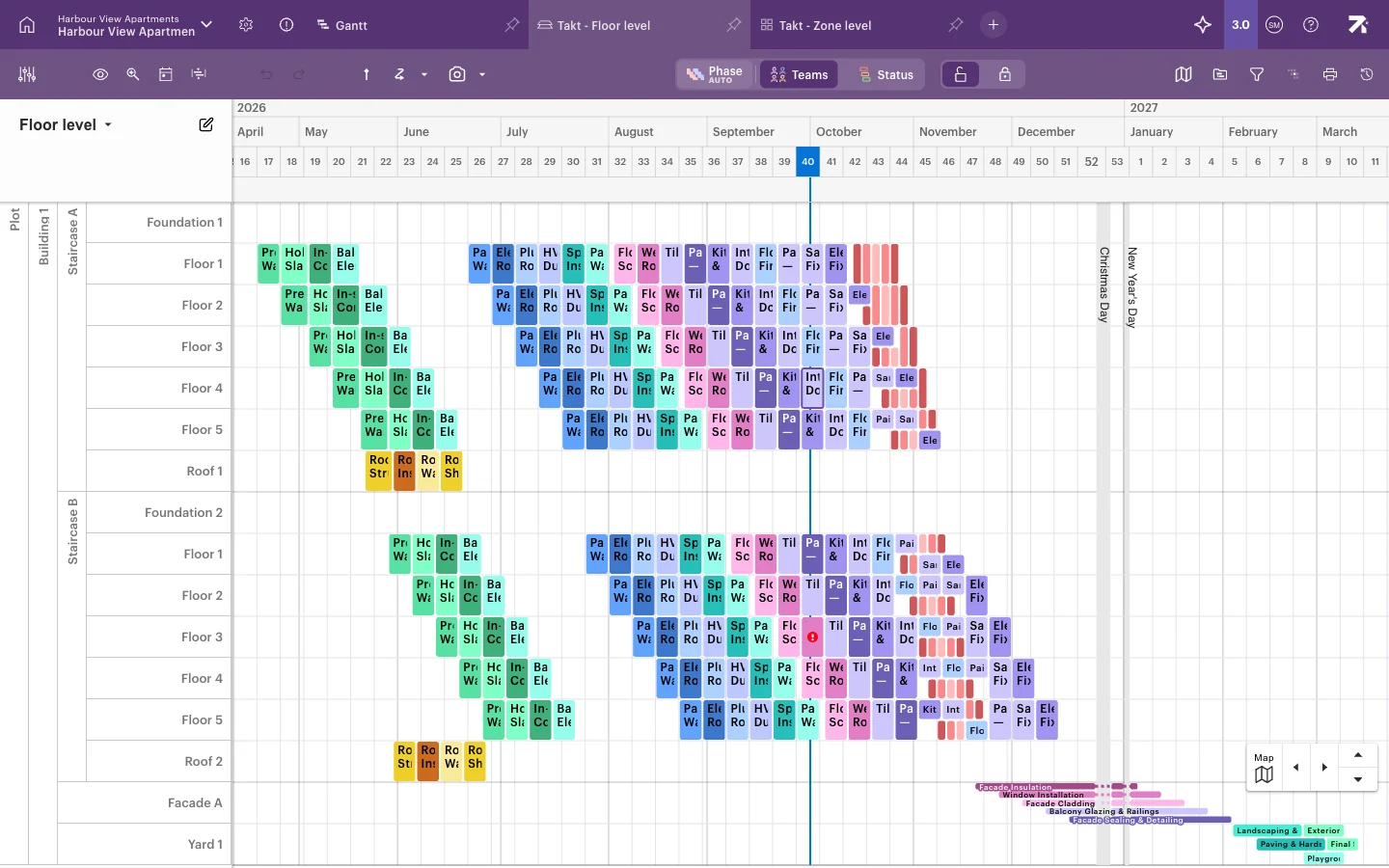 Each colour is a team. Diagonal lines show teams moving floor by floor.
Before you start
- Your schedule needs a space model, a location breakdown and phases. See Work packages.
- To plan, you need the Schedule, Site or Account admin right, or Refine/Refine (ltd) for your own work packages.
Set the rhythm
The rhythm between areas comes from how you place the work with Define areas:
- Duration gives every area the same duration and cascades them.
- Repeat area pattern with Set start interval starts each area a fixed number of days or hours after the previous one. This is the classic takt rhythm.
- Repeat area pattern with Consecutive starts each area when the previous one ends, so there are no gaps.
- Duration by space type (bottom-up) gives a quick first draft based on the kind of area.
There is no separate takt setting per area. Plan one area carefully, then use Repeat area pattern to copy its rhythm to the others.
Show the takt grid
- In the Takt toolbar, select Select schedule visualization options (the eye icon).
- Select Takt slots and choose a length, such as 1 week or 1 day.
Work then snaps to the takt slots, which makes it easier to keep a steady rhythm.
Day and week slots are always available. To use shorter slots, go to Schedule settings → Work time and turn on the lengths you want under Available takt durations (1 hour, 2 hours or 4 hours). Short slots appear only when you zoom in far enough. Schedule and Site users can also set Takt time in view settings for everyone who uses the view.
Build and copy a sequence
A sequence (sometimes called a takt train) is the row of work packages a phase has in one area, for example Partition Wall Framing → Electrical Rough-in → Plumbing Rough-in on Floor 1.
- Add the work packages in the first area. Hold Alt (Mac: Option) and click empty cells, or right-click and select Add work package.
- Select the whole sequence: click the first work package, then hold Shift and click the last one.
- Press Ctrl/Cmd+C, or right-click and select Copy selected.
- Right-click the first empty cell in the next area.
- Select one of the paste options:
- Paste places one copy in that cell.
- Paste diagonally repeats the sequence in each following area, shifted later in time each time. This creates the takt staircase.
- Paste vertically repeats the sequence in each following area at the same time.
To save a sequence for later, right-click a selection in one area and select Add to library. See Reusing plans.
Select a sequence with Shift+click, copy it, then right-click the next area and choose Paste diagonally.
Work with selections
Right-click a selection to see these options:
| Menu item | What it does |
|---|---|
| Set status | Sets Not started, In progress or Completed for all selected work. |
| Expand selection → To subsequent packages / To previous packages | Adds the work that follows or comes before the selection. |
| Copy selected | Copies the selection so you can paste it elsewhere. |
| Delete selected | Deletes the selected work. |
| Define Areas… | Opens Define areas for the selection. |
| Show as sum work package | Draws the work as one bar per area. It only changes the display. |
| Unselect | Removes a work package from the selection (Ctrl/Cmd+click). |
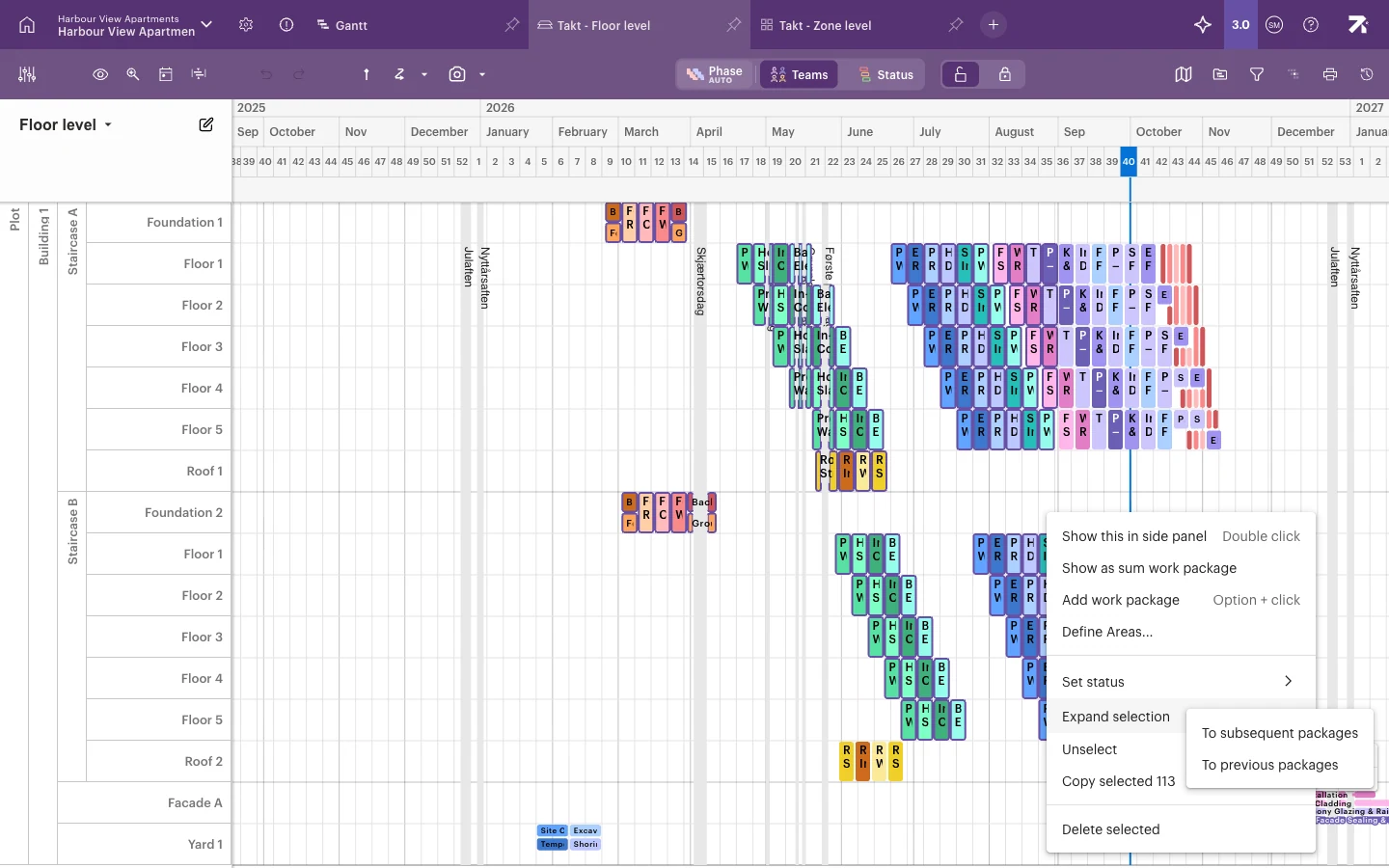
To move a whole sequence, select it and drag one of its work packages. See Moving and editing work.
Shift+click selects everything between two work packages. Expand selection adds the work that follows.
Spot collisions and gaps
- Collisions: when two work packages overlap in the same area, Takt draws them stacked on top of each other in that row. Look for rows that suddenly get taller or split. Sitedrive does not warn you about collisions automatically.
- Gaps: empty stretches in a row mean the area is idle. Repeat area pattern with Consecutive helps remove gaps.
- Hide empty space rows in the visualisation menu hides areas with no work, so the flow is easier to read.
- Dependencies and their violations list help you check the order of work.
Good to know
- Paste diagonally and paste vertically only fill areas that are visible in the current view.
- Takt slot lengths are a view setting. They change the grid and snapping, not the schedule’s working time.
- Phases that have no areas yet can be shown as suggestions. Turn on Suggested phases in the visualisation menu.