
Things go wrong on site: materials don’t arrive, the previous trade leaves damage, or extra work turns up. Sitedrive Mobile lets you report these problems where you see them, with a photo, so the right people can act before the schedule slips.
- A blocker is something that stops the work from starting or continuing, for example “Floor drains not delivered”.
- An issue is a defect or extra piece of work that someone must fix, for example “Damaged plasterboard in apartment A2”.
Both appear in the web app as well. See Blockers, issues and quality tasks.
Before you start
- You can report blockers and issues, and write comments, on work packages you are allowed to update. See Who sees what on mobile.
- What the report form shows depends on your role:
- Report and Accept users fill in the problem description and a photo. A supervisor adds the rest later.
- Refine (ltd) and higher also set the resolution instructions, the team, the date and, for blockers, the responsible manager.
Report a blocker
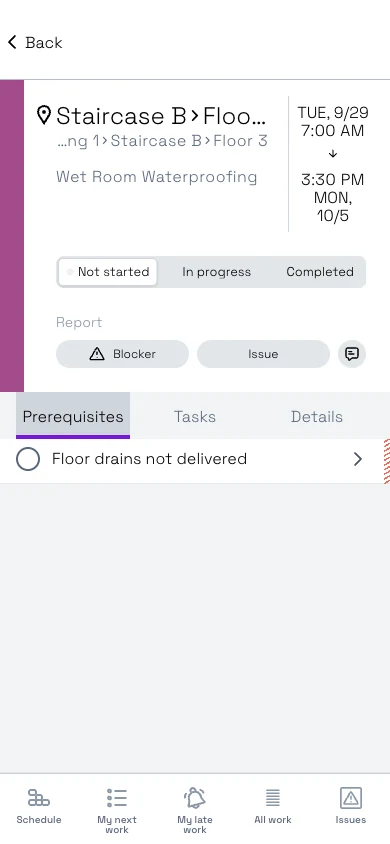
- Open the work package that is blocked.
- In the Report row, tap Blocker.
- In Problem description, describe what is wrong, for example “Floor drains not delivered”.
- To add a photo, tap Add photo.
- Take a picture or choose one.
- Tap Use photo.
- If your role allows it, fill in the rest:
- Resolution instructions: how the problem should be solved.
- Responsible manager: the person the request is aimed at.
- Team: the team that removes the blocker.
- Blocked work is scheduled to start: the date and time the blocked work should start.
- Tap Report.
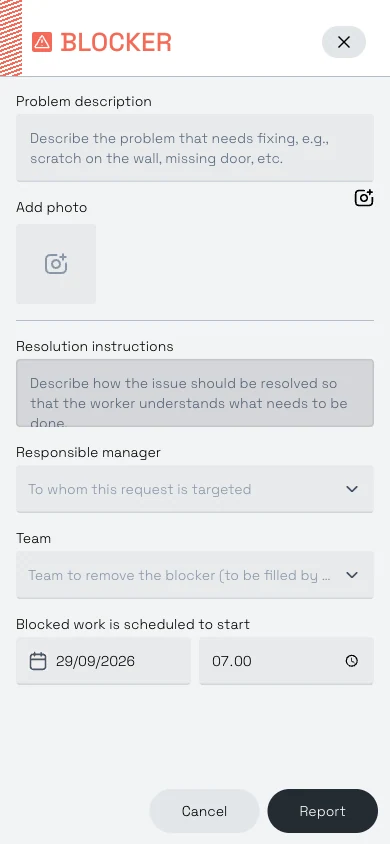 The blocker form as a supervisor sees it. Report and Accept users see only the description and photo.
The work package switches to the Prerequisites tab, where the new blocker is listed.
Report an issue
- Open the work package the issue belongs to.
- In the Report row, tap Issue.
- In Problem description, describe what needs fixing.
- Tap Add photo to add a picture.
- If your role allows it, fill in Resolution instructions, Team (the team doing the extra task) and Extra work is scheduled to start.
- Tap Report.
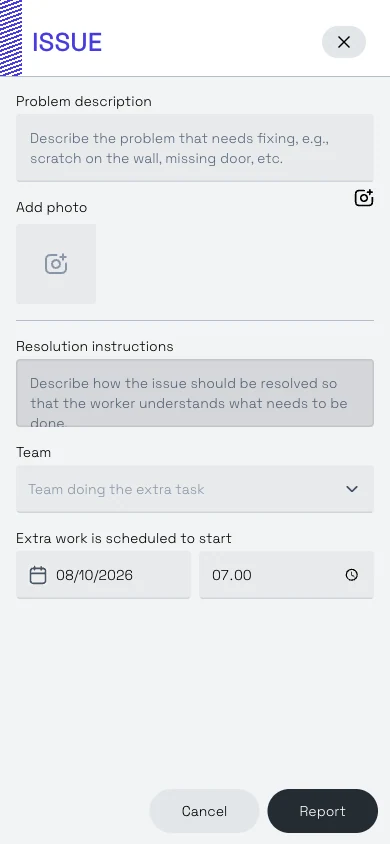
The work package switches to the Tasks tab, where the new issue is listed.
The date must be a working day, within working hours, and not in the past. See Working time and holidays.
Complete a blocker or issue
- Open the blocker or issue. Blockers are on the work package’s Prerequisites tab. Issues are on its Tasks tab. Users with Accept rights or higher can also open them from the Issues tab.
- Tap Mark as completed.
You can complete a blocker or issue if you are in the work package’s team, are assigned to it or own the work package (or a parent work package). Schedule and Site users can always complete them.
The button changes to Completed. Tap it again to reopen the blocker or issue.
The blocker or issue page also shows who reported it and when, the description, photos and the people assigned. Tap Edit to change the details. The person who created a blocker or issue can edit it, as can Schedule and Site users. Only Schedule and Site users can delete blockers and issues.
Follow up issues as a supervisor
Blockers and issues reported by crew members often arrive without a team or instructions. Use the Issues tab to find and complete them. Adding a team and instructions to a blocker or issue someone else reported needs Schedule or Site rights.
- Open the Issues tab.
- Tap Open. Items without a team are listed under Needs Attention.
- Tap a card that says Add instructions, Add team or Add instructions and team.
- Tap Edit.
- Fill in the missing details.
See Finding your work on mobile for the other groupings, and Working with issues for the web side.
Add photos to tasks
- Open the work package.
- Go to the Tasks tab.
- Tap the camera icon on the task row.
- Take a picture or choose one from your phone.
- Tap Use photo, or Retake to try again.
Tap a thumbnail to open the photos in a gallery. You can also add photos on a blocker or issue page.
If you have no connection, photos are queued and uploaded when you are back online.
Write a comment
Comments are a quick way to tell others about a work package, for example “Access through staircase B only this week”.
- Open the work package.
- Tap the comments icon in the Report row. A number on the icon shows how many comments there are.
- Type in Write a comment.
- Tap Send.
Comments also appear in the work package panel in the web app.
Write a status comment
A status comment is a dated note on how the work is going, for example “Waterproofing 70 % done, finishing Friday”. Planners see the latest one in the Status comment column in Gantt.
- Open the work package.
- Tap the comments icon.
- Turn on Status.
- Type in Write a status comment.
- Tap Send status.
Each status comment is shown as “Status for” followed by the date.
Users with Refine or higher can write status comments. Refine (ltd) users can write them on work packages they own or are assigned to. Report and Accept users can read status comments and write normal comments.
Good to know
- When you mark a quality task failed (✗), the app opens a new issue for you. See Reporting status on mobile.
- Mark as completed on a card in My next work also completes the open blockers on that work package.
- The Report row is shown only on work packages you are allowed to update.