
Every timeline view can be coloured in different ways and can show or hide extra information. Choose team colours to see who works where, status colours to see how work is going, and phase colours to see the big picture. These choices are personal unless a Schedule or Site user has locked them for everyone in view settings.
Choose how work is coloured
Use the colouring switch in the middle of the toolbar:
- Teams – every work package uses its team’s colour. Team colours are set in Teams and people. A work package with its own colour (set with Set color in the Gantt) uses that instead.
- Status – every work package shows its progress status.
- Phase (Takt only) – shades work by phase. Click it to cycle Off → Auto → On. Auto draws phases only when you are zoomed out to month columns.
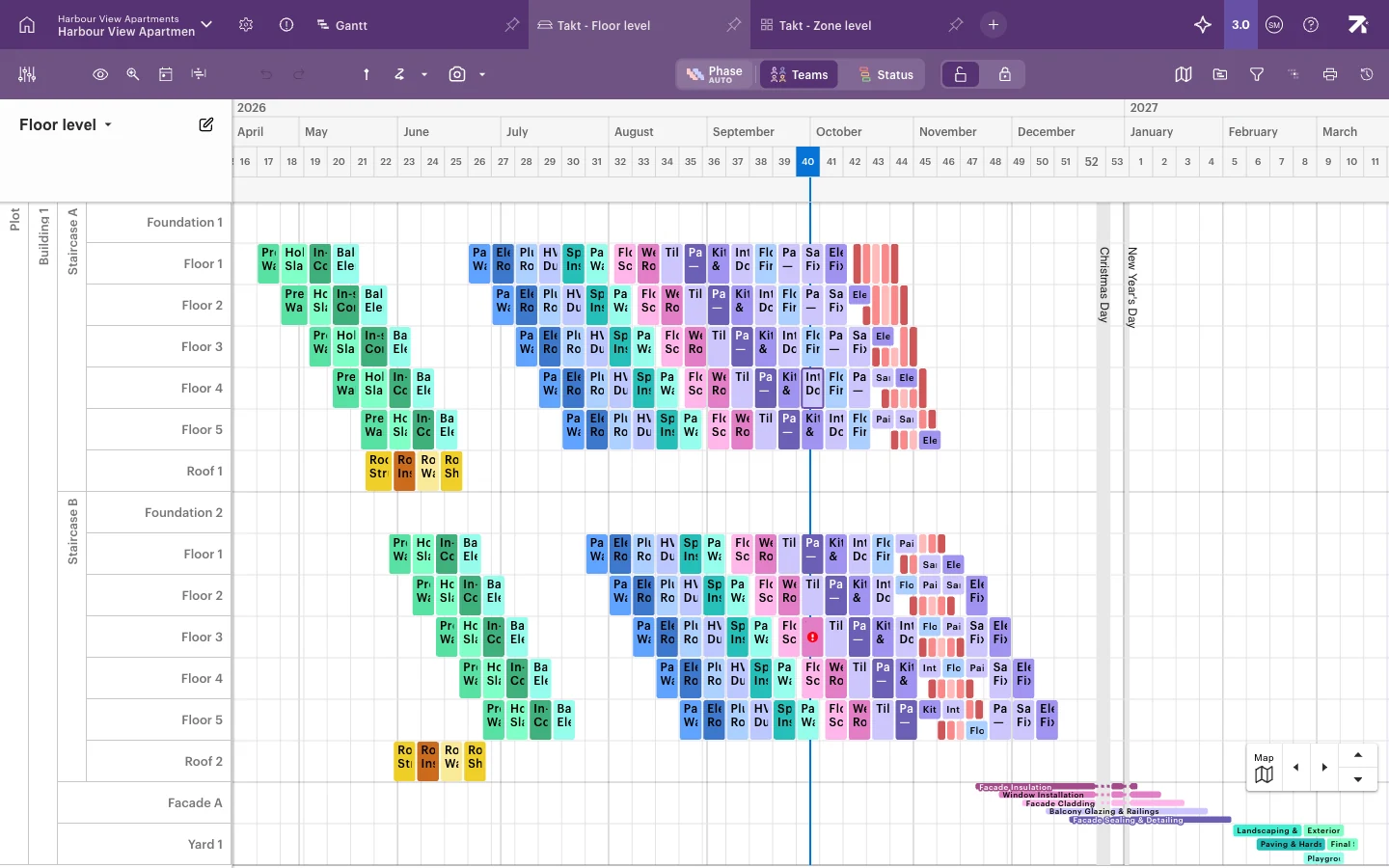
Switch between Status, Teams and Phase colouring in the toolbar.
Status colours
| Colour | Status |
|---|---|
| Light grey | Planned |
| Light blue | Ready to start |
| Blue | In progress |
| Orange | Delayed (not started) |
| Light orange | Delayed (started) |
| Red | Blocked |
| Light green | Open Issues / Completed |
| Green | Verified |
In short: green is done, blue is in progress, orange is late and light blue is coming up next. See Tracking progress for how statuses are set.
Show or hide extra information
- Click the eye icon (Select schedule visualization options) in the toolbar.
- Tick or untick the options you want. The view updates straight away.
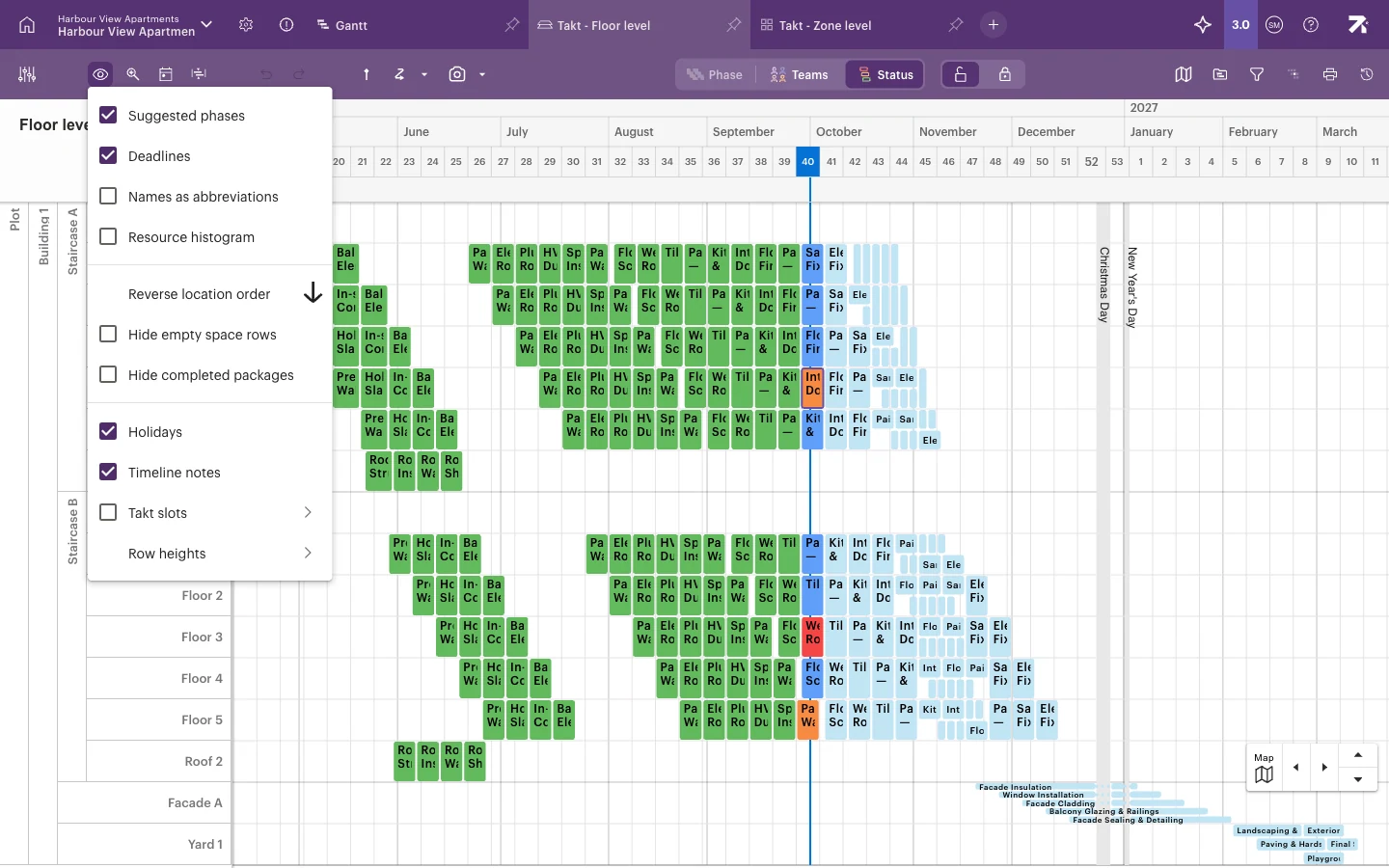
| Option | Views | What it does |
|---|---|---|
| Progress line › | Gantt | Draws a progress line: Standard, Most late or Progress percentage. |
| Suggested phases | Takt | Shows location suggestions for phases not yet placed. |
| Deadlines | All | Shows deadlines. Available to Refine and higher. |
| Names as abbreviations | All | Shortens names so more fit on small bars. |
| Resource histogram | All | Opens a histogram under the timeline. |
| Reverse location order | Takt, Line of balance | Flips the area rows. |
| Hide empty space rows | Takt, Line of balance | Hides areas with no work. |
| Hide completed packages | All | Hides finished work. |
| Holidays | All | Shows public holidays and days off as bands. |
| Timeline notes | All | Shows timeline notes as coloured bands. |
| Takt slots › | All | Shows takt time columns from a takt calendar. |
| Row heights › | Takt, Line of balance | Uniform package heights (Takt only), Uniform row heights or Manually set row heights. |
An option that has been locked in view settings is greyed out with the note Locked in view settings.
Use the resource histogram
The resource histogram shows how much work is going on over time, below the timeline and on the same time scale.
- Tick Resource histogram in the eye menu.
- In the panel, choose what to count by: Teams or Assignees.
- Choose a calculation method: Work package count, Sum of work hours or Resource need.
- Drag the panel’s edge to resize it, or close it with Close histogram.
Holidays and timeline notes
Holidays and timeline notes are created in schedule settings. See Working time and holidays. Timeline notes are shown on the timeline but don’t affect working time. The eye menu only controls whether they are shown.
Good to know
- Phase colouring is only available in Takt. The progress line is only available in the Gantt.
- In Status mode, custom work package colours are not used.
- In Line of balance, sum work packages keep their team colour in Status mode.
- Row height can also be changed with Ctrl/Cmd + scroll over the row labels.