
Status colours tell you which work packages are late today. To see how far behind or ahead you are, and how the plan has changed since it was agreed, Sitedrive offers three tools: the progress line, baselines and version history.
| Tool | Answers | Where |
|---|---|---|
| Progress line | How many days behind or ahead is each work package right now? | Gantt |
| Baseline | How do today’s dates compare with the agreed plan? | Gantt |
| Version history | What did the schedule look like at an earlier point, and who changed what? | All views |
Show the progress line
The progress line starts from the today line and bends to a point on each row. A bend to the left means the work is behind; a bend to the right means it is ahead. For example, a 10-day work package that is 30 % done has reached day 3. If today is day 6, the line bends 3 days to the left.
- Open a Gantt view.
- Select the eye icon (Select schedule visualization options) in the toolbar.
- Open Progress line.
- Choose a type.
| Type | How a sum work package is placed |
|---|---|
| Standard | By the combined progress of its areas, weighted by work amount. |
| Most late | At the single furthest-behind unfinished area below it. Good for finding the front that holds everyone up. |
| Progress percentage | By the sum’s own percentage applied to its start and end, ignoring how the work is spread. |
Rows that are finished, or haven’t started and start in the future, sit on the today line. Work finished early sits at its planned end, ahead of today.
The progress line is a personal setting, but a user with Schedule or Site rights can lock it for a view in View settings. It is available only in Gantt.
Compare with a baseline
A baseline is a saved copy of the plan, for example the schedule agreed at contract signing. When a baseline is shown, each Gantt row gets a grey “ghost bar” behind the live bar, so you can see at a glance what has slipped.
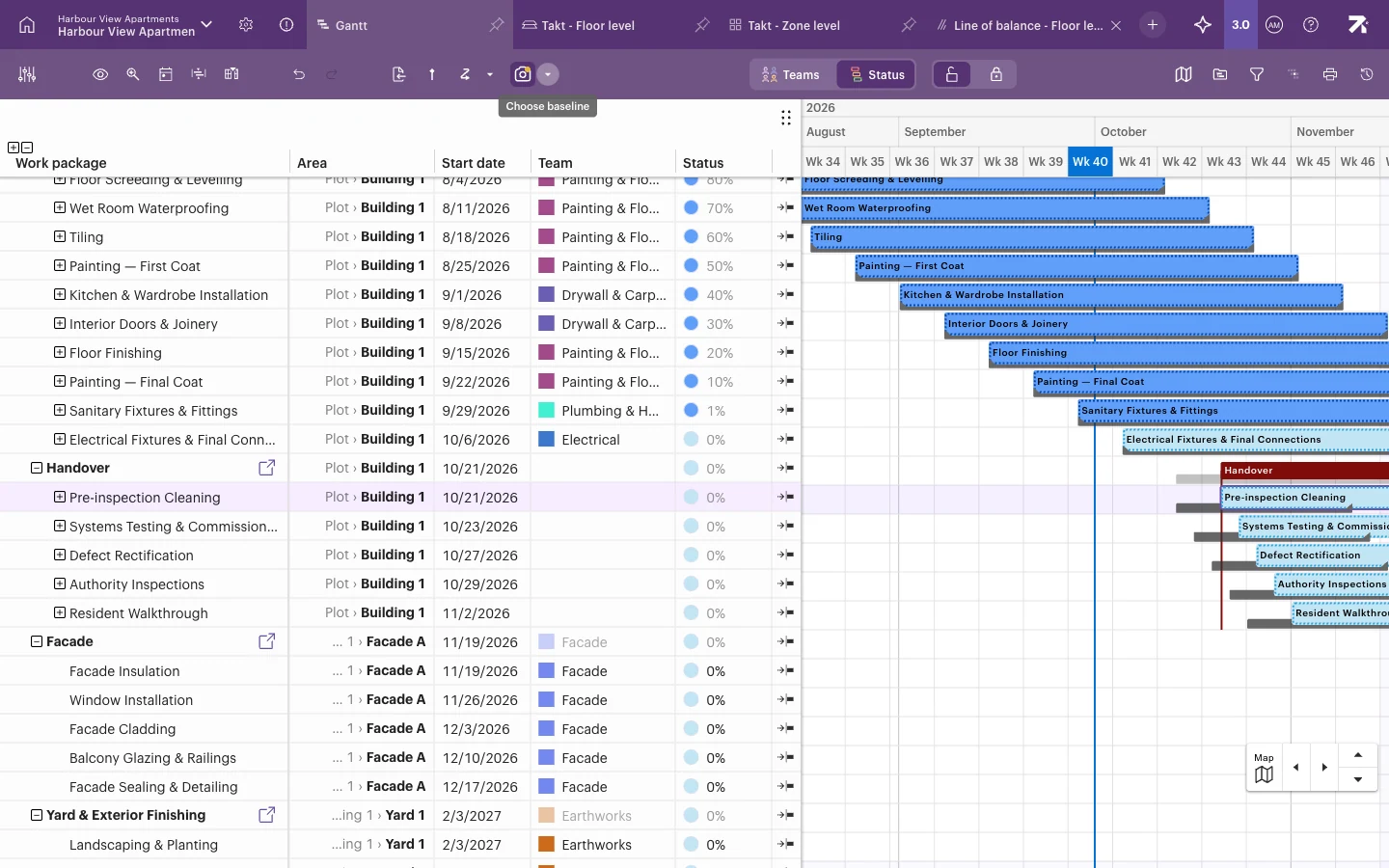
Show a baseline:
- In the Gantt toolbar, select Show baseline to switch the ghost bars on or off.
- To pick which baseline to compare against, select the arrow next to it (Choose baseline).
- Choose a named baseline, Use project default or No baseline shown. Your choice applies to this tab only.
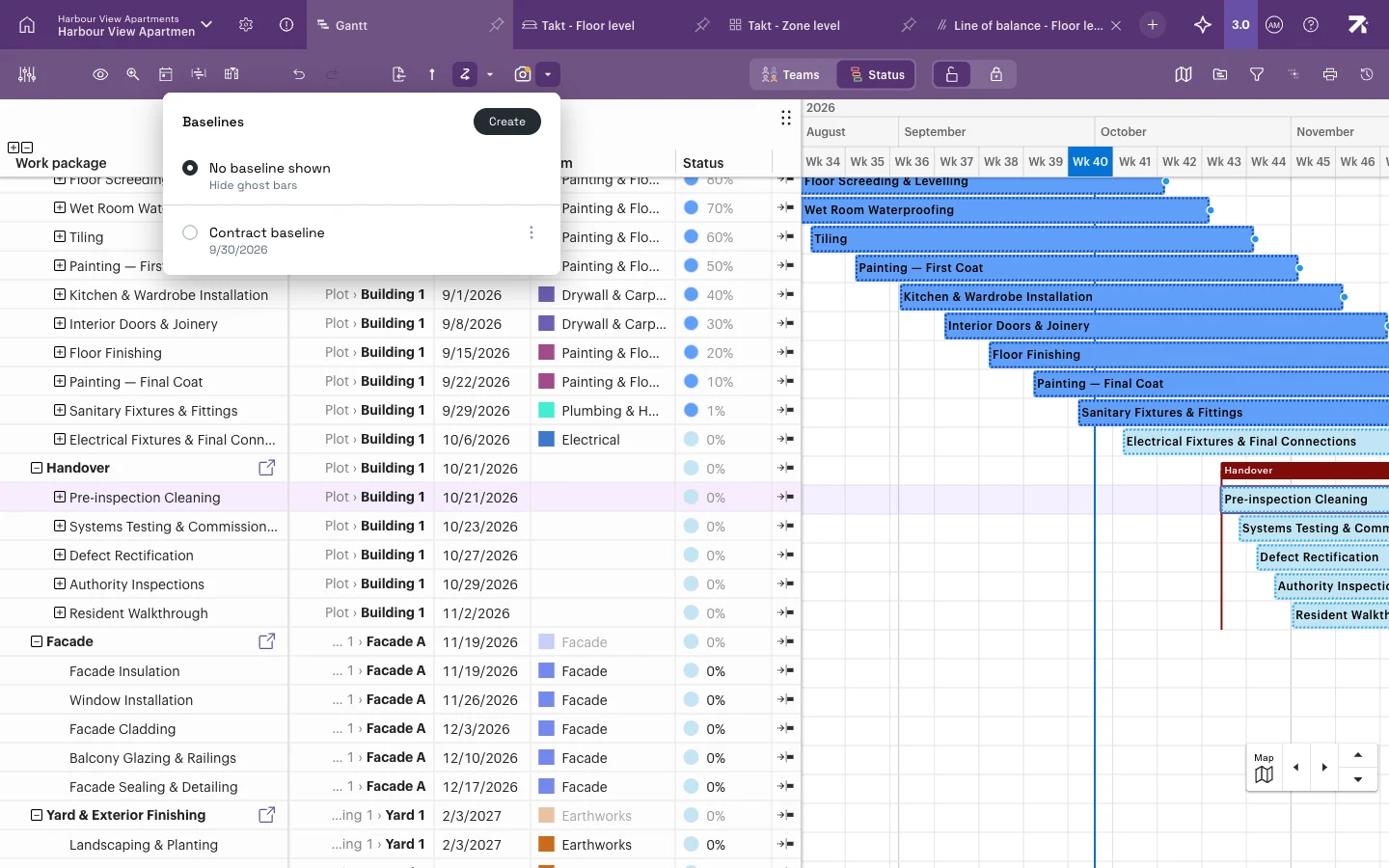
Add variance columns: open Columns and add columns from the Baseline group: Baseline start, Baseline end, Baselined, Start variance and Variance. They show exactly how many days each work package has moved. You can also filter by baseline values.
Create and manage baselines (Schedule or Site rights): in the Baselines menu, select Create first baseline (or Create), type a Baseline name and select Save. Use the ⋮ menu on a baseline to rename it, delete it or Set as project default, the one everyone compares against by default. Save a baseline before a big replan, or when the schedule is agreed. See Undo, version history and baselines for all options.
When you print with a baseline shown, the printout header names the baseline.
Look back with version history
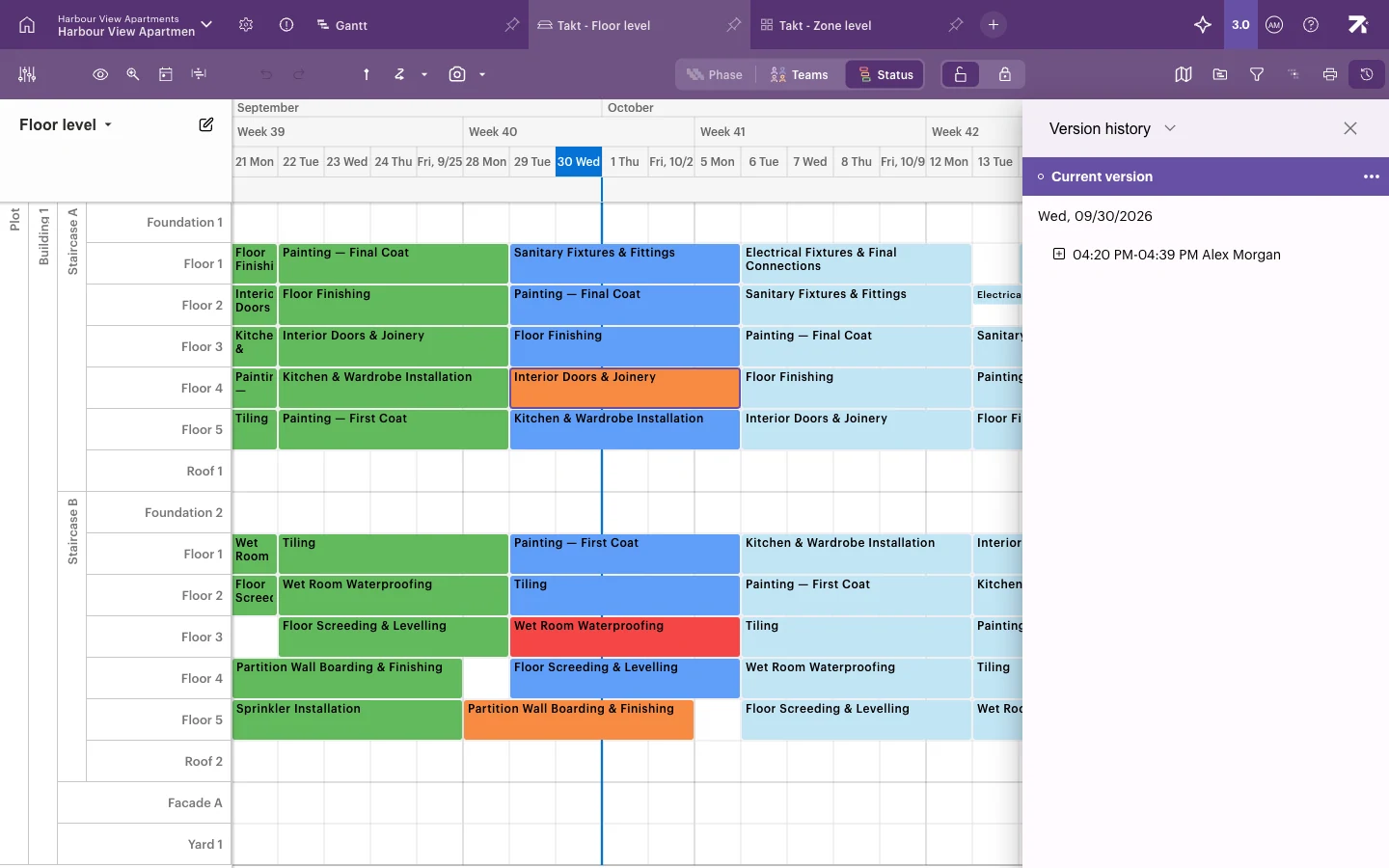
Version history records every change to the schedule. Use it to see what changed, when, and to go back to an earlier plan if needed.
- Select the history (clock) icon at the right end of the toolbar.
- In the panel title, switch between Schedule changelog (a list of individual changes) and Version history (a timeline of versions).
- Click a version to preview it read-only. Select Current version to return to the live schedule.
For a single work package, open the panel and look under Details › Operations history.
Users with Schedule or Site rights can also Name this version and Restore this version from a version’s ⋮ menu. Restoring affects all users and all views, and it restores statuses too, so progress reported since then is lost. The state before the restore is kept as “Version before restoration”, so you can undo it. See Undo, version history and baselines.
Good to know
- Version history needs Refine rights or higher. Restoring and naming versions needs Schedule or Site rights.
- A version preview shows the old dates with today’s statuses, progress and teams. You can’t edit while previewing.
- In Line of balance, you can show an Actual progress line instead of the Gantt progress line.