
Users with the Schedule or Site right decide which views each person gets as tabs, and which settings in a view are fixed for everyone. This lets you give a foreman a simple floor-level Takt filtered to their team, while planners keep full control. Sharing and locking never change schedule data; they only change what people see.
Before you start
- Sharing views and changing view settings needs the Schedule, Site or Account admin right. See Roles and what each one can do.
- Other users see exactly the views shared with them, as tabs. They can’t close these tabs or open views that aren’t shared with them.
Share a view
- Click + (View selection and management) in the header.
- Hover over the view and click Share view. You can also right-click the view’s tab and choose Share….
- In the Sharing popover, choose who gets the view:
- Tick View always open for everyone to give every user of the schedule a pinned tab.
- Or search in Type name, team, email to find and tick individual people.
- Check the summary at the bottom, for example 3 people get a tab for this.
- Click outside the popover to close it. Changes are saved straight away.
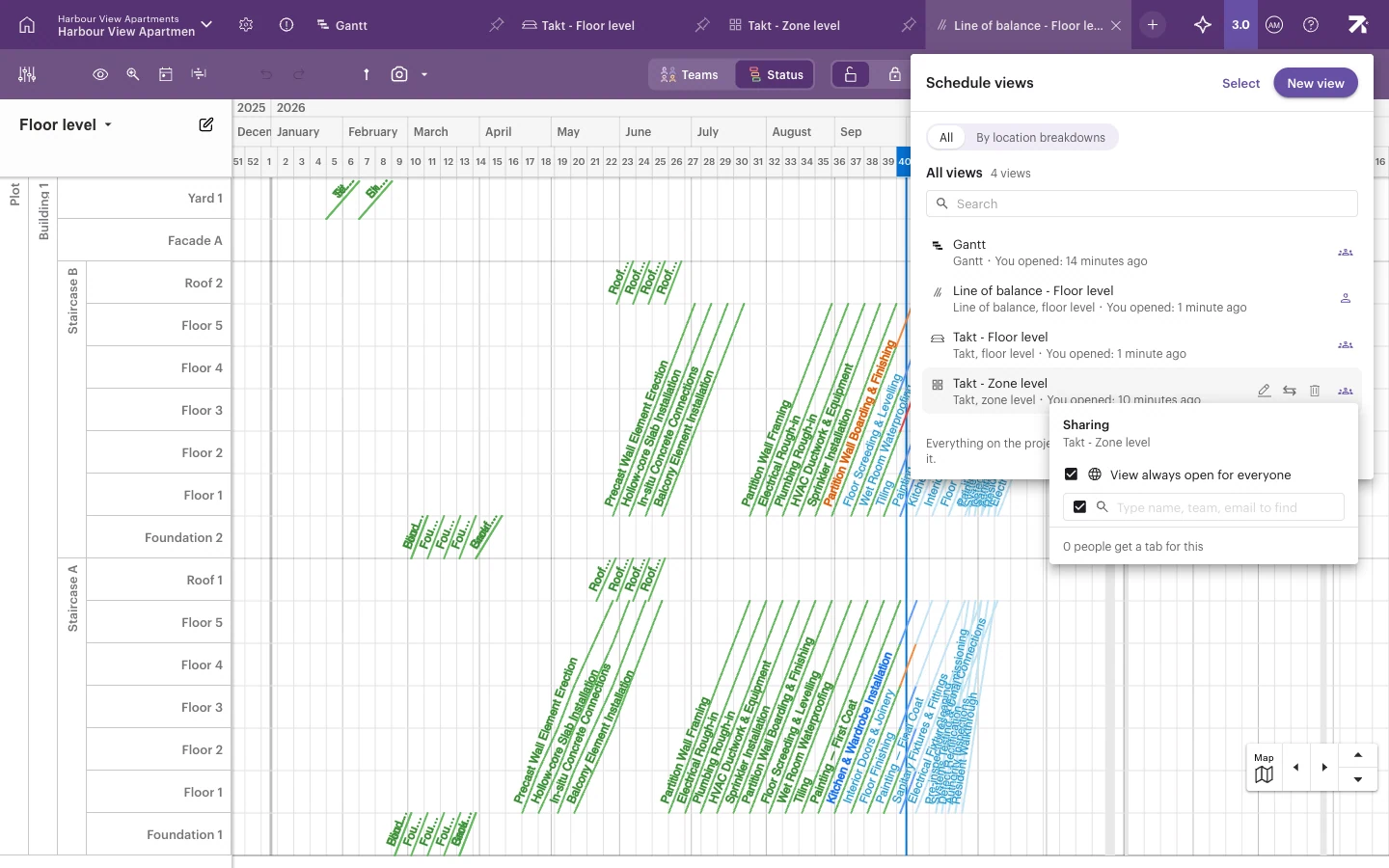
In the view list, the icon on each row shows how the view is shared: with everyone, with some people, or not shared (only Schedule and Site users see it).
Pin a view for everyone
A view that is always open for everyone is pinned: every user sees it as a tab with a pin icon, in the same order, and nobody can close it. A quick way to pin or unpin is to right-click the tab and choose Share to all or Unshare from all.
At least one view must stay shared with everyone, so the last pinned view can’t be unpinned.
Share by link
Every view has its own web address. Copy it from your browser’s address bar and send it to a colleague. It opens the same view for anyone who has access to it.
Lock view settings for everyone
View settings control how a view looks and what it shows. Each setting can be locked or unlocked:
- Locked – the value you save applies to everyone. Other users see the control greyed out with Locked in view settings.
- Unlocked – each user makes their own choice, and it is saved for them.
To change view settings:
- Open the view.
- Click View settings at the far left of the toolbar, or right-click the tab and choose View settings.
- Change the settings you need. The view previews your changes.
- Click the padlock next to each setting you want to lock.
- Click Save. Cancel discards your changes.
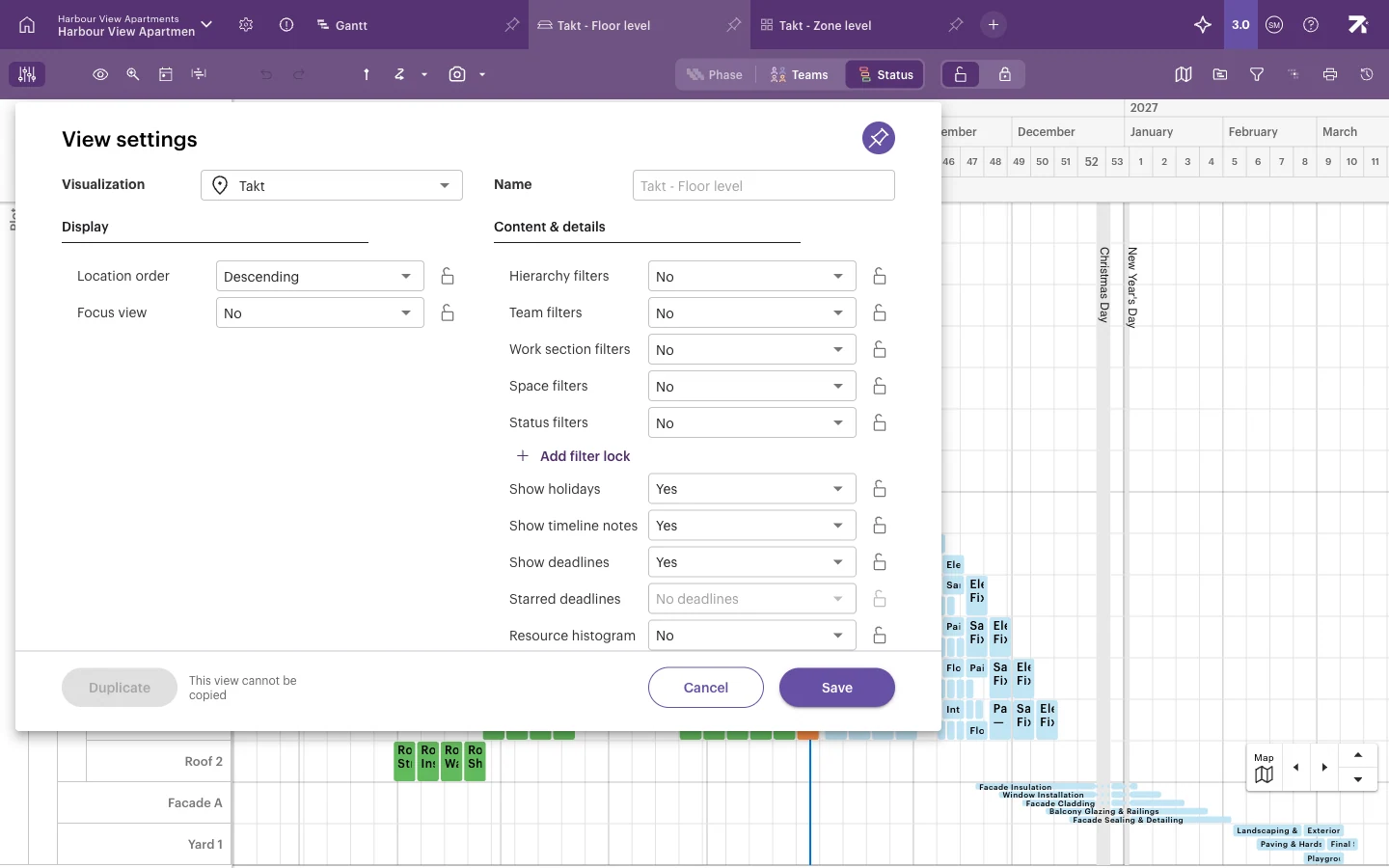
The dialog contains:
- Visualization – the view type. It can’t be changed for the main Gantt.
- Name – the view’s name.
- Display settings, which depend on the view type, for example Location order, Focus view, colouring and progress line.
- Content & details – Hierarchy filters, Team filters, Work section filters, Space filters and Status filters, Add filter lock for other fields, and Show holidays, Show timeline notes, Show deadlines, Starred deadlines and Resource histogram.
- Duplicate – makes an editable copy of the view. Not available for the main Gantt or Takt views.
Example: a team view for a subcontractor
- Create a Takt view at floor level. See Views as tabs.
- Open View settings, set Team filters to Electrical and lock it.
- Set Focus view to a few weeks around today and lock it.
- Click Save.
- Share the view with the electrical crew.
Use the edit lock
The edit lock is a personal safety switch, not a sharing setting. Turn it on when you only want to look at the schedule, for example on a meeting-room screen, so a stray click or drag can’t move work.
- Click the padlock buttons in the toolbar to switch between Editing unlocked (limited by your access level) and Editing locked (to prevent accidental edits).
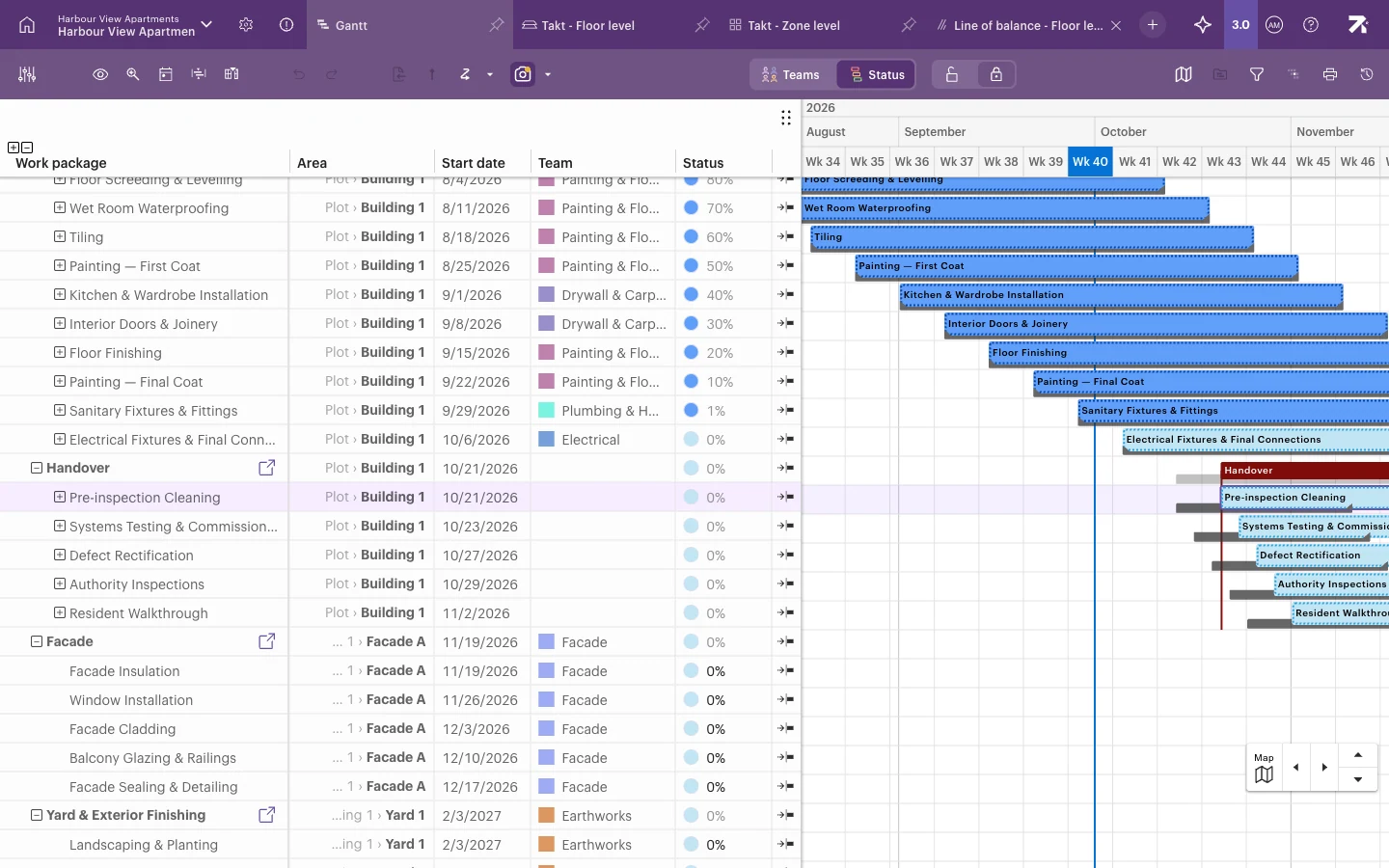
The edit lock only affects you, in the current view. It doesn’t stop anyone else from editing. A schedule that is read-only, for example on an archived site, is always locked.
Good to know
- Locked filters can’t be cleared by other users. They can still add their own filters on top.
- Settings you leave unlocked are personal and follow each user between computers.
- Deleting a view never deletes schedule data.