
Issues and blockers are how problems on site get recorded, assigned and solved. An issue is work still to do, such as a snag or extra work. A blocker is a problem that stops the work altogether. This article walks through the whole life of an issue: raising it, assigning it, following it up and closing it. For the difference between the types, see Blockers, issues and quality tasks.
Before you start
| What you want to do | Rights needed |
|---|---|
| Raise an issue or blocker | The right to report status on that work package. Report and Accept users can raise them on work packages of their own team or where they are an assignee or owner. |
| Close (tick) an issue or blocker | Schedule and Site users always. Report, Accept, Refine (ltd) and Refine users only if they are in the work package’s team, are assigned to it, or own the work package (or a parent work package). |
| Edit or assign an issue | The person who created it, and Schedule and Site users. |
| Delete an issue or blocker | Schedule and Site users only. |
| See the Issues tab in Sitedrive Mobile | Accept or higher. |
See Roles and what each one can do for details.
Raise an issue
Issues always start from the work package they concern. This links the issue to a location and a trade, so nobody has to guess where the problem is.
- Open the work package panel for one area. In Gantt, select the row and press Enter. In Takt, double-click the work package.
- Select Issue, or Blocker if the problem stops the work.
- Enter a short Name that says what is wrong, for example “Floor 3 door frame damaged”.
- In Description, say what needs to happen to fix it.
- Add Photos if they help. You can also drop a JPEG or PNG file onto the dialog.
- Choose the Team that should do the work.
- Choose the Owner who is responsible for getting it done.
- Check the Deadline. It defaults to the work package’s planned end and must be a working day.
- Select Save.
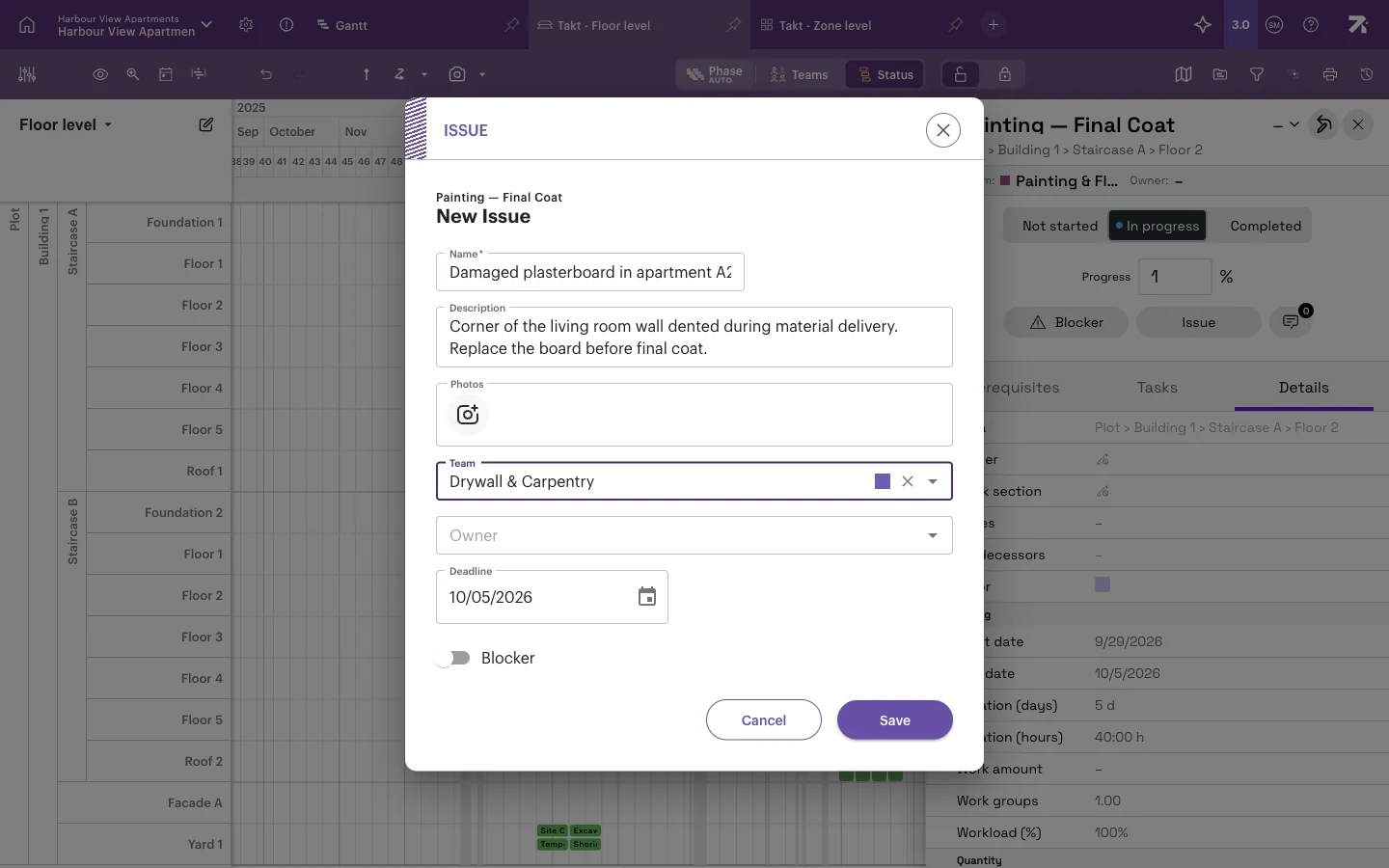
Other ways an issue is raised:
- Setting a quality task to not met opens the New Issue dialog automatically, with the name “Quality not met:
”. - Foremen and subcontractors can raise blockers and issues from Sitedrive Mobile, including photos taken with the phone camera.
There is no “new issue” button in the Issues view itself. Every issue belongs to a work package.
Follow up issues in the Issues view
The Issues view lists every blocker and issue in the schedule in one table.
- In the schedule header, select the Issues icon (the exclamation mark).
- Switch on Hide completed to see only open items.
- Use the search box or Filter to narrow the list by team, owner or type (Issue or Blocker).
- Click the Deadline column header to sort by deadline. Deadlines that are today or already past show in red.
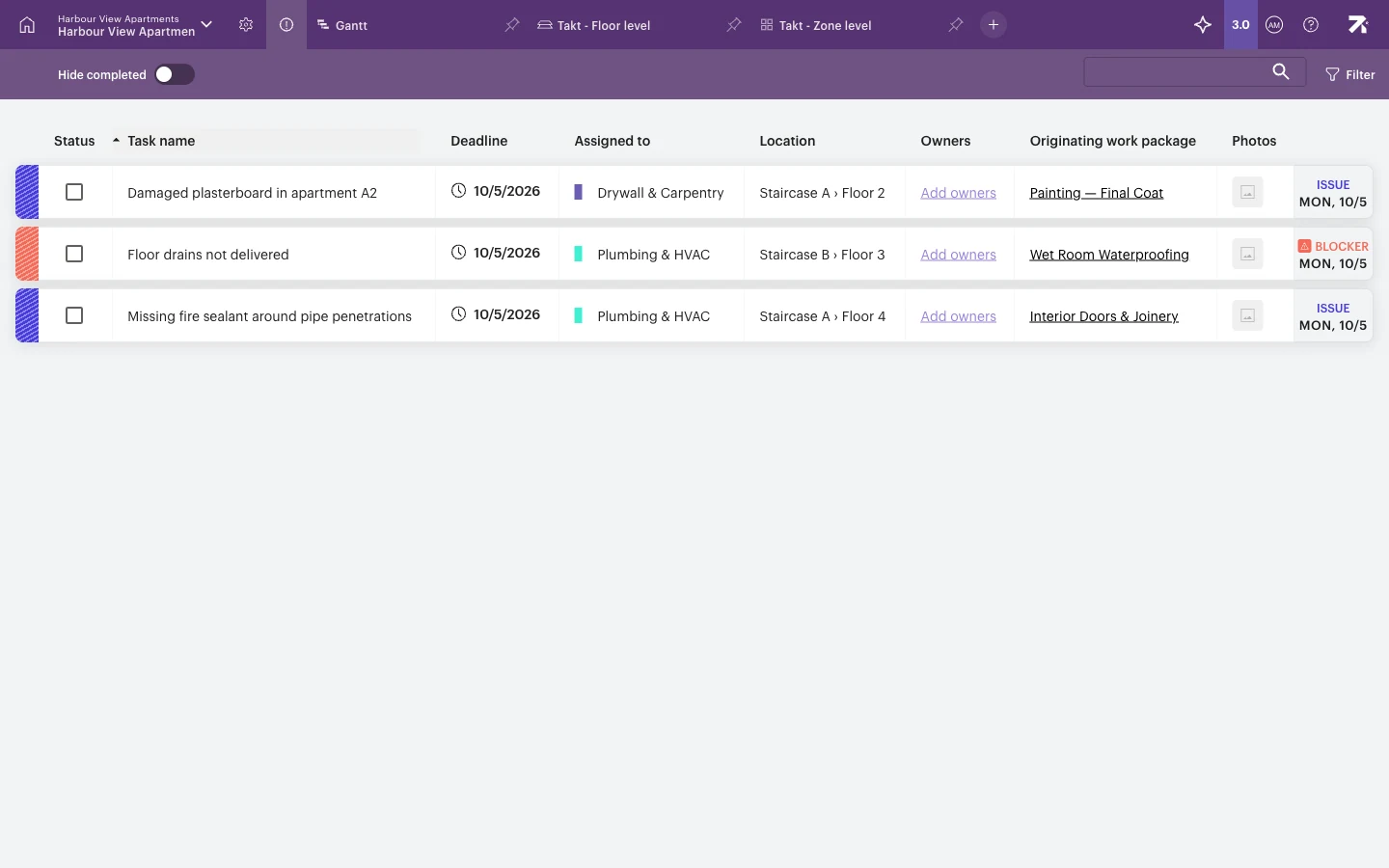
Each row shows the Task name, Deadline, Assigned to (team), Location, Owners, the Originating work package and any Photos, plus a label saying whether it is a Blocker or an Issue. Click the originating work package to jump to it in the schedule. See The Issues view for everything the view can do.
Assign an issue
An issue without a team often gets forgotten. Check new issues regularly and make sure each one has a team and an owner.
- In the Issues view, double-click the row. You can also select an Add team or Add owners link in an empty cell.
- Set the Team (who does the work).
- Set the Owner (who is responsible).
- Adjust the Deadline or Description if needed.
- Select Save.
On mobile, users with Accept rights or higher see open issues on the Issues tab, and users with Schedule or Site rights can add the team and instructions there. Grouping the list by Open splits it into Needs Attention (no team yet) and Assigned, so you can quickly find issues nobody has picked up.
Close an issue
When the work is done, tick the checkbox in the Status column of the Issues view. You can close it if you have Schedule or Site rights, or if you are in the work package’s team, are assigned to it or own the work package (or a parent work package). You can also tick the issue in the work package panel. Closed rows are greyed out. If you close one by mistake, untick it and it opens again.
When the last open blocker on a work package is closed, the work package returns to its normal status colour. When all issues, blockers and quality tasks are closed on a completed work package, it becomes Verified.
Delete an issue
Delete only issues that were raised by mistake. For solved problems, close them instead, so the history stays. Only Schedule and Site users can delete issues and blockers.
- In the Issues view, hover over the end of the row.
- Select the trash icon (Delete).
- Confirm.
A simple weekly routine
- Open the Issues view with Hide completed on.
- Sort by Deadline and deal with blockers first, because they stop work.
- Assign a team and owner to every issue that is missing one.
- Close anything that has been fixed.
- Filter by Team before a meeting with a subcontractor to go through only their items.
The site meeting recipe shows how to fit this into your weekly meeting.
Good to know
- Deleting a work package also deletes its blockers and issues.
- The Issues view is not affected by the location breakdown you have chosen for other views.
- Your filter and search in the Issues view are saved for you personally.
- The Issues view is not shown on mobile. Mobile has its own Issues tab for Accept users and above. Users with Report rights see their items under My next work, My late work and All work instead.