
Sitedrive keeps track of changes to your schedule in three ways:
| Tool | Use it to | Scope |
|---|---|---|
| Undo and redo | Reverse your own recent edits | Your current session |
| Version history | See, compare and restore earlier states of the schedule | Everyone’s changes |
| Baselines | Save an agreed plan and compare the current plan against it | Everyone, or your own choice |
Undo and redo
- Undo: Ctrl+Z (Mac: Cmd+Z), or Undo in the toolbar.
- Redo: Ctrl+Y (Mac: Cmd+Shift+Z), or Redo in the toolbar.
You can undo most planning changes: creating, moving, editing and deleting work packages, changes to the hierarchy, Define areas, progress and tasks, deadlines, dependencies, quantities, working time and holidays, and space model changes.
Some actions can’t be undone, and doing one clears your undo history. These include comments, timeline notes, most view and view settings changes, teams, templates and library snippets, baselines and photos. Switching to another view also clears your undo history.
If another user has edited the same thing after you, Sitedrive shows Undo not possible, so their work isn’t lost. Change it back by hand, or use version history.
Version history
Version history records every change to the schedule, by any user, in any view.
Before you start
- Version history is available to Refine and above.
- Restoring and naming versions needs the Schedule, Site or Account admin right.
View an earlier version
- Select the clock icon at the far right of the toolbar. The Version history panel opens.
- Current version is at the top. Below it, changes are grouped by date and by editing session, with the user’s name and time.
- Click a version to preview the schedule as it was then. The preview is read-only.
- Select Current version to return to the live schedule and continue editing.
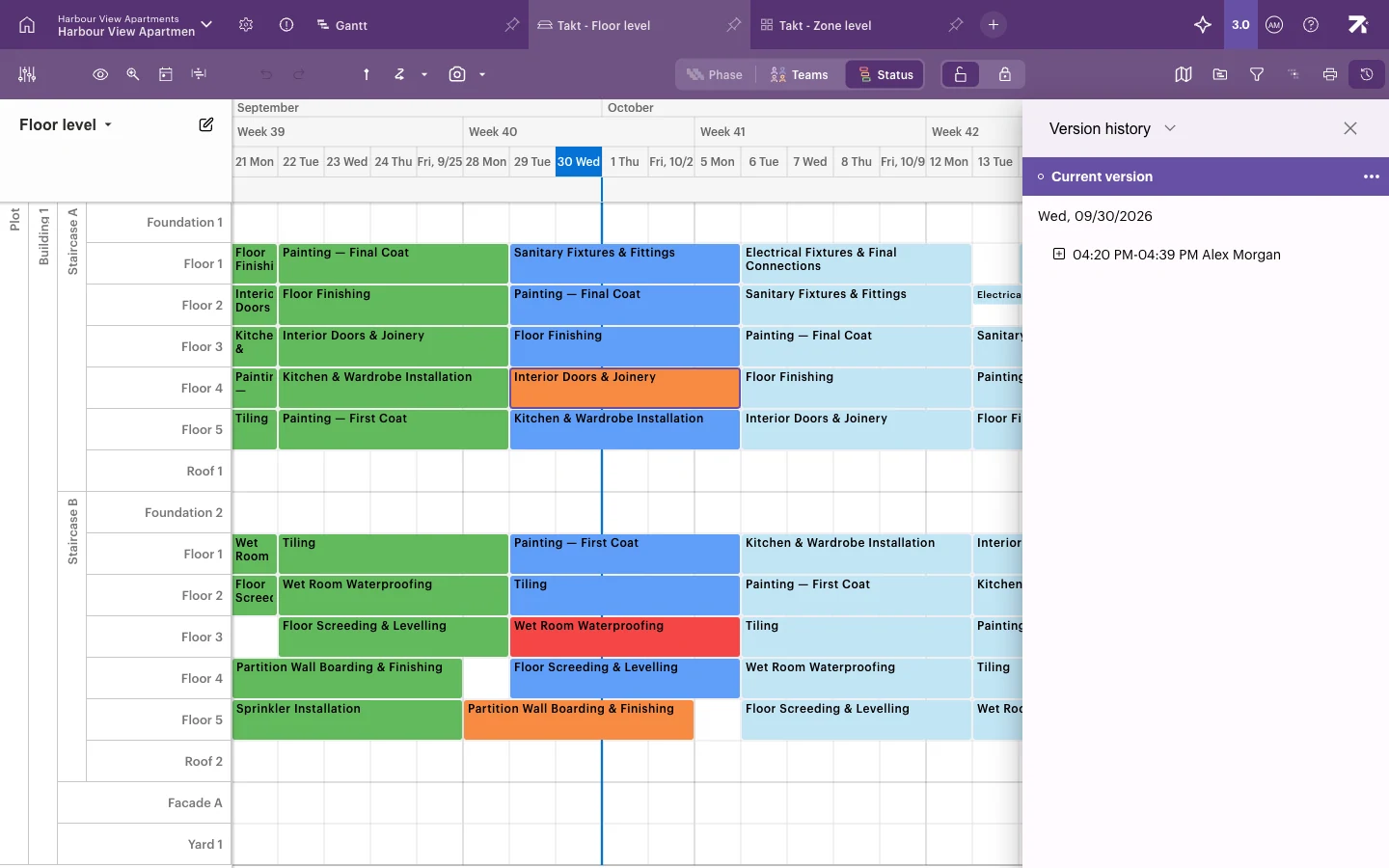
To see a list of individual changes instead, switch the panel title from Version history to Schedule changelog.
Select a change to preview the schedule as it was. Select Current version to go back. Nothing changes until you restore.
Name a version
Naming a version makes it easy to find later, for example “Agreed with client”.
- Open the menu (⋯) on the version.
- Select Name this version.
- Type a name and press Enter.
Named versions are listed under Named versions. To remove a name, select Remove named version.
Restore a version
- Open the menu (⋯) on the version.
- Select Restore this version.
- Read the confirmation and select Restore.
Important: Restoring affects all users and all views, and it also restores statuses. The state before the restore is saved as Version before restoration, so you can go back to it if needed.
Baselines
A baseline is a saved copy of the plan’s dates. Save one when the schedule is agreed or before a big replan. Then you can see how far the current plan has moved from it. See also Comparing progress to plan.
Before you start
- Anyone can show a baseline.
- Creating, renaming, updating and deleting baselines, and choosing the project default, needs the Schedule, Site or Account admin right.
Create a baseline
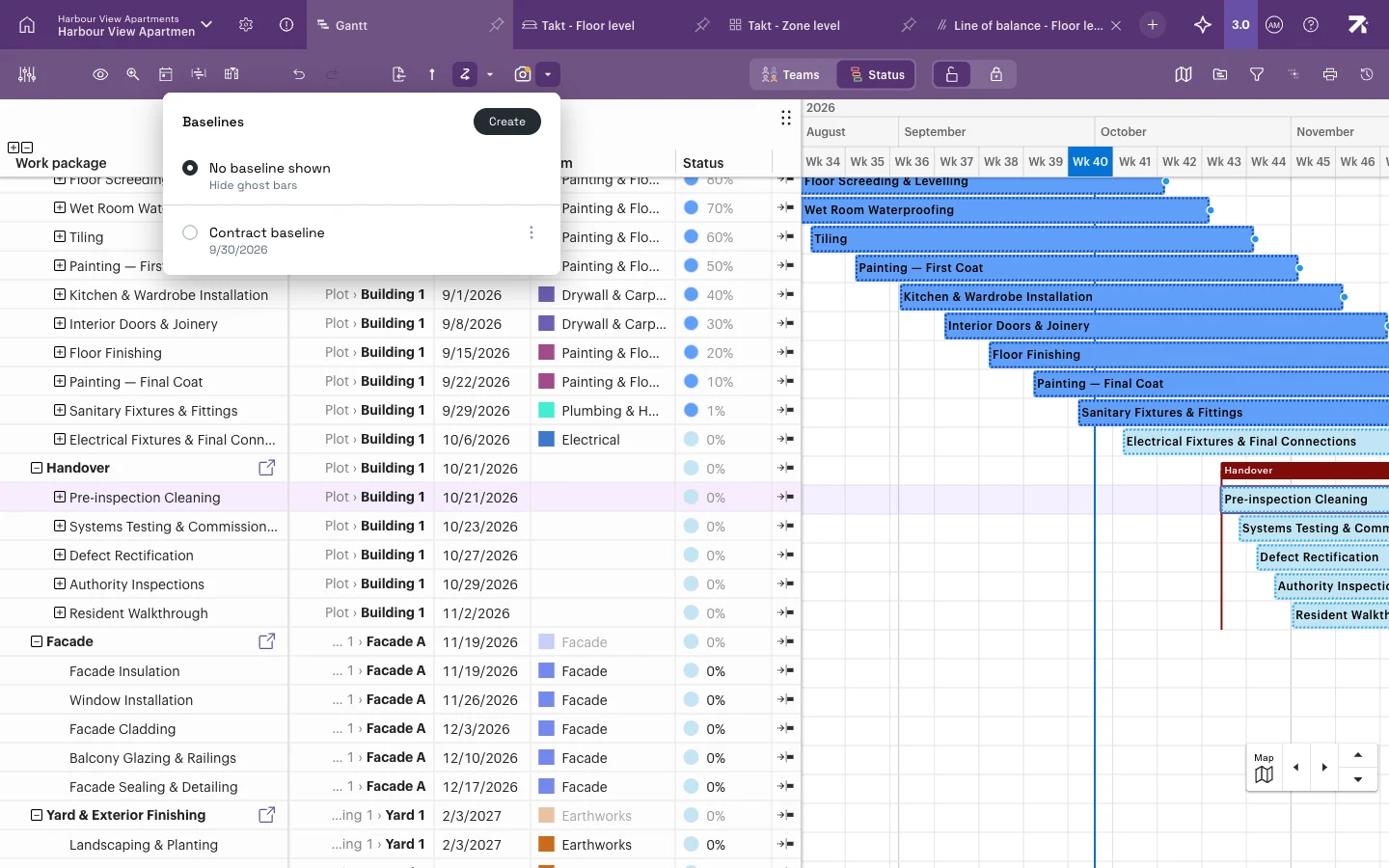
- In Gantt, select Choose baseline (the arrow next to the camera icon) in the toolbar. The Baselines menu opens.
- The first time, the menu says No baselines yet. Select Create first baseline. Later, select Create.
- Type a Name, for example “Contract baseline”, and select Save.
Show a baseline
- Open Choose baseline.
- Select a baseline from the list.
Grey ghost bars appear under the current bars. Where a bar has moved, you can see the difference at a glance. To hide them, select No baseline shown (Hide ghost bars).
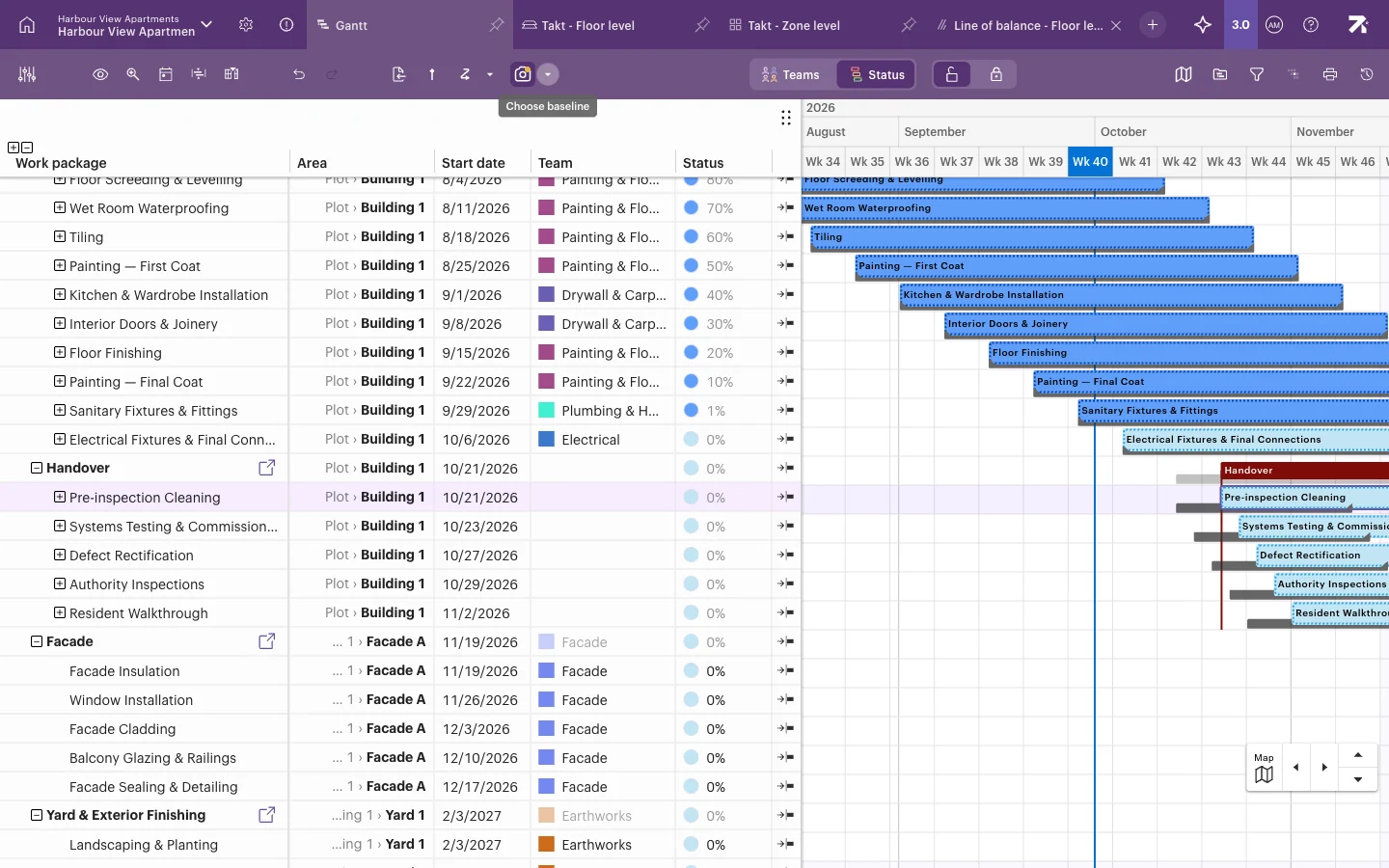 The grey bars show where work was in the baseline.
To see the differences as numbers, add the Baseline columns with Columns: Baseline start, Baseline end, Baselined, Start variance and Variance.
Create a baseline, choose it from the list, and the original timing stays visible as a grey ghost bar when work moves.
Manage baselines
Open the menu (⋮) next to a baseline to:
- Set as project default, so everyone who follows the project default compares against it. Personal selections stay unchanged.
- Rename or Delete it.
- Update to the current plan, to measure it from the plan as it is now.
- Point at a saved version…, to measure it from a named version in version history.
- See Details, such as work that is missing from or removed since the baseline.
Good to know
- Undo only covers your own changes in the current session. Use version history to go back further.
- You can’t edit the schedule while previewing an old version.
- Ghost bars are shown in Gantt.
- Each user can pick their own baseline, or use the project default.