
Every user on a site has access rights that decide what they can see and change. Rights are given per schedule, so the same person can report on one schedule and plan on another. This article explains each level and how ownership and team membership fit in.
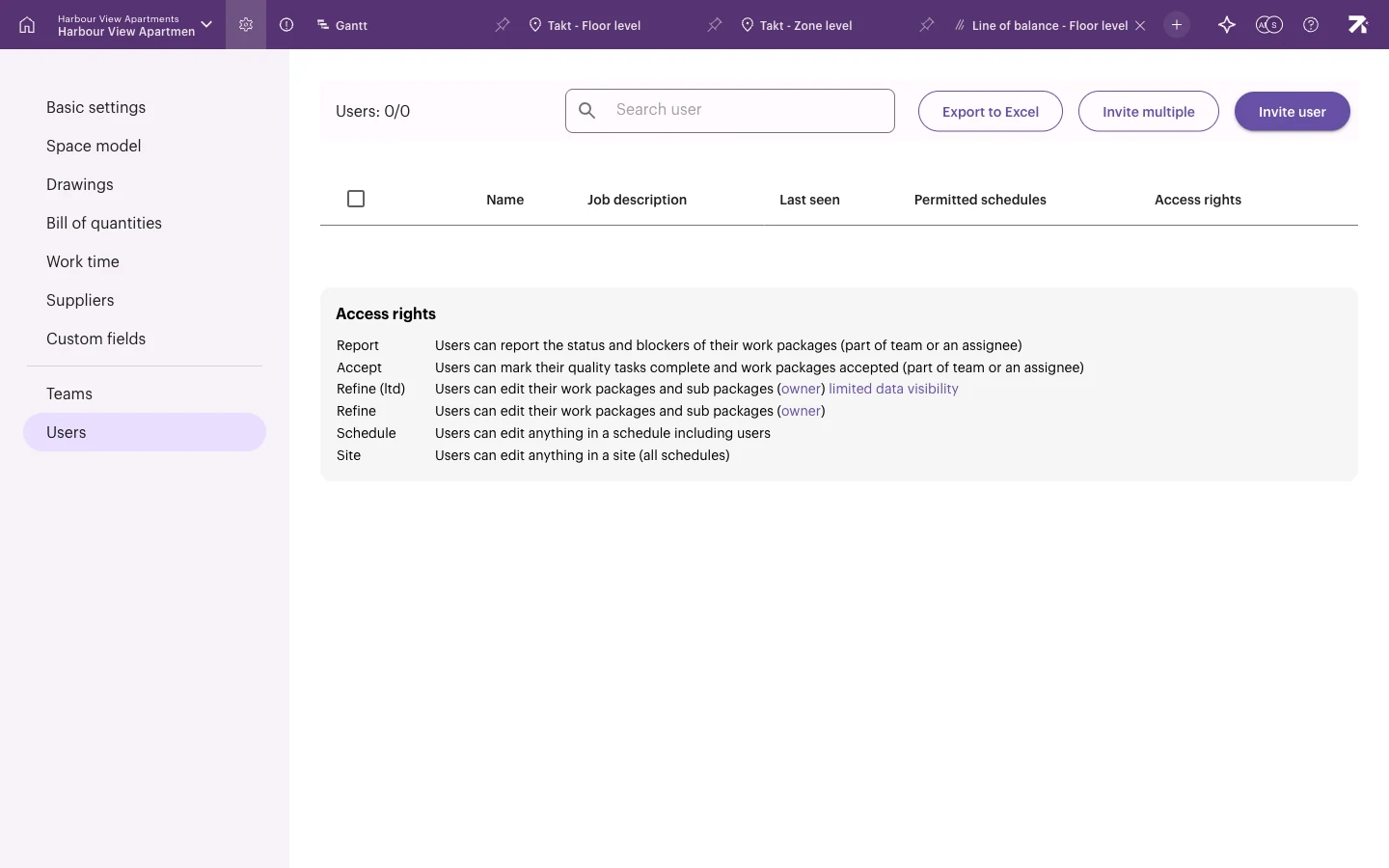 The Access rights summary at the bottom of Schedule settings › Users.
The access rights, from lowest to highest
| Access right | In the app’s words | Typical user |
|---|---|---|
| Report | Users can report the status and blockers of their work packages (part of team or an assignee). | Crew members, subcontractor workers |
| Accept | Users can mark their quality tasks complete and work packages accepted (part of team or an assignee). | Supervisors, quality inspectors |
| Refine (ltd) | Users can edit their work packages and sub packages (owner), with limited data visibility. | External subcontractor leads |
| Refine | Users can edit their work packages and sub packages (owner). | Foremen, trade leads |
| Schedule | Users can edit anything in a schedule including users. | Planners, project managers |
| Site | Users can edit anything in a site (all schedules). | Site managers, project directors |
| Account admin | Can see and edit all account information, including creating new sites. | Your Sitedrive administrator |
Each level includes everything the lower levels (the rows before it in the table) can do. Higher levels also carry down: a Site user has Schedule rights on every schedule of the site, and an Account admin has Site rights on every site of the account.
What “their work packages” means
The lower levels work only on work packages that are theirs:
- Team member or assignee – Report, Accept, Refine (ltd) and Refine users can report status, progress, blockers, issues, comments and photos on work packages assigned to their team or to them.
- Owner – Refine and Refine (ltd) users can edit a work package (dates, fields, sub-packages) only when they are its Owner. Ownership carries down: the owner of a sum work package owns everything below it. Set the owner in the Owner column of the Gantt table.
Being in a team lets you report on its work, but not edit it.
What each level adds
- Report – see the views shared with you, update status and progress, complete normal tasks, add blockers and issues, and comment. Report users can’t open settings or see deadlines.
- Accept – adds marking quality tasks complete.
- Refine (ltd) – adds editing work packages you own. You can browse the work package library and view the Teams page, but you can’t manage teams. New work packages you create are assigned to you as owner. Data visibility is limited (see below).
- Refine – like Refine (ltd), but you see everything, including deadlines. You can also view version history, add work to the library, manage teams (create, rename, recolour and delete them, and add or remove members and crew leaders), see the site’s user list and invite users up to Refine level.
- Schedule – full editing of one schedule: all work packages, location breakdowns, schedule settings, view settings, and creating and sharing views. You can manage users on that schedule.
- Site – Schedule rights on all schedules of the site. You can also create, duplicate, archive and restore schedules, edit the site and change its phase.
- Account admin – Site rights everywhere. You can also create sites and manage account settings, account users, schedule templates and work section libraries.
For the full list, see the Permission matrix.
Limited data visibility (Refine (ltd))
Refine (ltd) suits subcontractors who shouldn’t see everything. A Refine (ltd) user:
- can’t see deadlines
- can’t see the site’s user list; other users appear hidden
- can view the Teams page but can’t create, rename, recolour or delete teams, or add or remove members or crew leaders
- sees all details of work packages they own
- sees only area, owner, colour, start date, end date, durations, team and status on other work packages
- can’t see settings pages such as the space model, location breakdowns and work time.
Views and mobile by role
- Schedule, Site and Account admin users can open every view. Everyone else sees only the views shared with them, as tabs they can’t close. See Sharing views and locking settings.
- In Sitedrive Mobile, Report users get My next work, My late work and All work. Accept users and higher also get Schedule and Issues. See Who sees what on mobile.
Give or change access rights
Schedule and Site users (and Refine users, up to Refine level) manage rights in Schedule settings › Users. See Teams and people. Account admins are managed in Account users.
Good to know
- Nobody can edit an archived or read-only site.
- Status reporting isn’t possible while a site is in the Planning phase, and Sitedrive Mobile doesn’t open the site. Move the site to the Production phase to start reporting. See Creating a site.
- Only Site users and Account admins can create or archive schedules. Schedule rights are not enough.
- The Edit lock in the toolbar is a personal safety switch, not a role. It stops accidental edits but still lets you report progress.